
Introducing Arrows Agent blocks
The Agent block is an AI powered dynamic content block that generates personalized, deal-specific content directly inside your sales room based on what is happening during your sales process.
What is an Agent block?
Think of the Agent block as your personal AI assistant. Instead of you writing custom content for every buyer, it can generate content for you.
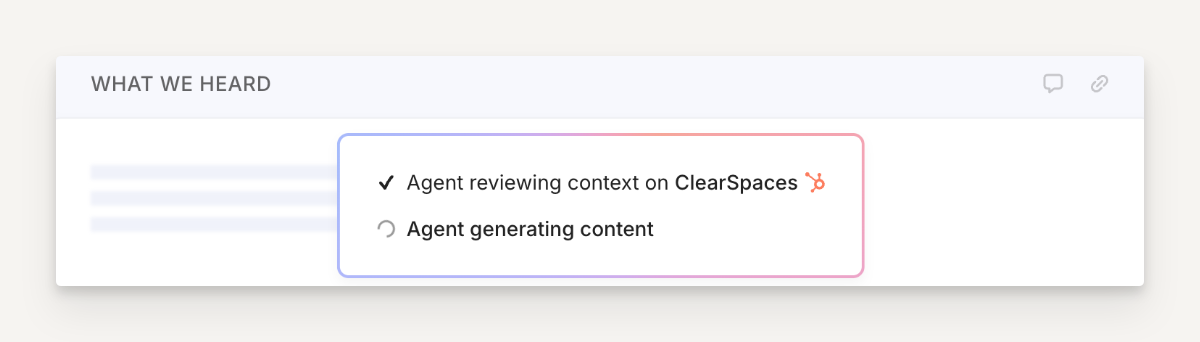
In real-time, it is able to read your call transcripts, emails, and notes from your CRM AND your resources saved in Arrows - using all of that context to create and update your content.
You give the block a plain-language prompt with instruction about what to display, and it handles the rest.
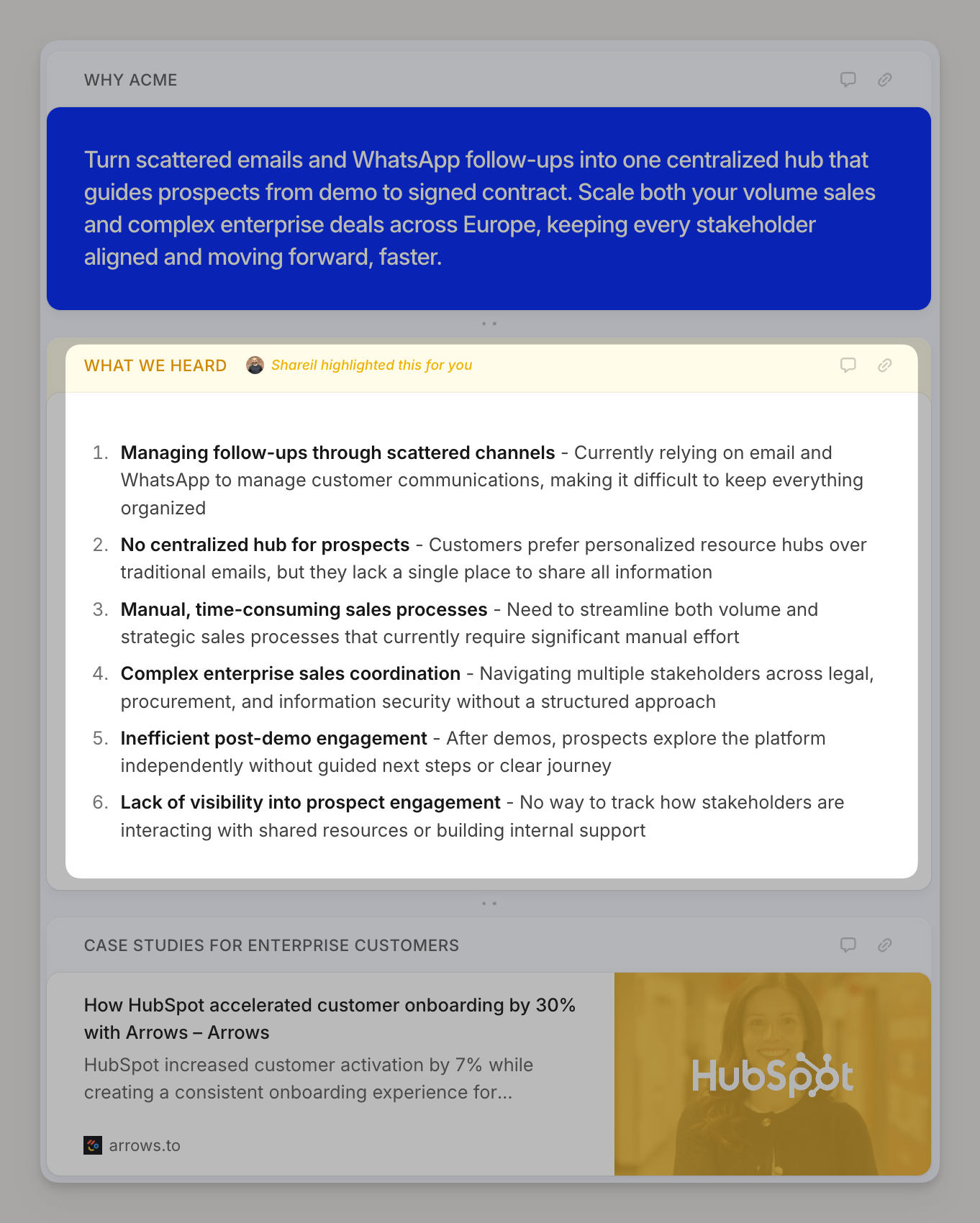
The result is a fully personalized section in your room that feels like it was hand-crafted for that specific deal.
How it works
The block draws from multiple sources of information about your deal in your CRM:
Transcripts: Call transcripts from your demo and discovery calls
Emails: Emails exchanged with the buyer
Notes: Notes your team has added to the deal
The block can also draw context from your pre-saved resources in Arrows added by your team.
Once added to the room, the block generates content the moment it has enough signal. As new transcripts or notes are added, the content updates automatically.
And once new content is ready, you can set it so your team approves the changes or automatically update the changes on its own!
How to set up an agent block
When adding a new block, select the Agent block
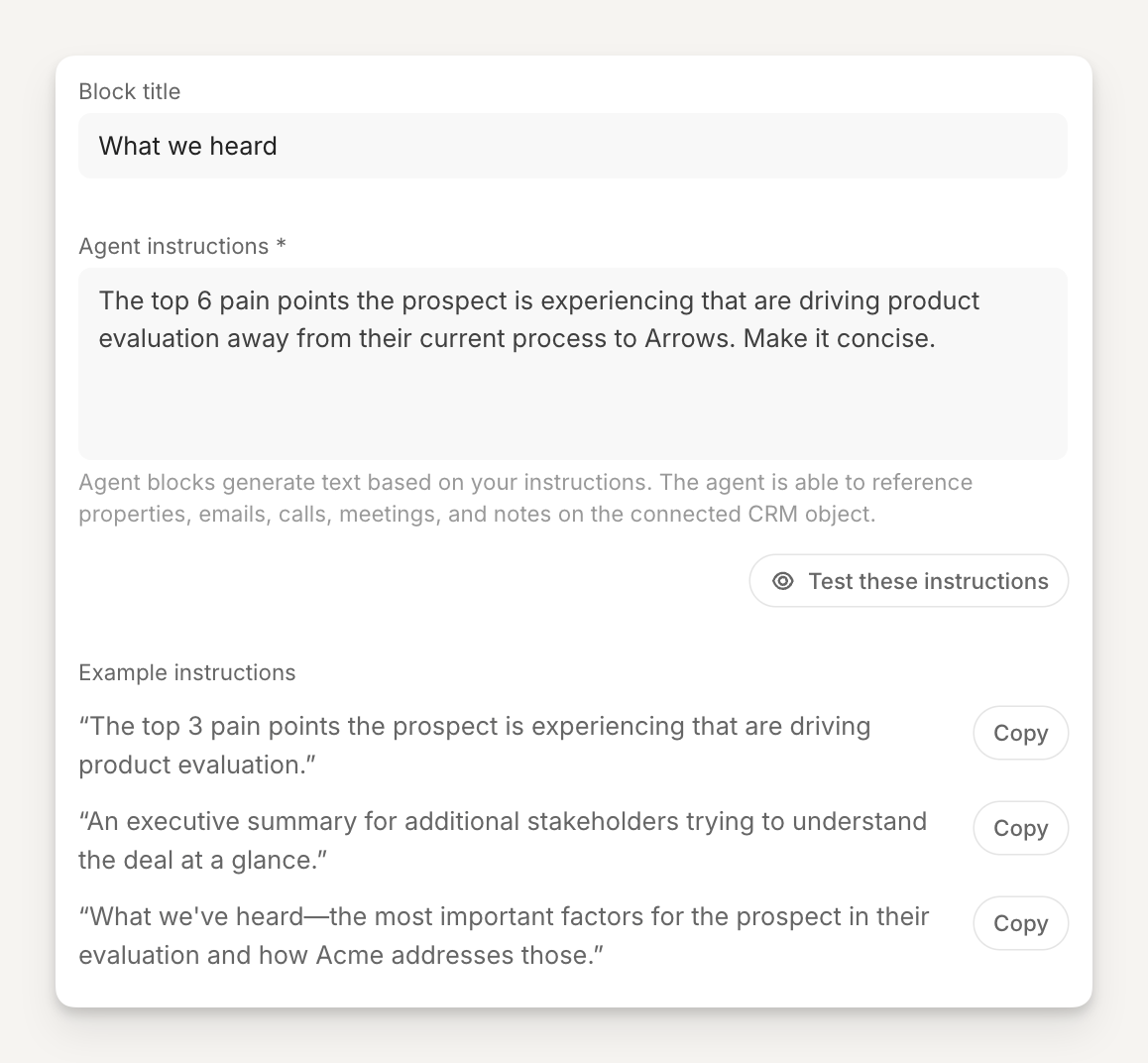
Give the agent instructions - this can be as simple as a single sentence, or as detailed as you want the output to be.
💡 You can test your instructions against live deals or take inspiration from some example instructions
Configure behavior
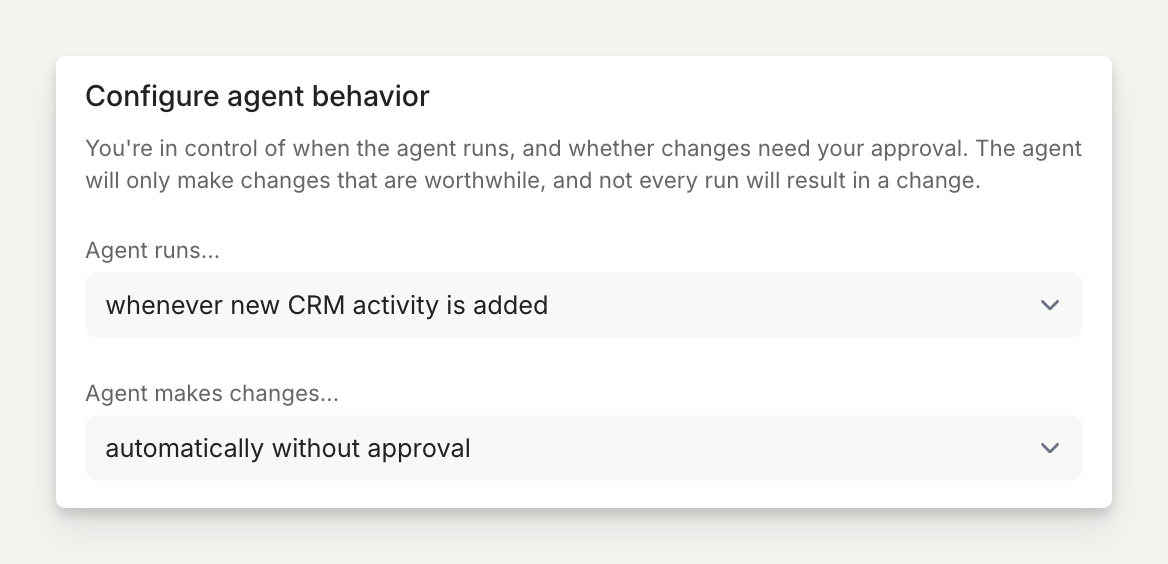
Tell the agent when you want it to run or whether it needs your approval to make changes.
Agent runs...
at block creation
whenever new CRM activity is added
Agent makes changes...
as suggestions requiring approval
automatically without approval
Before you start using Agents
Make sure the following are in place before adding an Agent block to your room:
At least one call transcript has been added to the deal (via your meeting recorder integration or manual upload)
Your room is connected to the correct deal or CRM record
Example Agent blocks
Here are detailed instructions for Agent blocks we've seen work well for ourselves and our customers