
Salesforce package post-install instructions
Instructions for connecting Arrows and Salesforce after installing the Arrows package
Installing for the first time?
After installing the Arrows package for Salesforce, we need one final step to connect Arrows and Salesforce.
Open your Salesforce organization
Find the Arrows Integration Setup in the Salesforce App Launcher. Note: you may need to be a Salesforce admin to see this.
Click the Connect Salesforce + Arrows button
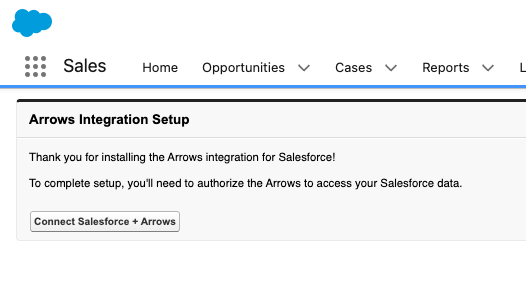
You will be prompted to allow Arrows to have secure access to your Salesforce data. Arrows will use this connection to sync data between your Arrows plans and rooms and your Salesforce account
You should be taken back to the Arrows app to see instructions for setting up the Arrows cards within Salesforce so you can get the most out of Arrows.
You can close the “Arrows Integration Setup” page in Salesforce after connecting.
Upgrading the app?
If you’re upgrading the Arrows package, there are no additional steps needed.