
Arrows plan updates in HubSpot activity Timeline
You can send and engaged with plan notifications directly into HubSpot activity Timeline on the Deal or Ticket that the plan is associated with. Follow the steps in this article to turn on this setting in Arrows, select your desired notifications, and turn on the notifications in HubSpot.
You can receive plan notifications directly inside of the HubSpot activity timeline on the associated record for that onboarding plan!
From there, you can see all the details by expanding the notification, or click right into that specific task, comment, or plan!
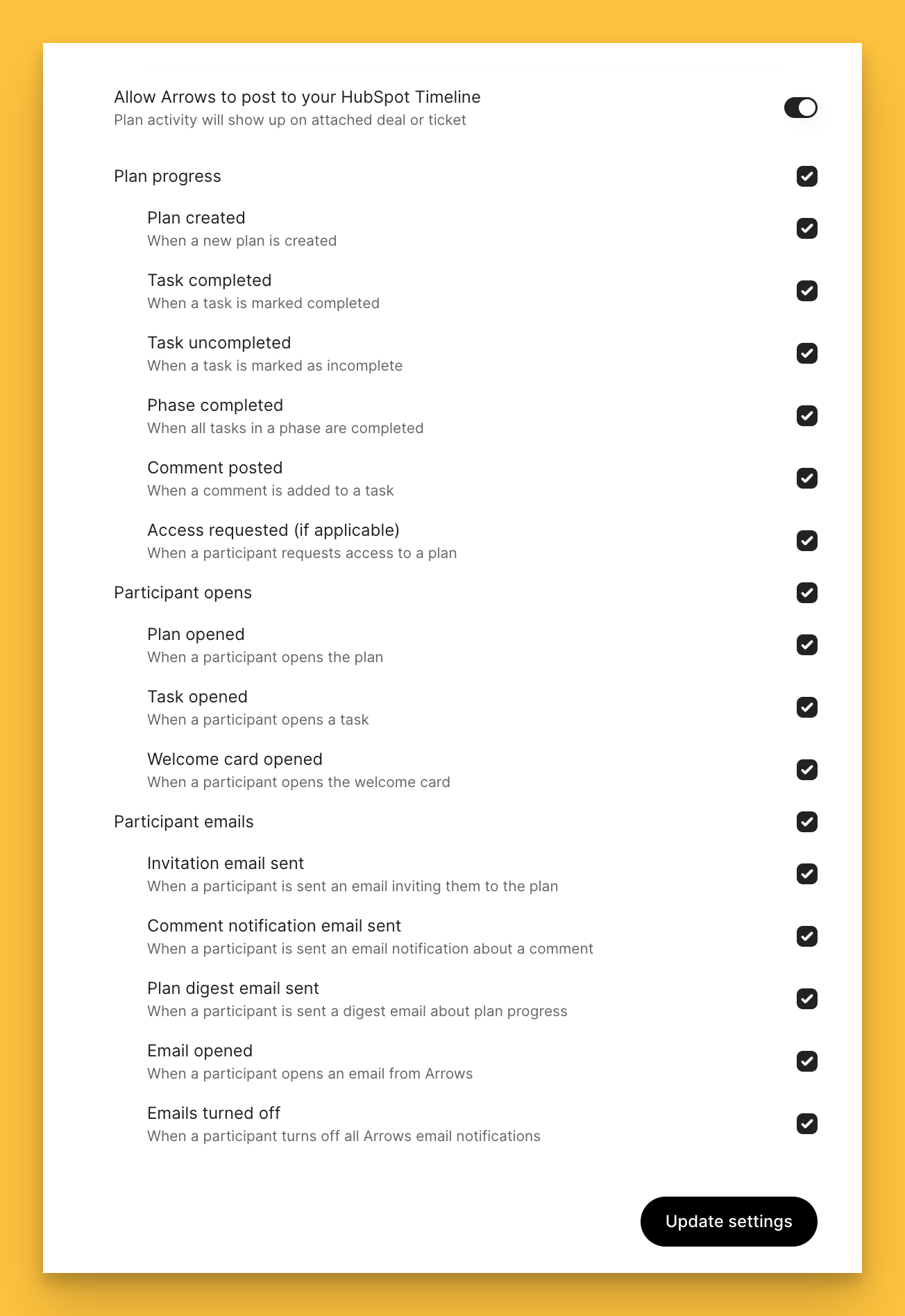
Customize these notifications, so that you only get notified about topics that matter to you!
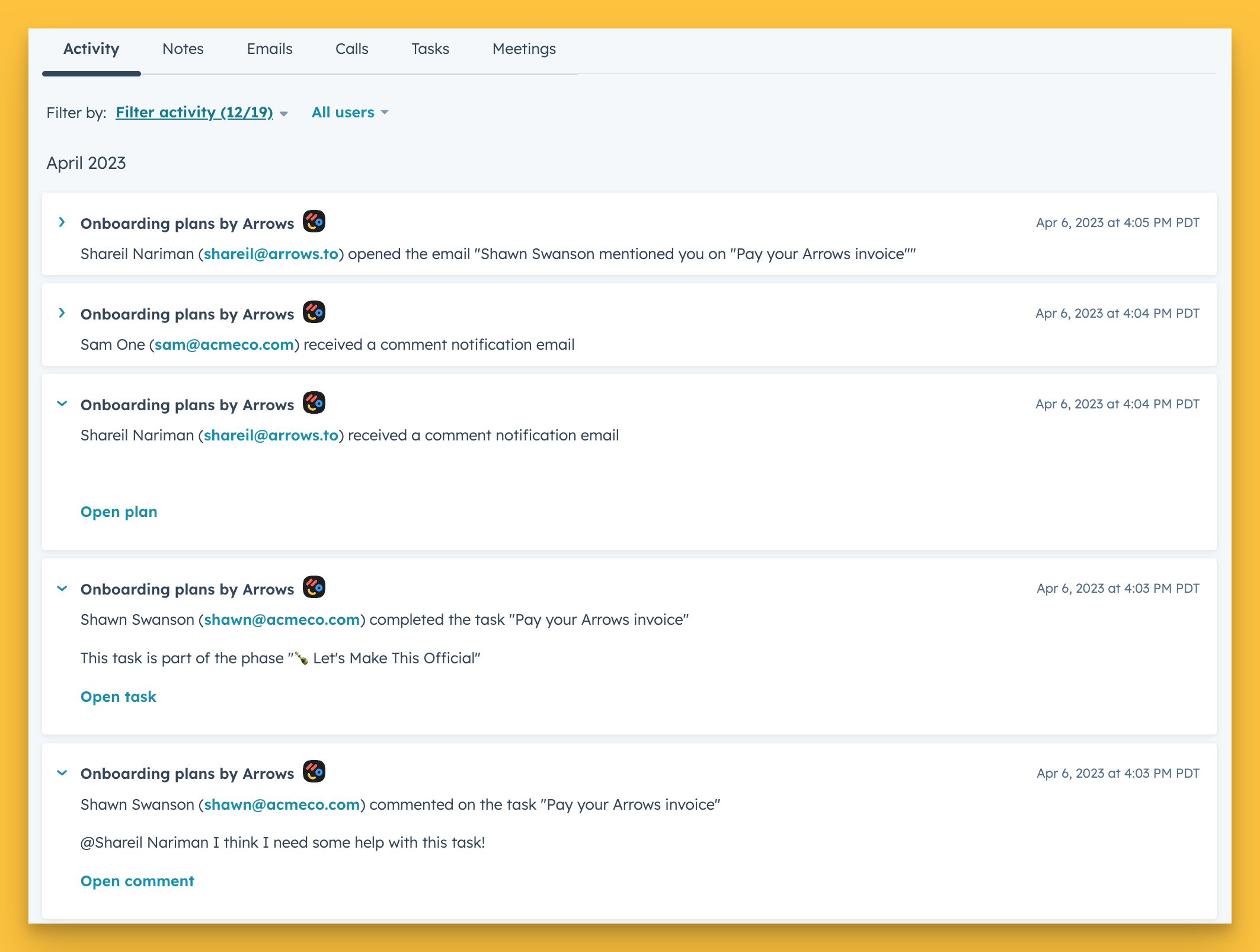
Turn on the Timeline notifications in your Arrows settings
Click here to jump to the Timeline settings page inside of Arrows.
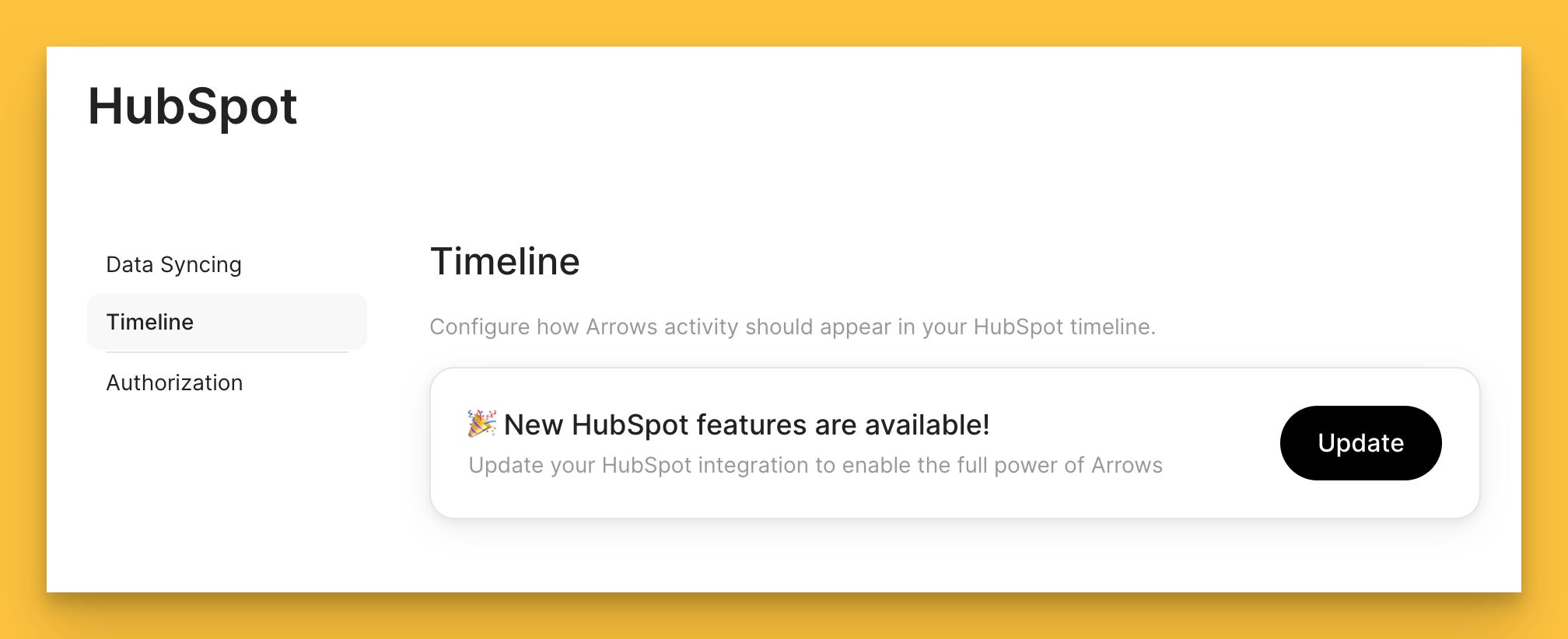
Depending on when you last authenticated Arrows and HubSpot, you may need to update the authentication to allow Arrows to send notifications into HubSpot.
If that’s the case, you’ll see this message and finish the process when you click Update.
If the authentication is up to date, you’ll see the option to customize your notifications.
Be sure to hit Update settings once you selected your desired notifications!
Turn on the notification settings in HubSpot
Once you have updated your settings on the Arrows side, you’ll want to do the same in HubSpot.
Open any Deal or Ticket that has a plan attached to it and…
Click on the Activity tab under the Activities section in your timeline
Select Filter activity
Check the Onboarding plans by Arrows option under in the filter activity menu
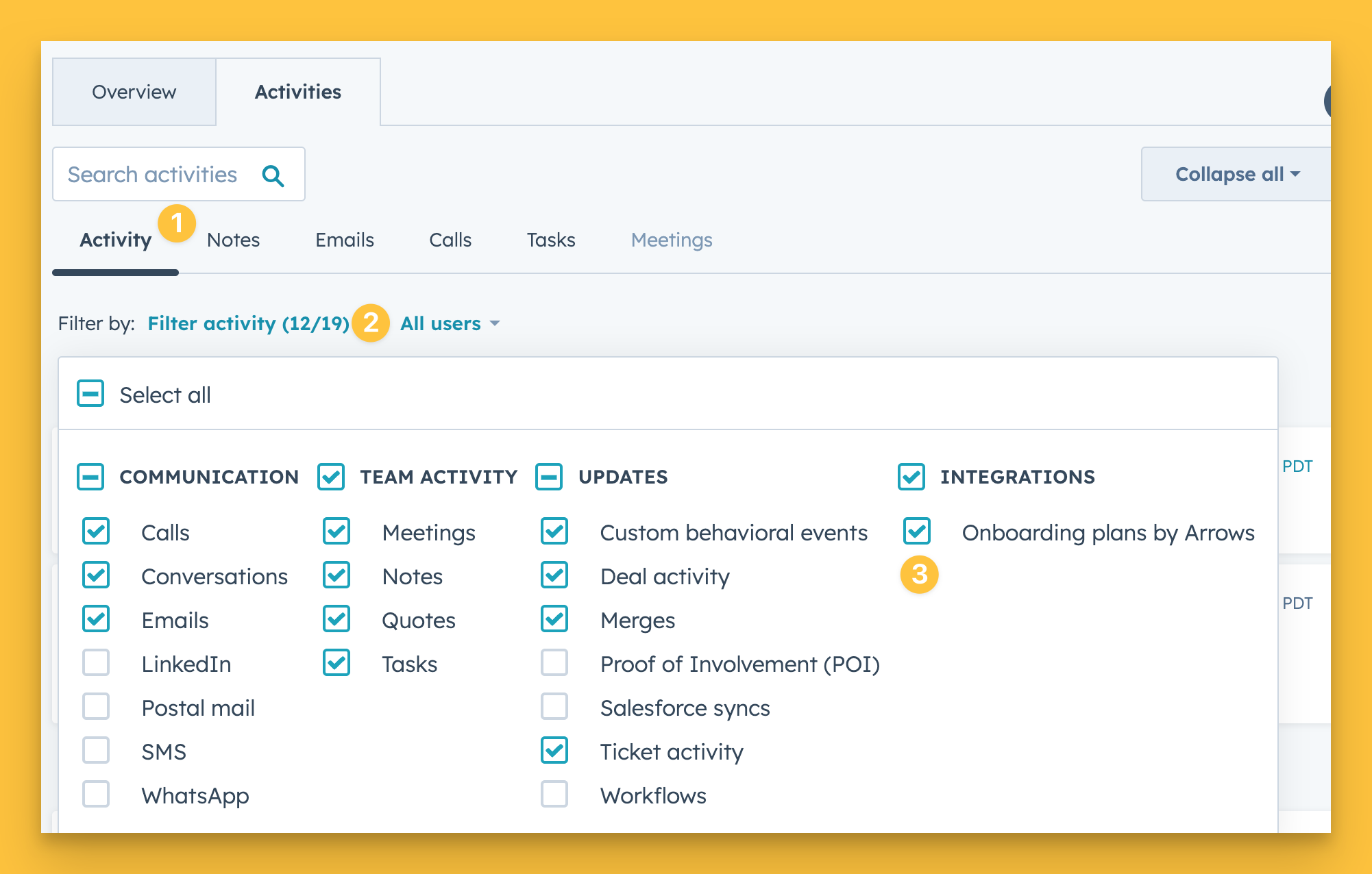
These plan notifications will be associated with the Deal or Ticket that the plan is attached to during the time when the notification was created.
If a plan is moved to a new Deal or Ticket, the notifications will remain on the originally associated record, and all new notifications will appear on the newly associated record.