
Locating and using the Arrows card inside HubSpot
A walk-through for locating, reading, and taking action on your customer-facing plans without having to leave HubSpot
You will be able to access the Arrows CRM card from inside of your HubSpot Deals and/or Tickets!
This card is the command center for your customer-facing plans.
You can create plans, edit them, and quickly glance at the progress being made without having to leave HubSpot.
1. Locating the Arrows card in HubSpot
Inside HubSpot, create a Deal or Ticket and locate the Arrows card.
It might be at the very bottom of the right-side column in your account, step 2 shows you how to move it if you want!
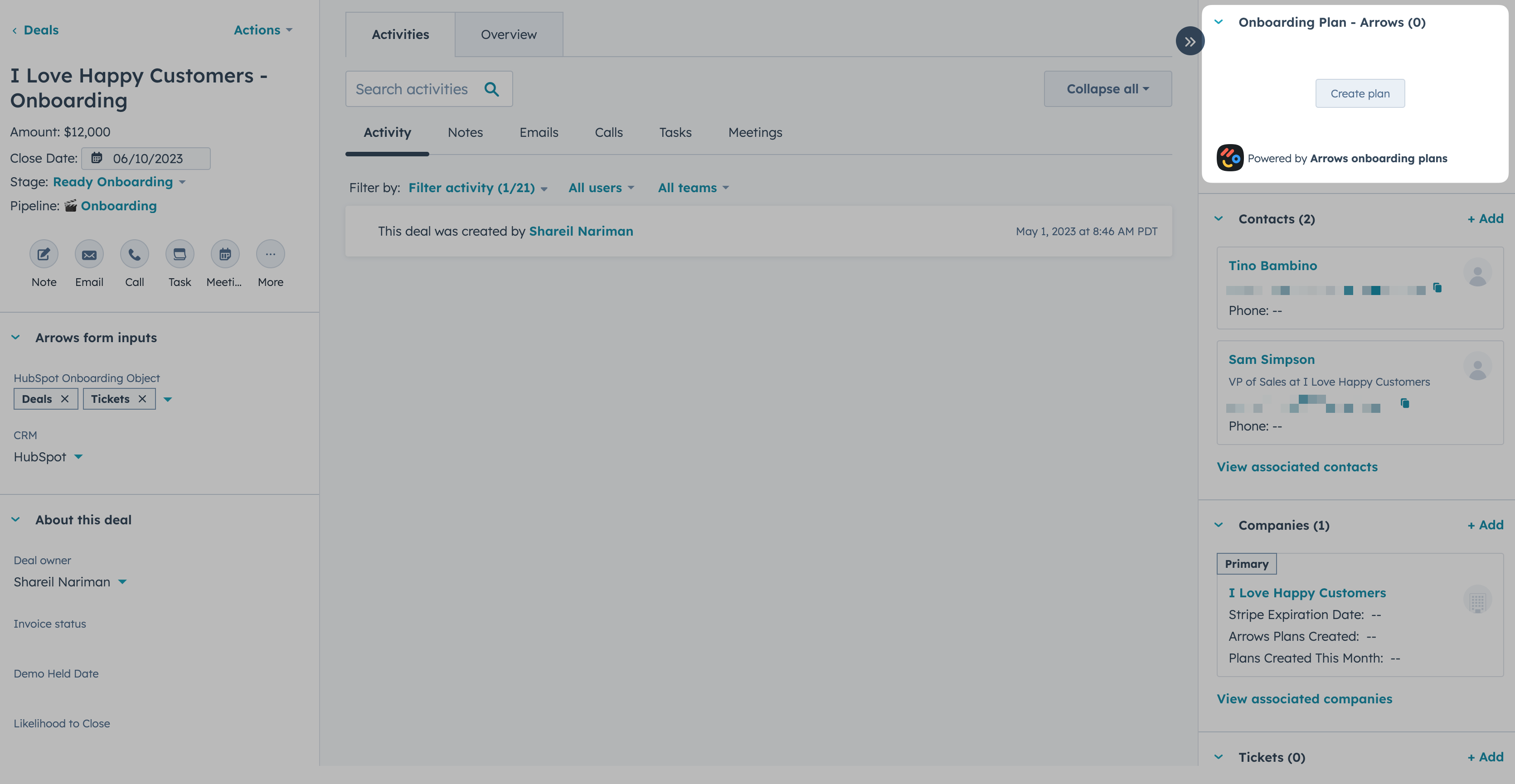
2. Move the Arrows card to make it easier to view
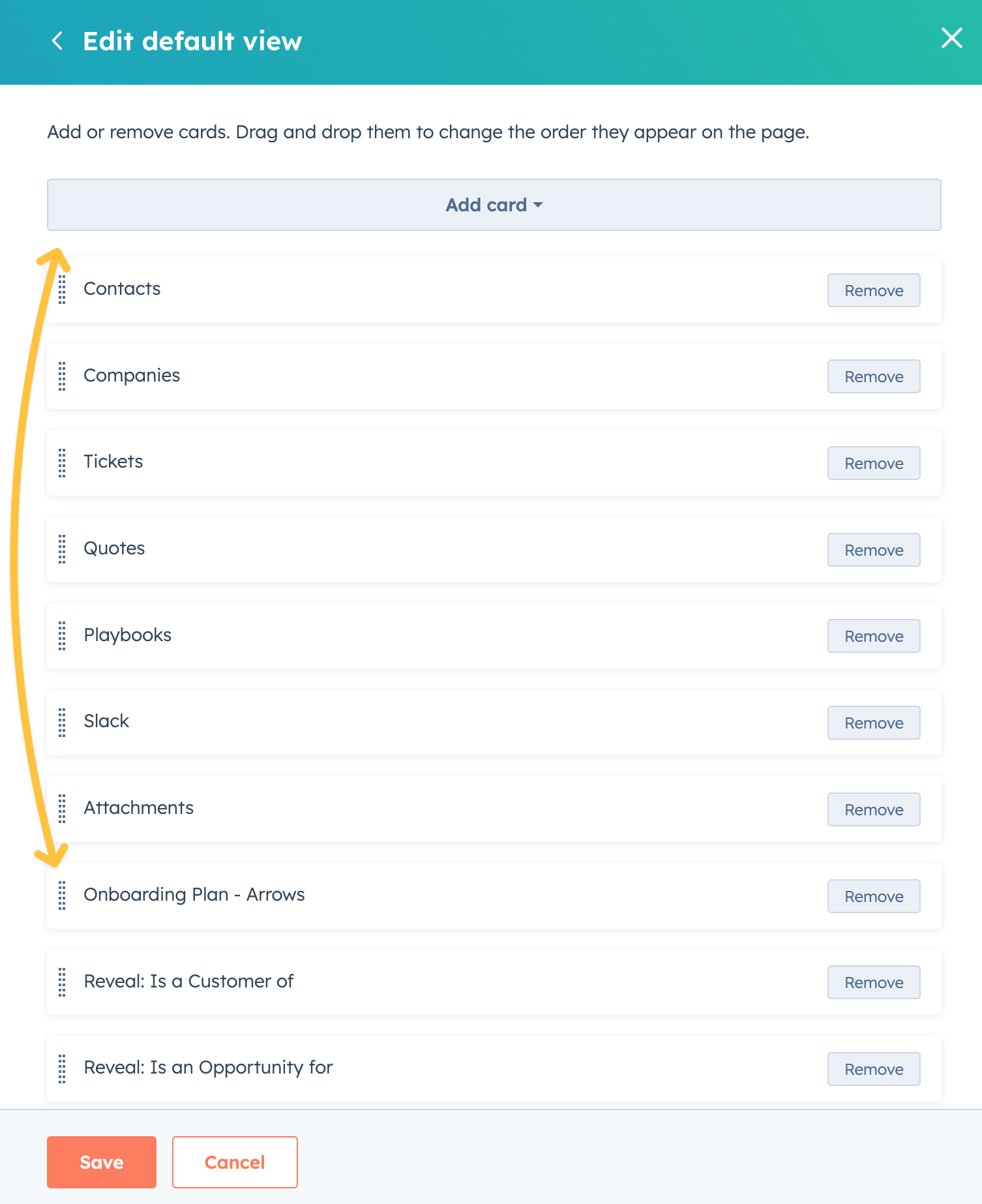
You can customize where this Arrows CRM card is on the right-side column so that it is easier to reference the next time you open that onboarding Deal or Ticket.
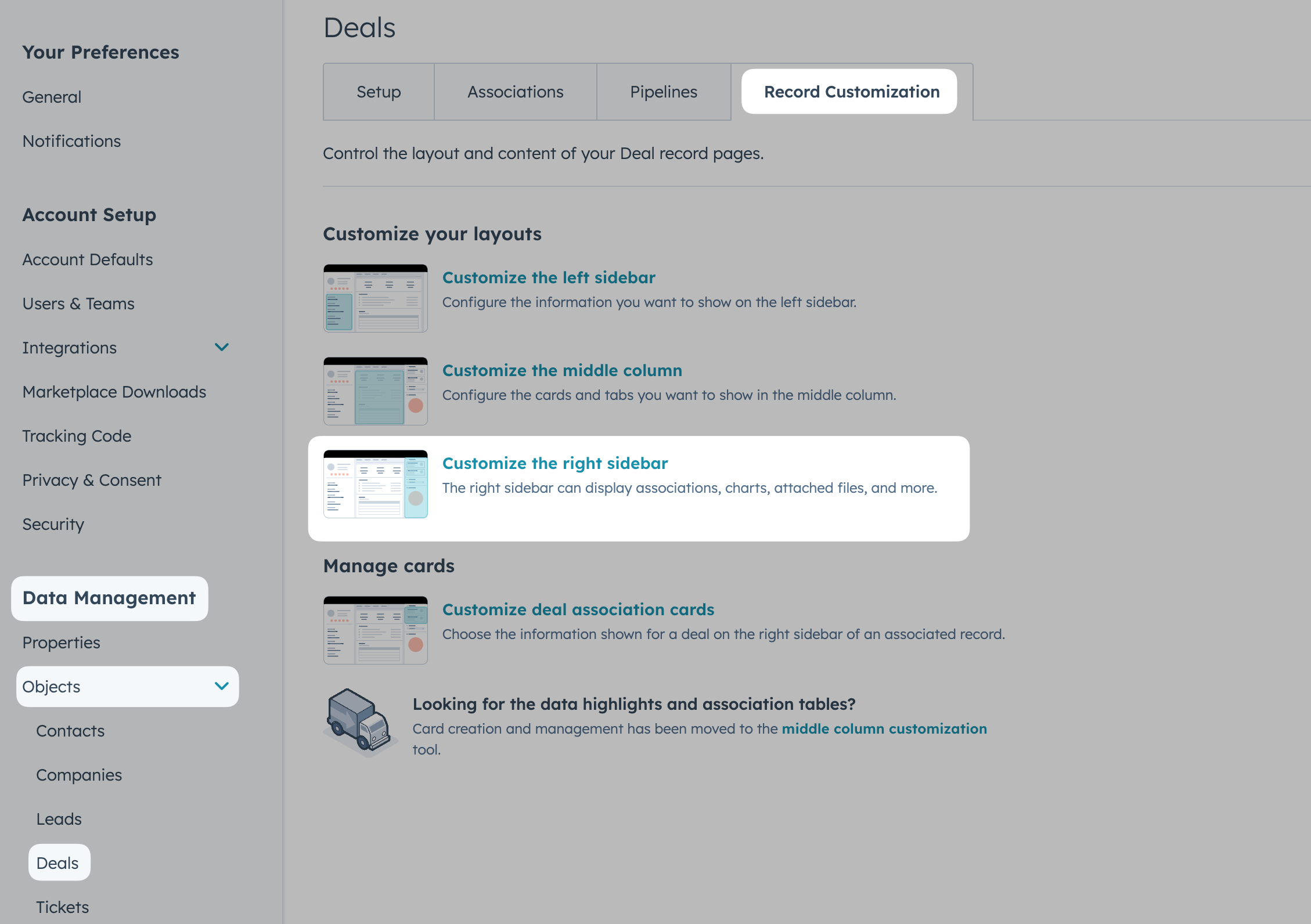
From your HubSpot settings, select the object you’re using (Deals in this example) and from the Record Customization tab, select Customize the right sidebar
Select the default view and adjust the position of the Onboarding Plans - Arrows card
Be sure to hit Save!
3. Use the card to view plan progress
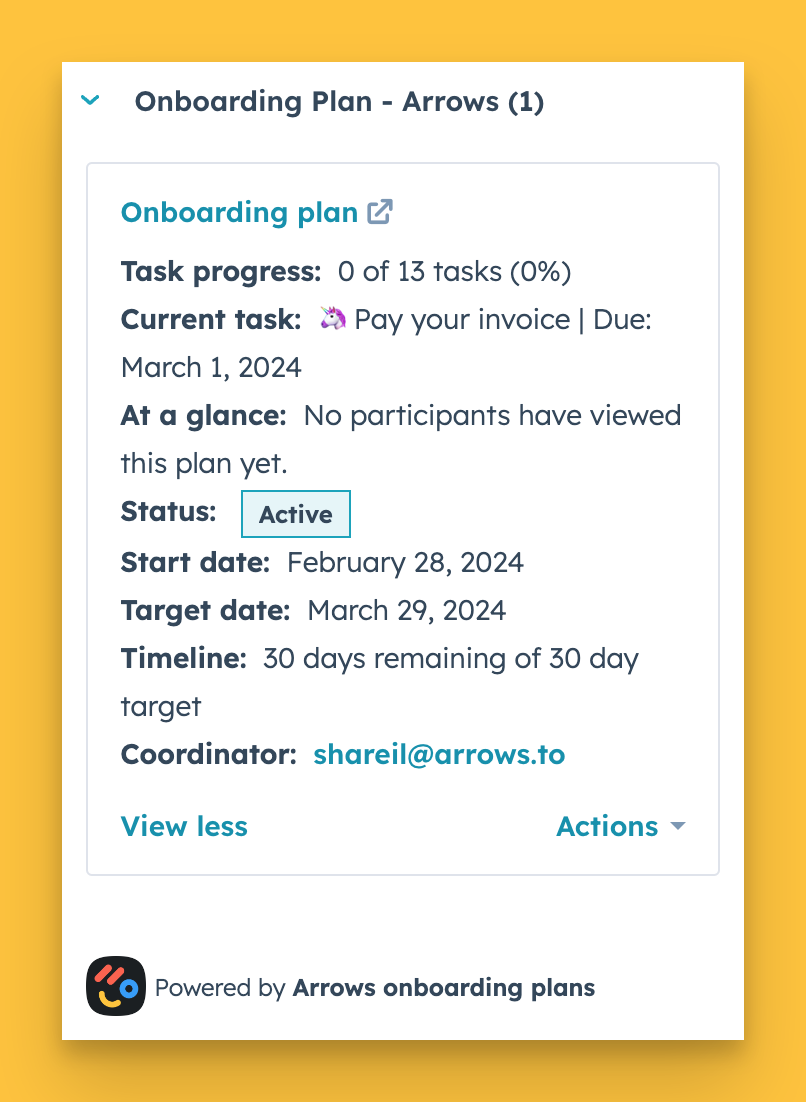
Select Create plan and follow the according steps to create a plan - learn more here Once a plan has been created, the Arrows card is an easy place to monitor that customer’s progress. You can also open the plan, glance at a plan overview, and gauge progress towards your timeline, right from HubSpot.
4. Update your customer-facing plans without leaving HubSpot
The Action dropdown menu lets you control the plan directly from within HubSpot.
You can view the plan, update the status, share it with more participants, and delete it directly from the Deal or Ticket!
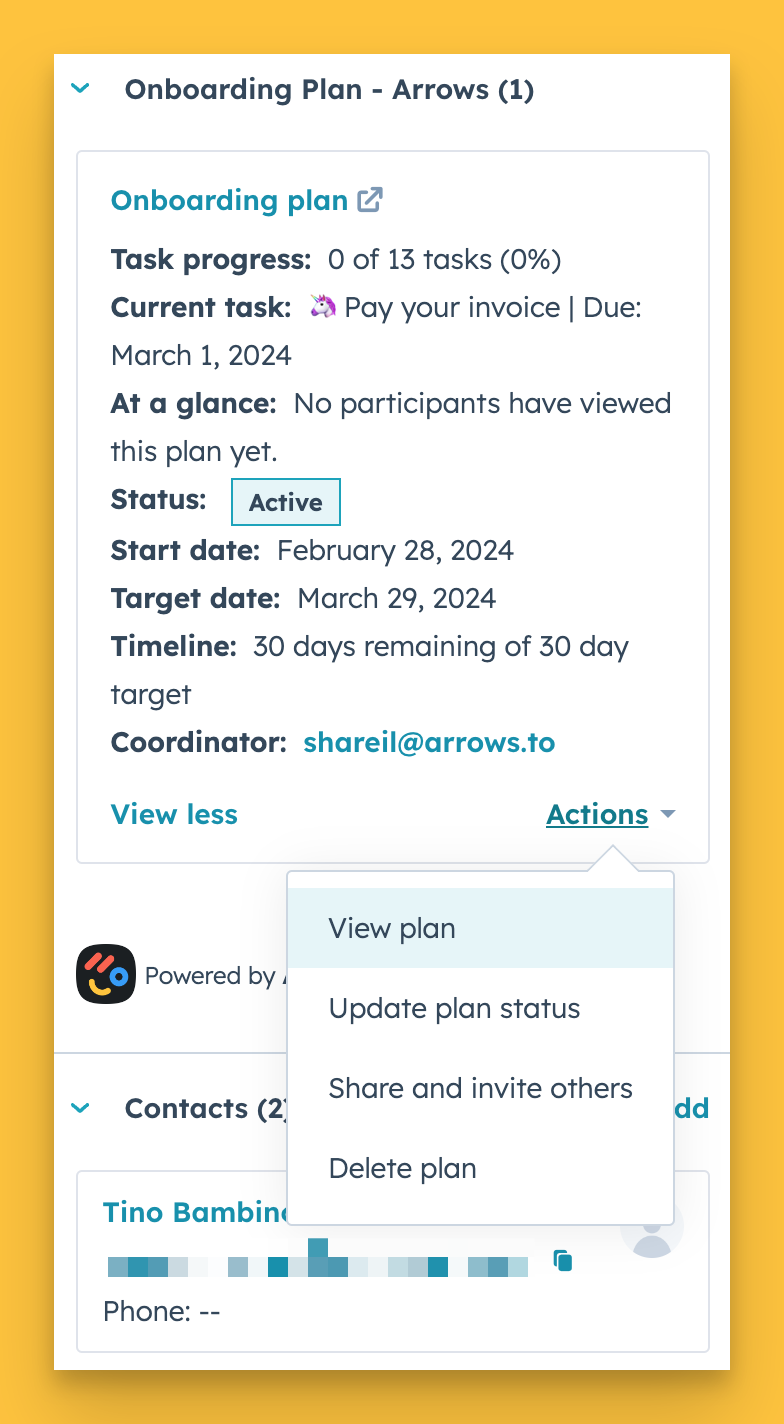
This Arrows CRM card should allow you to get a peek into what's happening in the customers onboarding plan and easily access the plan itself to take action!