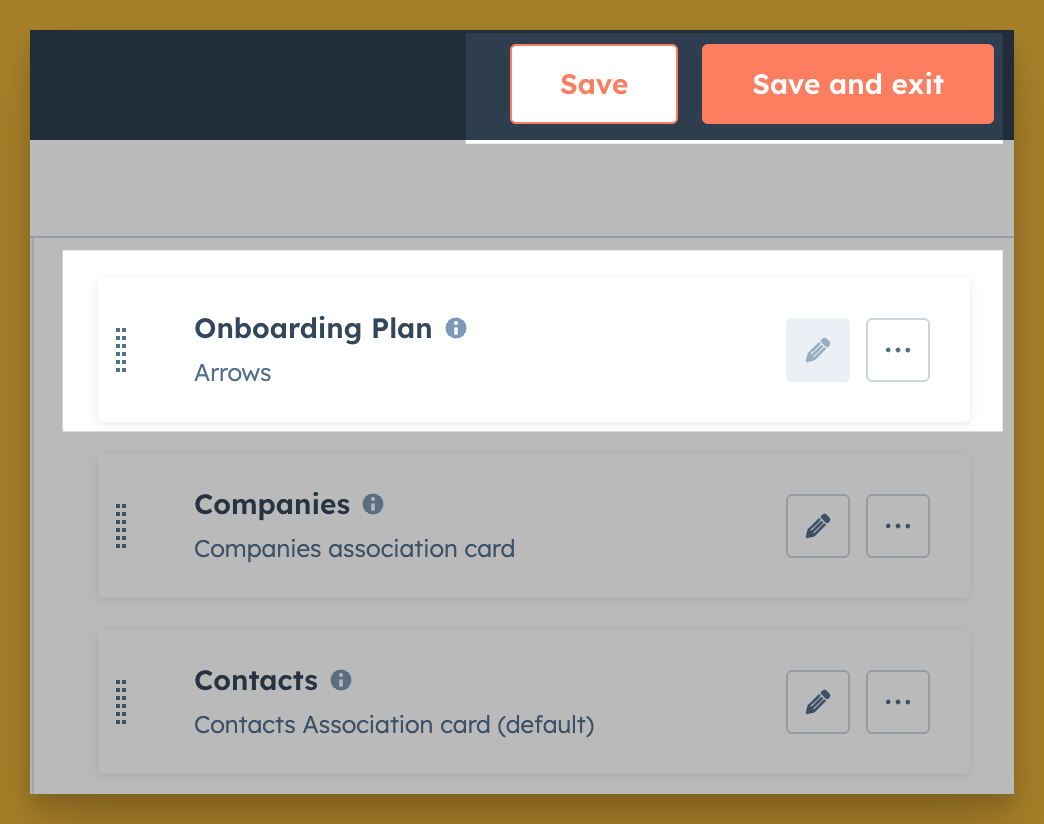
Access the Arrows CRM cards
Directions for displaying Arrows CRM cards in HubSpot
The Arrows CRM card in HubSpot is your control center to create onboarding plans or sales rooms!
They allow you to view progress, take action and access your onboarding plans and sales rooms without leaving HubSpot
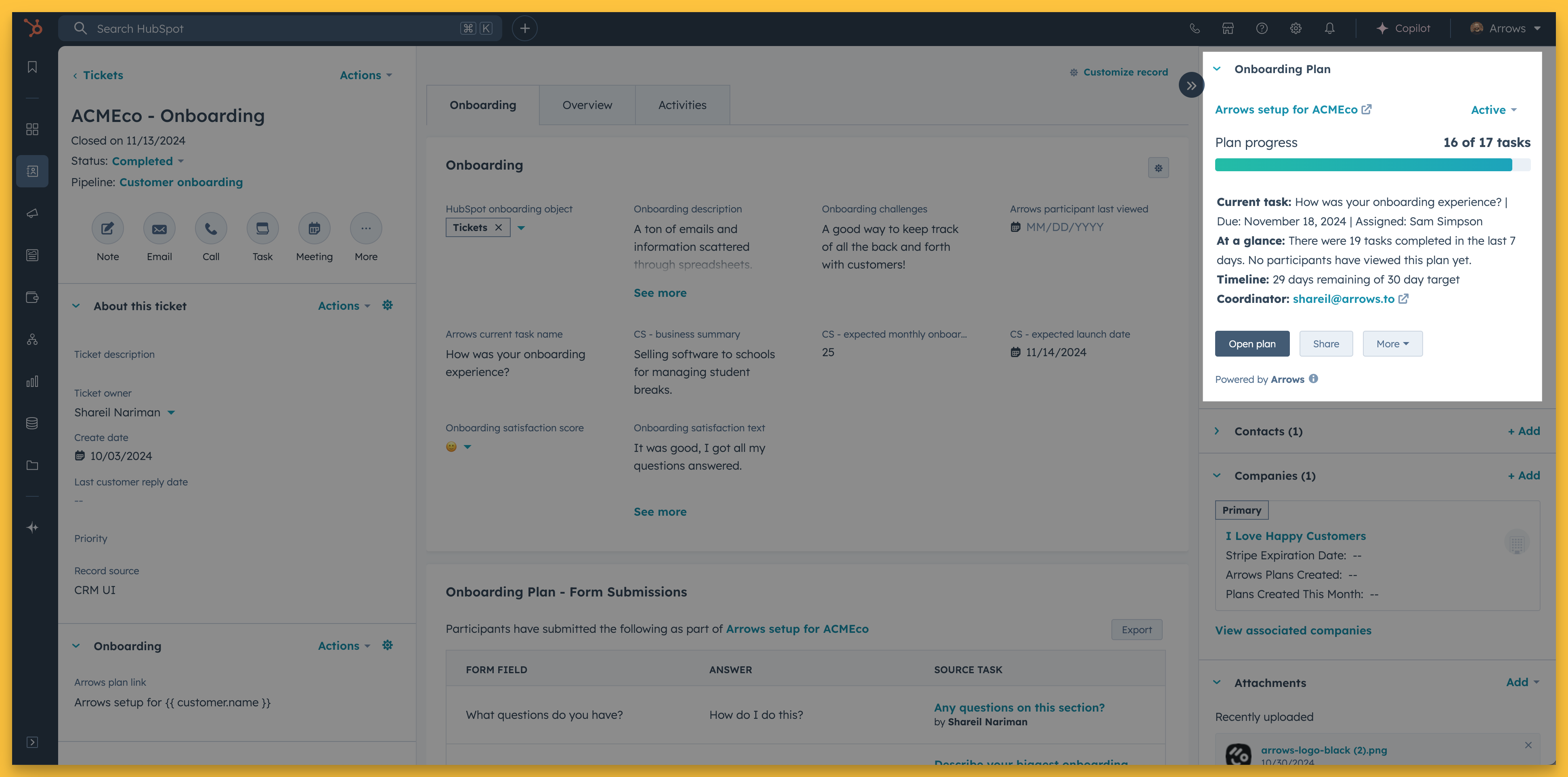
This guide will walk you through the setup process.
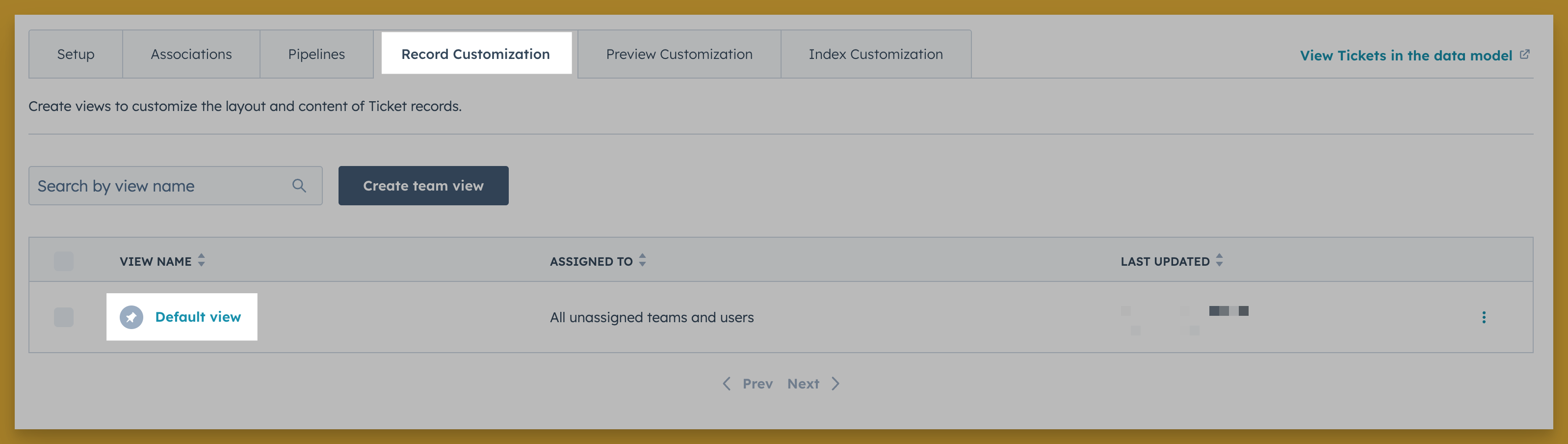
Customize your record
From the settings for the Object you use to manage onboarding (tickets in this example), select the Record Customization and then the the view if applicable (Default view in this example)
Note: you may need your HubSpot admin or someone with the right permissions to access this
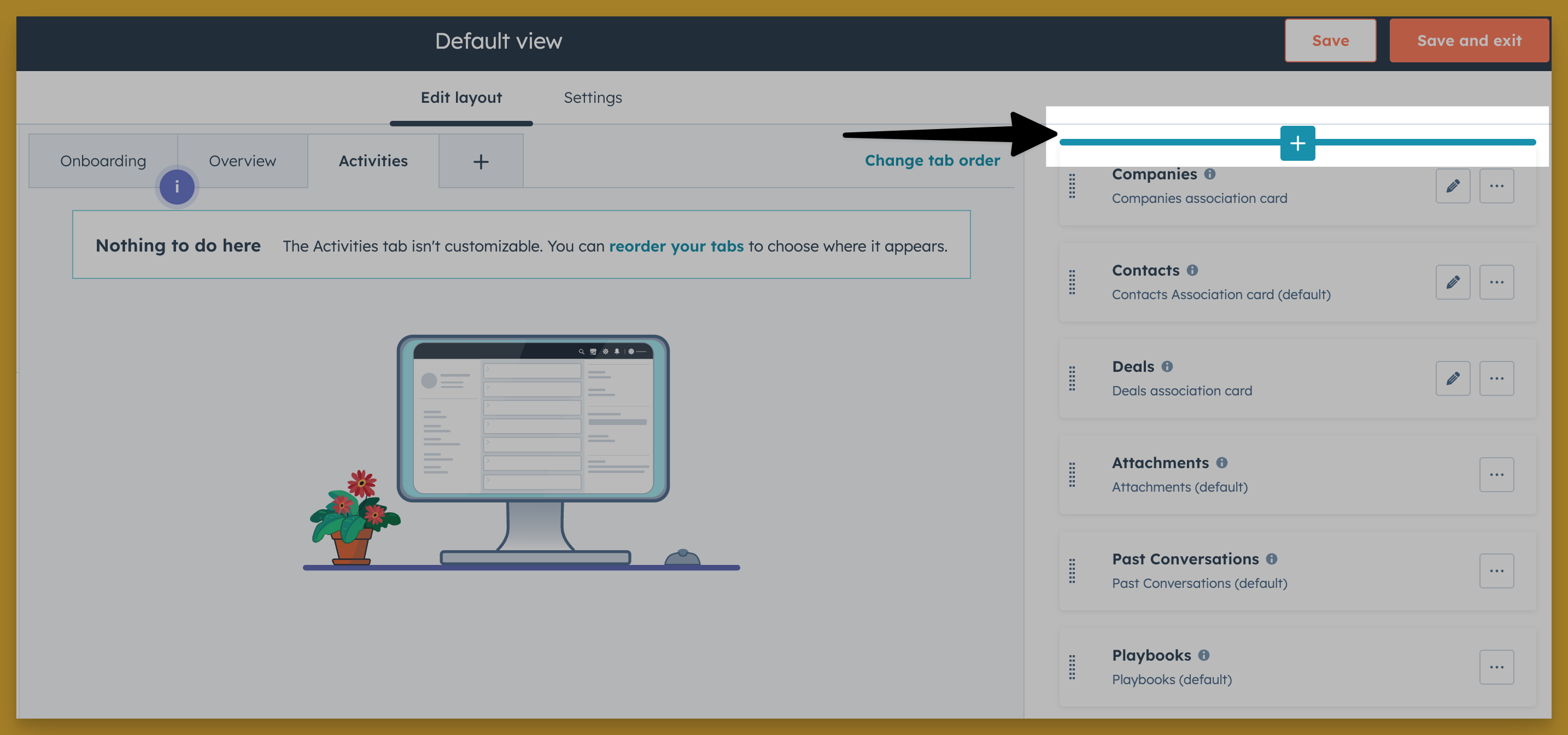
Customize the right sidebar
The Arrows CRM cards lives in the right sidebar.
Hover your mouse and select the + sign to add the cards.
Add the Arrows Onboarding Plan and or Sales room cards
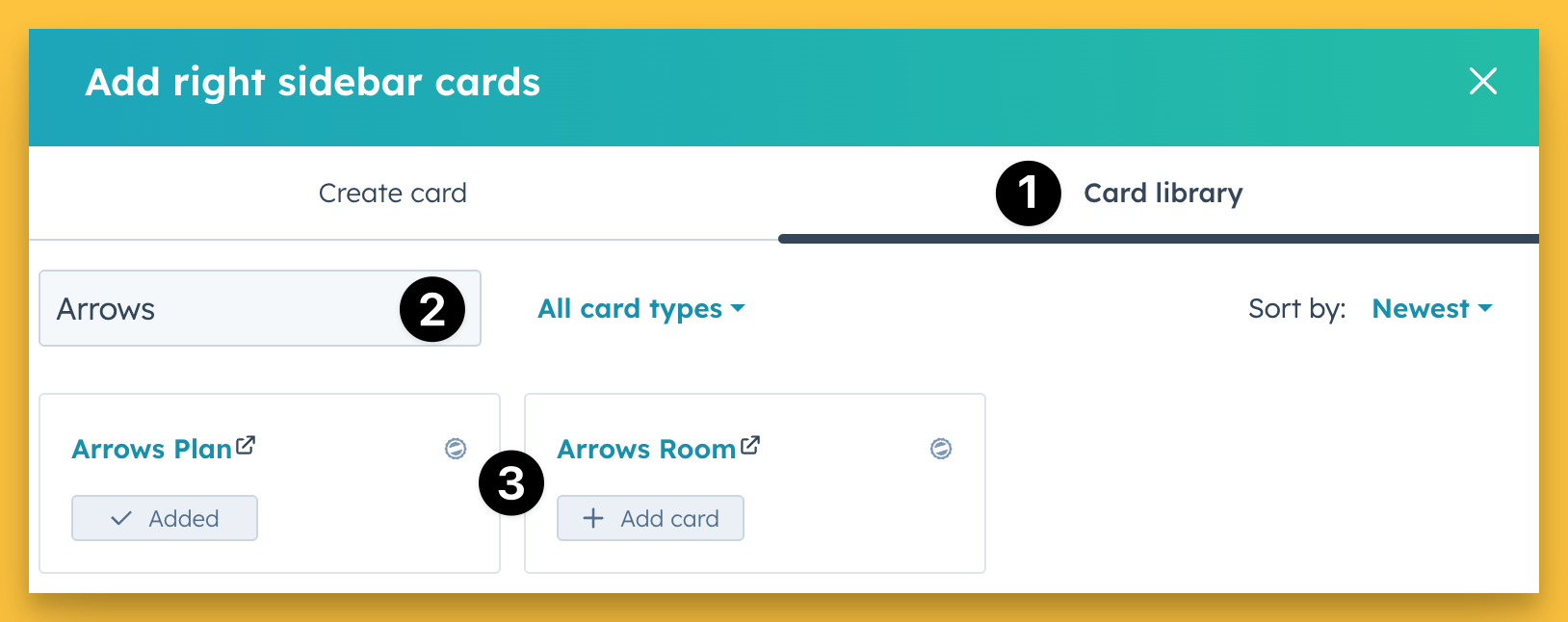
When the Add right sidebar cards menu appears…
select Card library
search “Arrows”
and, add the Arrows room (for sales) and/or Onboarding Plan (for onboarding) cards
Save your updates
Once you’ve added the right card you can position it to your desired spot in your right sidebar and be sure to Save your changes.
Head back to your ticket, deal, or custom record and the Arrows CRM card will be available for use!