
Using the task page to manage tasks across plans
Learn how to use the Task page to view, filter, and manage tasks across all your onboarding plans.
The Task page gives you and your team a centralized view of every task across your onboarding plans—making it easier to track progress, identify blockers, and take action.
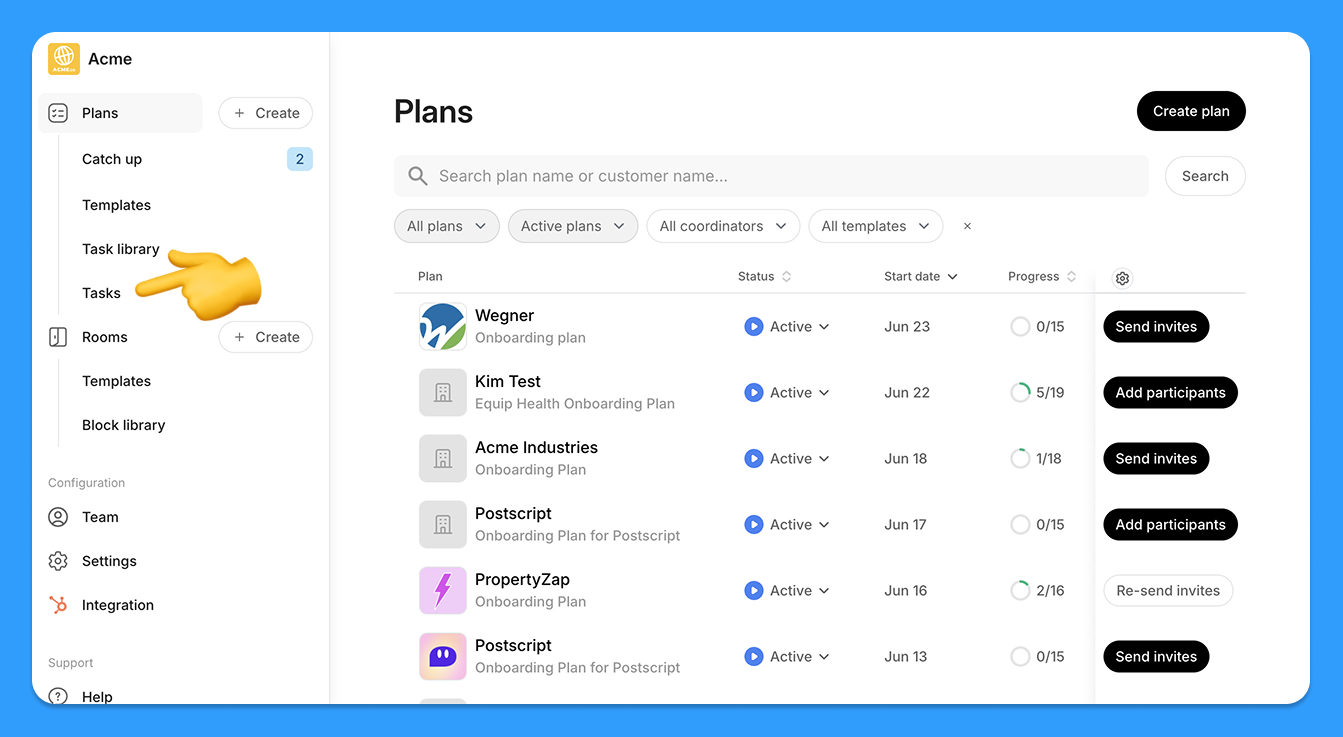
Where to find it
You can access the Task page in two ways:
From the “Tasks” tab in the main navigation
Or directly at: https://app.arrows.to/tasks
What you’ll see
The Task page shows tasks in a table format with the following default columns:
Plan – click to jump into the plan
Phase – click to view the phase
Assignee
Created date
Due date
Use the search bar to find tasks by name, description, plan, or customer.
Plus, you can sort date columns, and use the ⚙️ gear icon in the top-right to show or hide columns based on your preferences.
Filters available
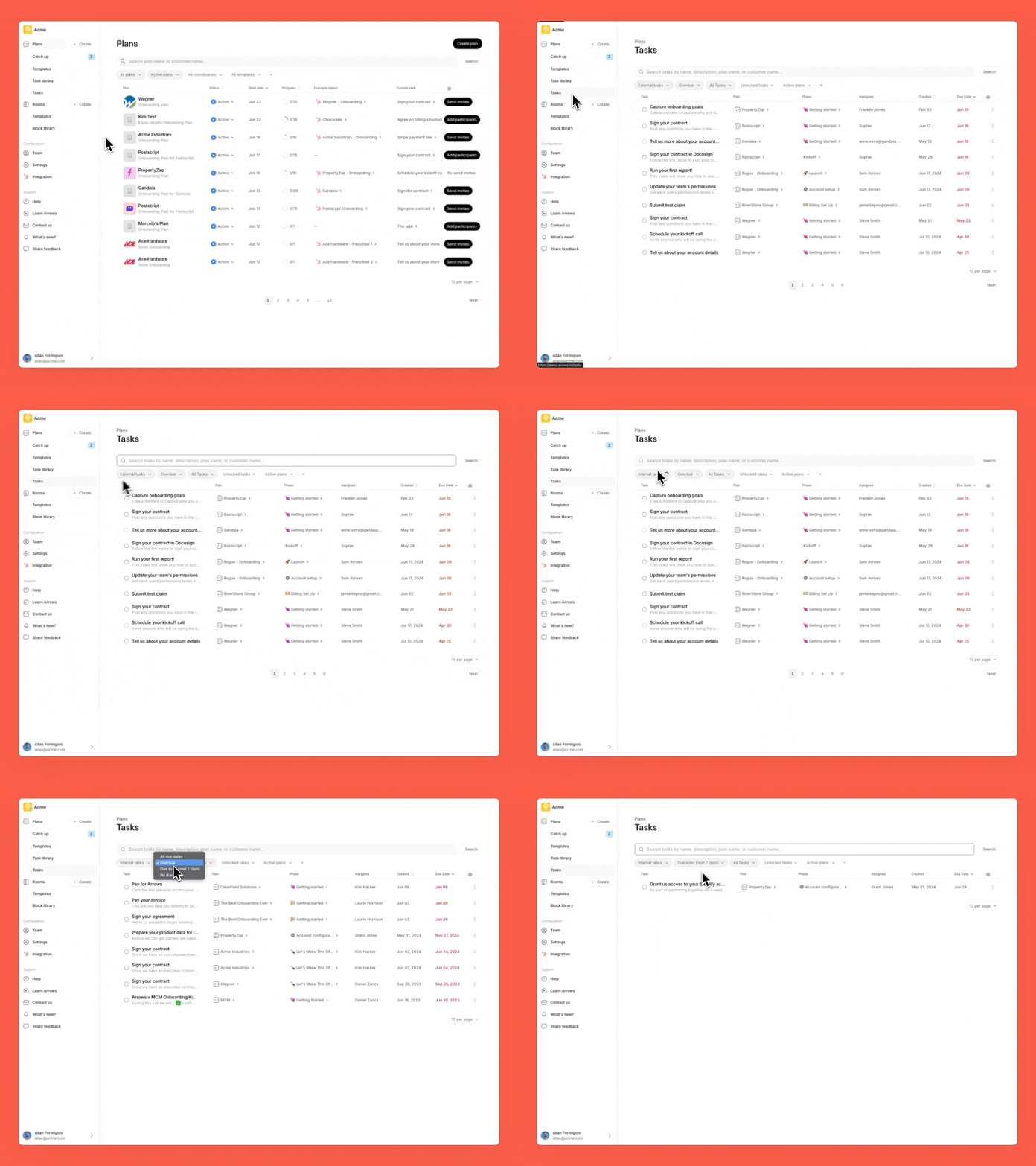
Use filters to narrow your task list by:
Assignee – see tasks assigned to a specific person or by internal/external ownership
Due date – review tasks overdue, due within the next 7 days, or with no due date
Completion status – filter by complete or incomplete tasks
Locked status – filter by locked or unlocked tasks
Plan status – view tasks from active, inactive, or all plans
You can use multiple filters at once to focus your view.
✅ Marking tasks complete
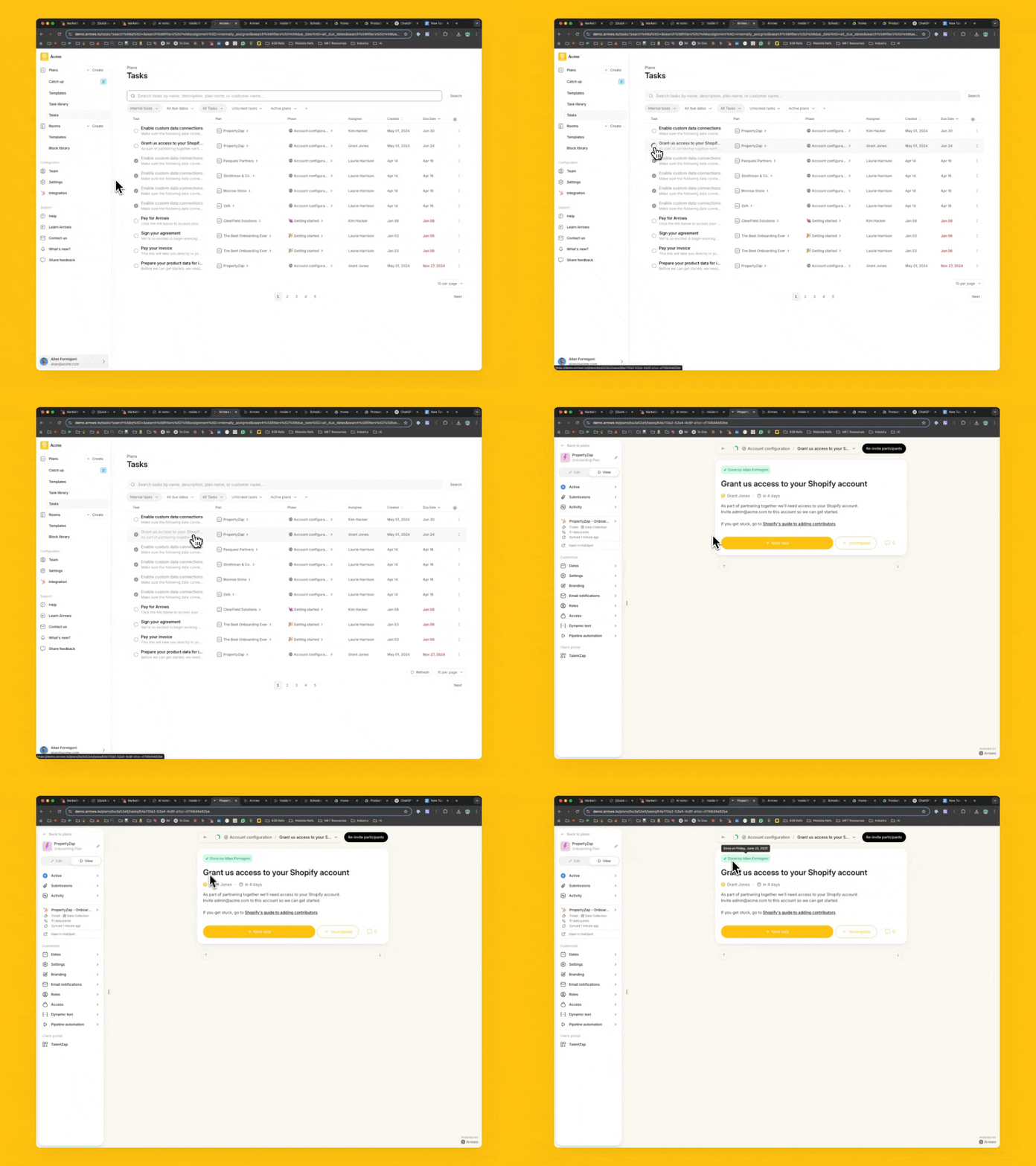
You can complete or un-complete a task directly from the Task Page by clicking the checkmark icon in the leftmost column. This updates the task in real time—no need to open the full plan.
🔐 Who can see what?
Admins and plan owners can see all tasks across all plans
Members will only see tasks for plans they’re assigned to