
Enhance your tasks with interactive task actions!
Arrows task actions are designed to drive action. You can add different action types to your tasks to allow your customers to schedule their next call, upload their documents, watch a video, fill out a form, and much more!
The ability to add specific task actions directly within any given task reduces the need to send your customers elsewhere to finish tasks in your onboarding process.
Keeping customers focused within your plan increases their chances making it through all your tasks!
When you create a new task, you can can add one of the following action types below…
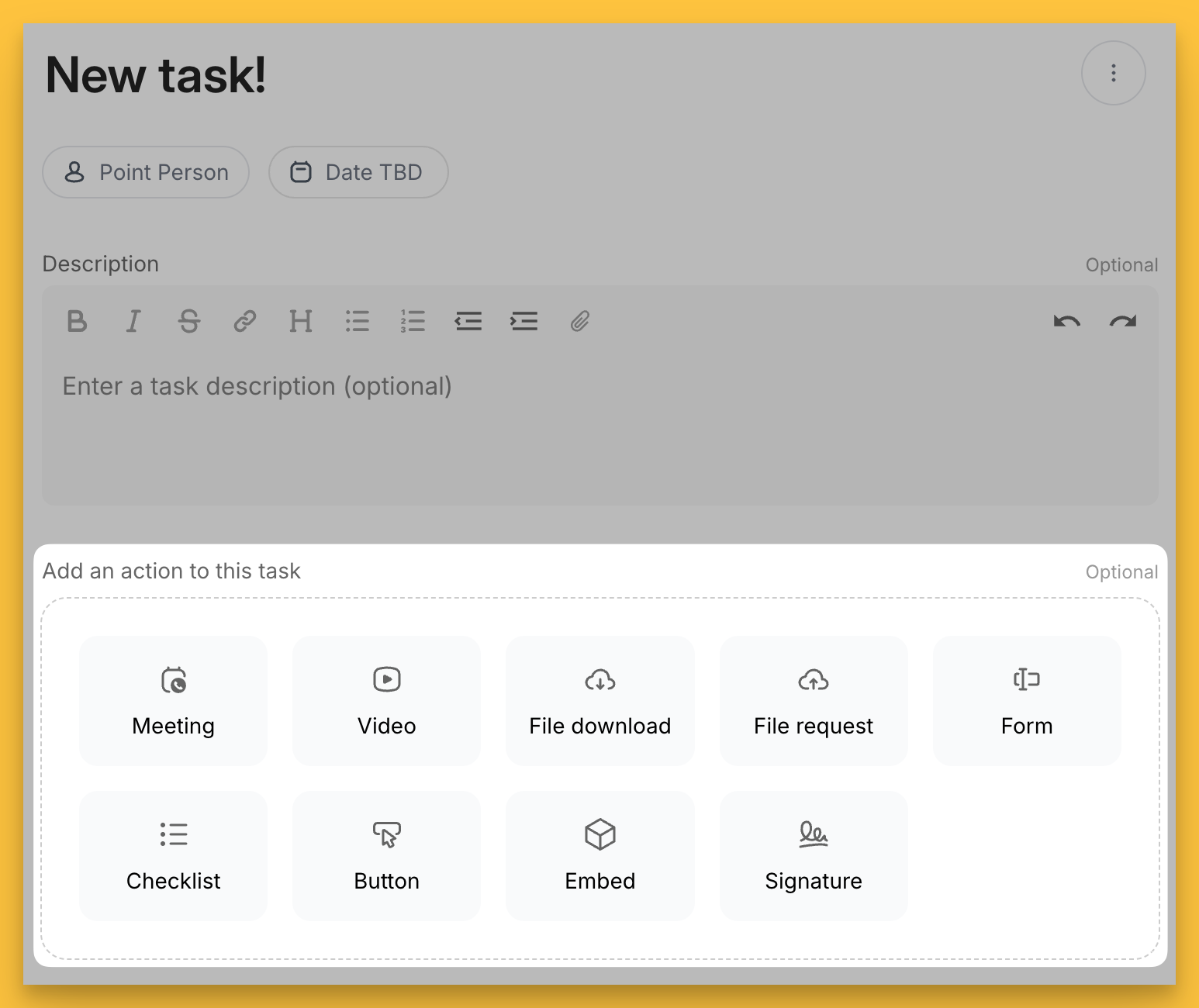
Let’s look at some applications and how they appear within plans.
Meeting
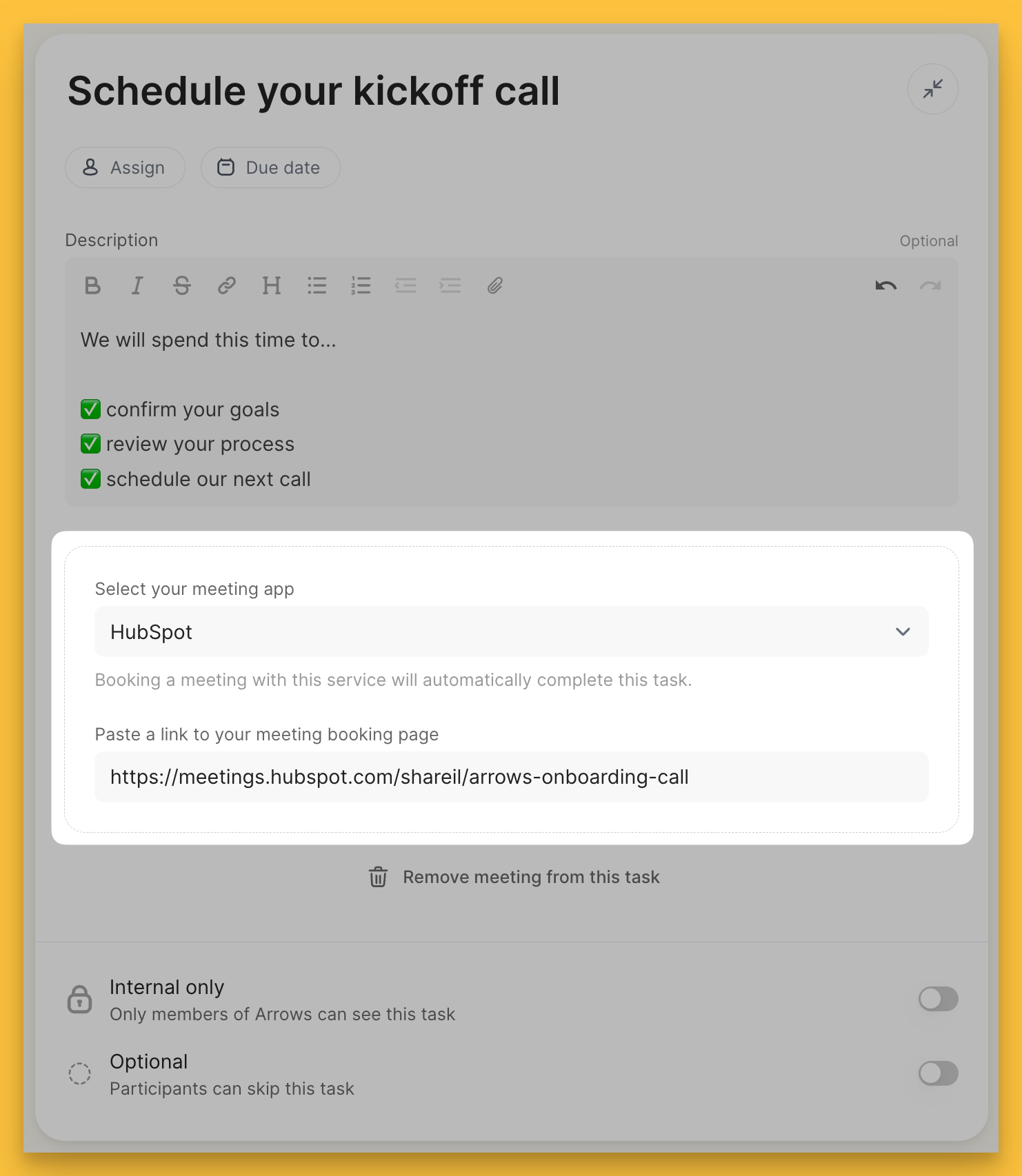
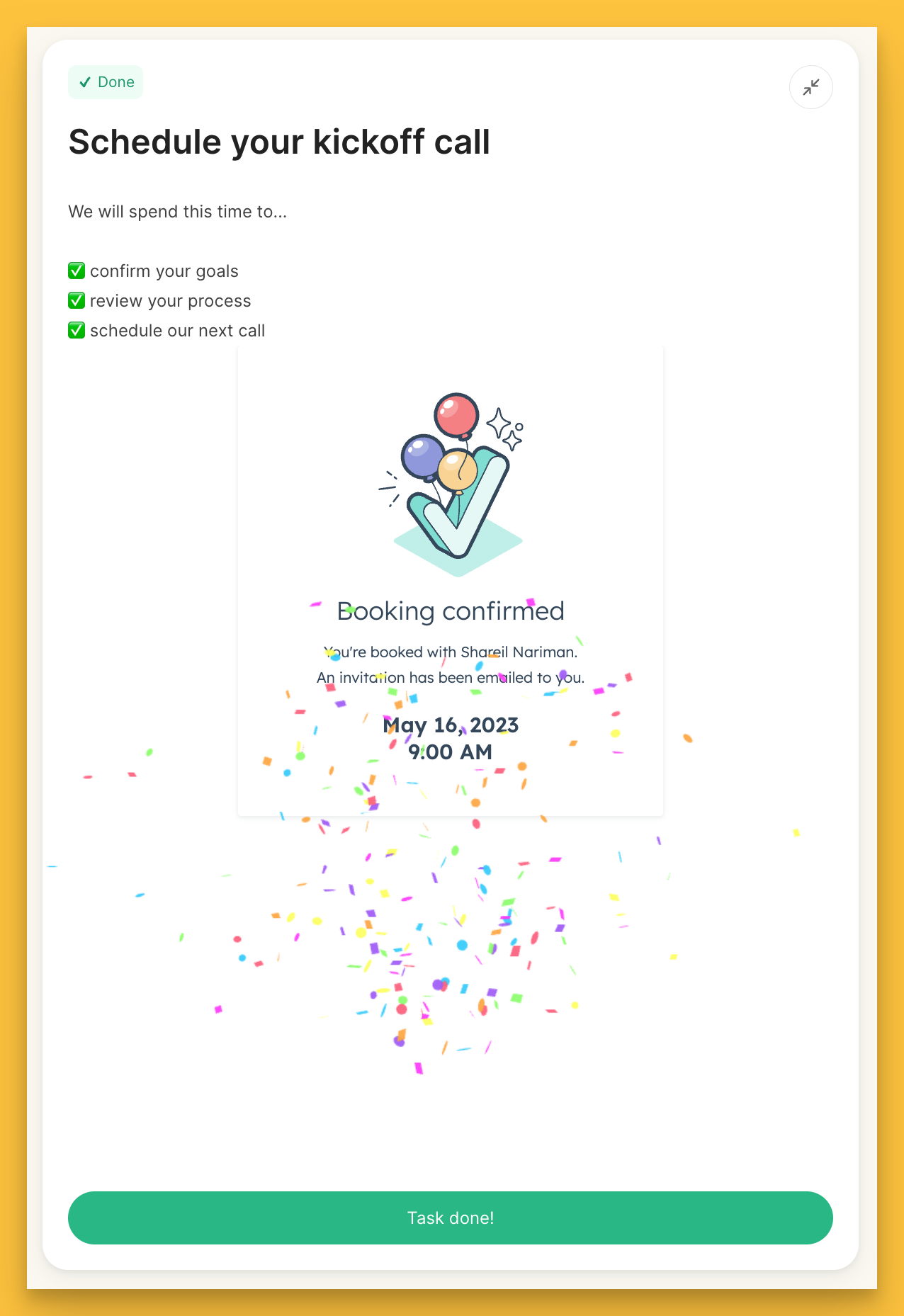
Using the Meeting action, you can add a meeting scheduling page directly into your task.
Whenever you are editing a task, you can hit View to get a preview of what your customers will see!
In this example, you’ll notice a HubSpot scheduling page is added to the Meeting action
Jump to View mode to see what this task looks like…
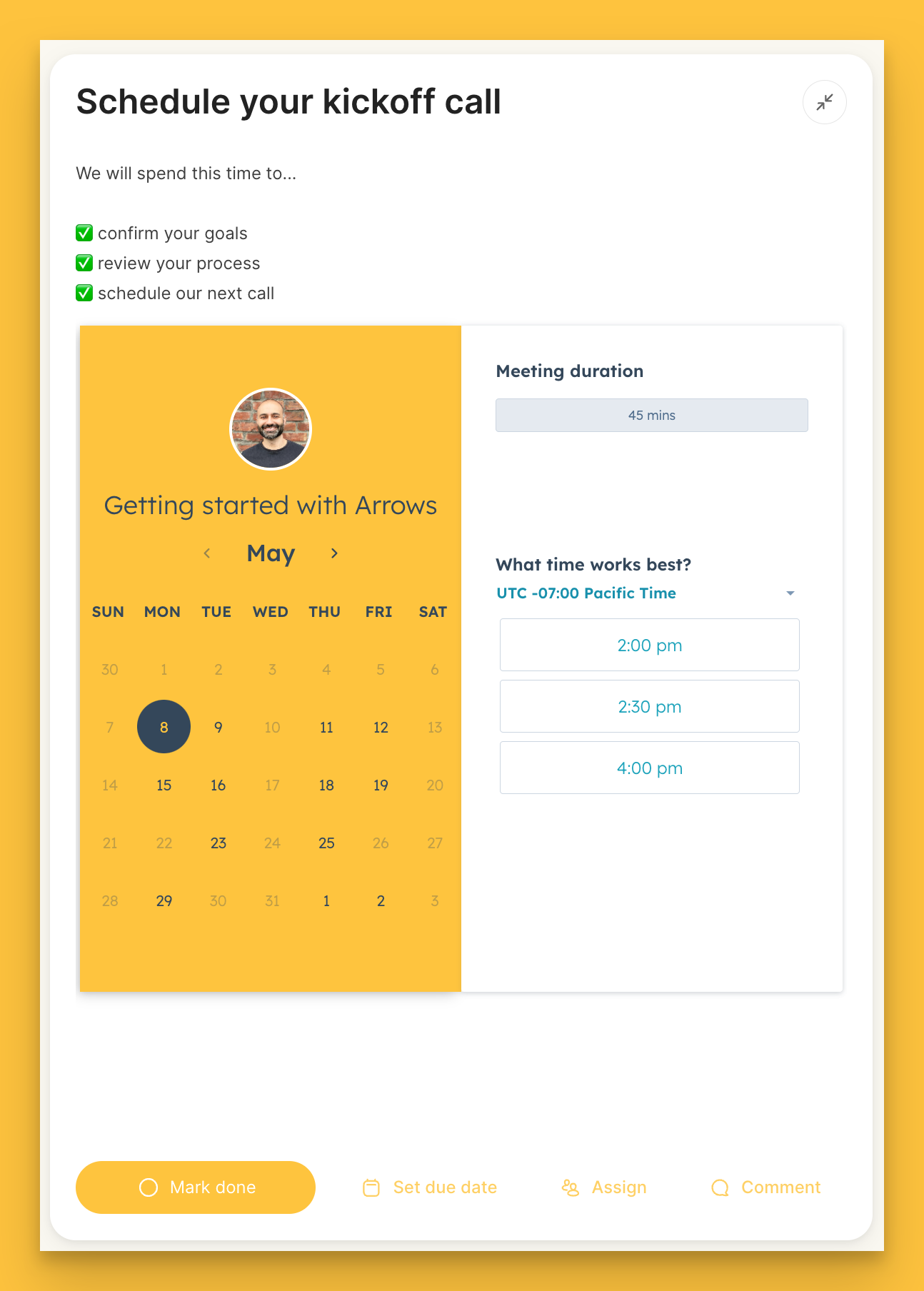
Without leaving their plan, a customer can select and confirm a time on your calendar
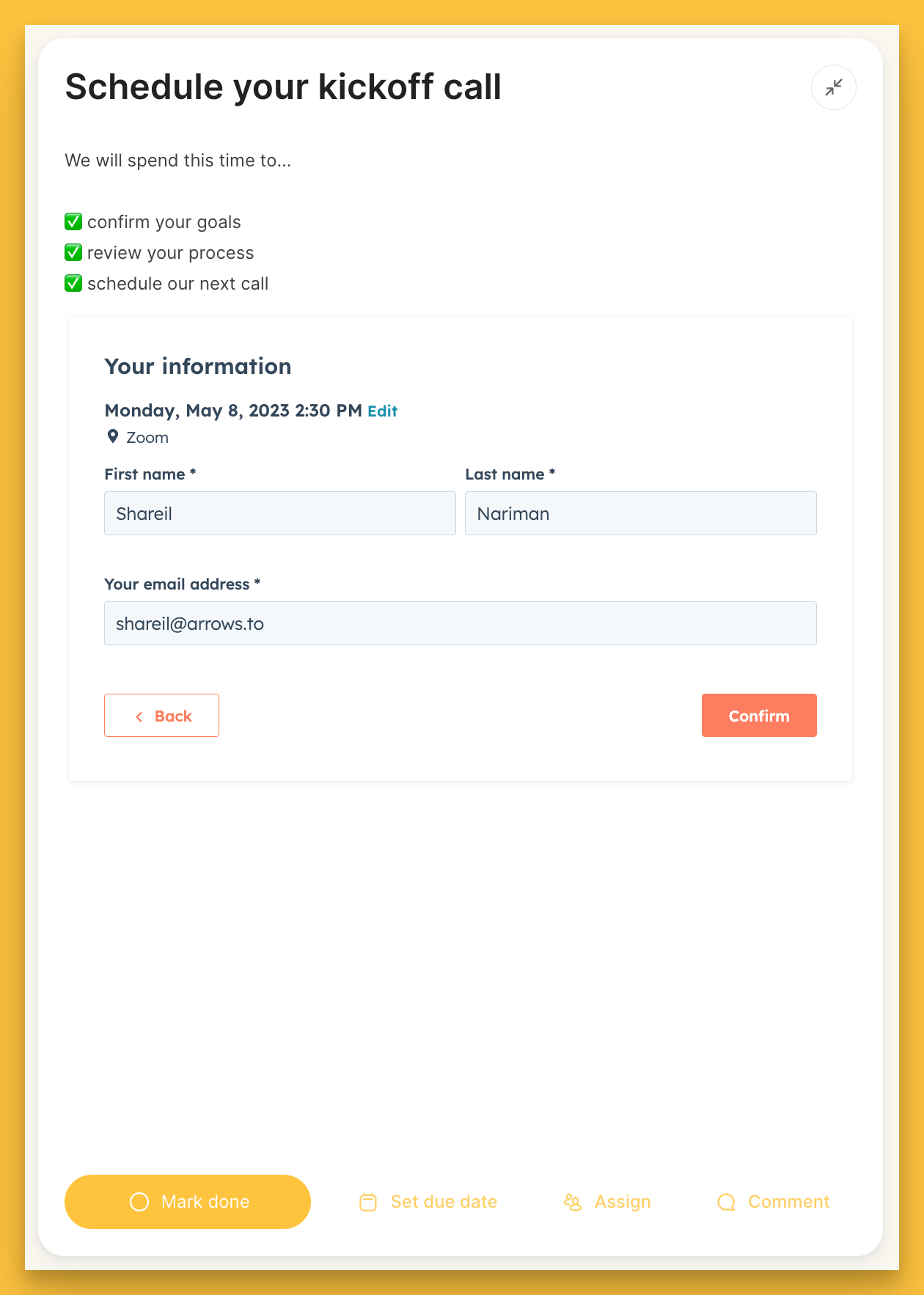
The task will automatically be marked as done when your customer confirms their meeting time!
Forms
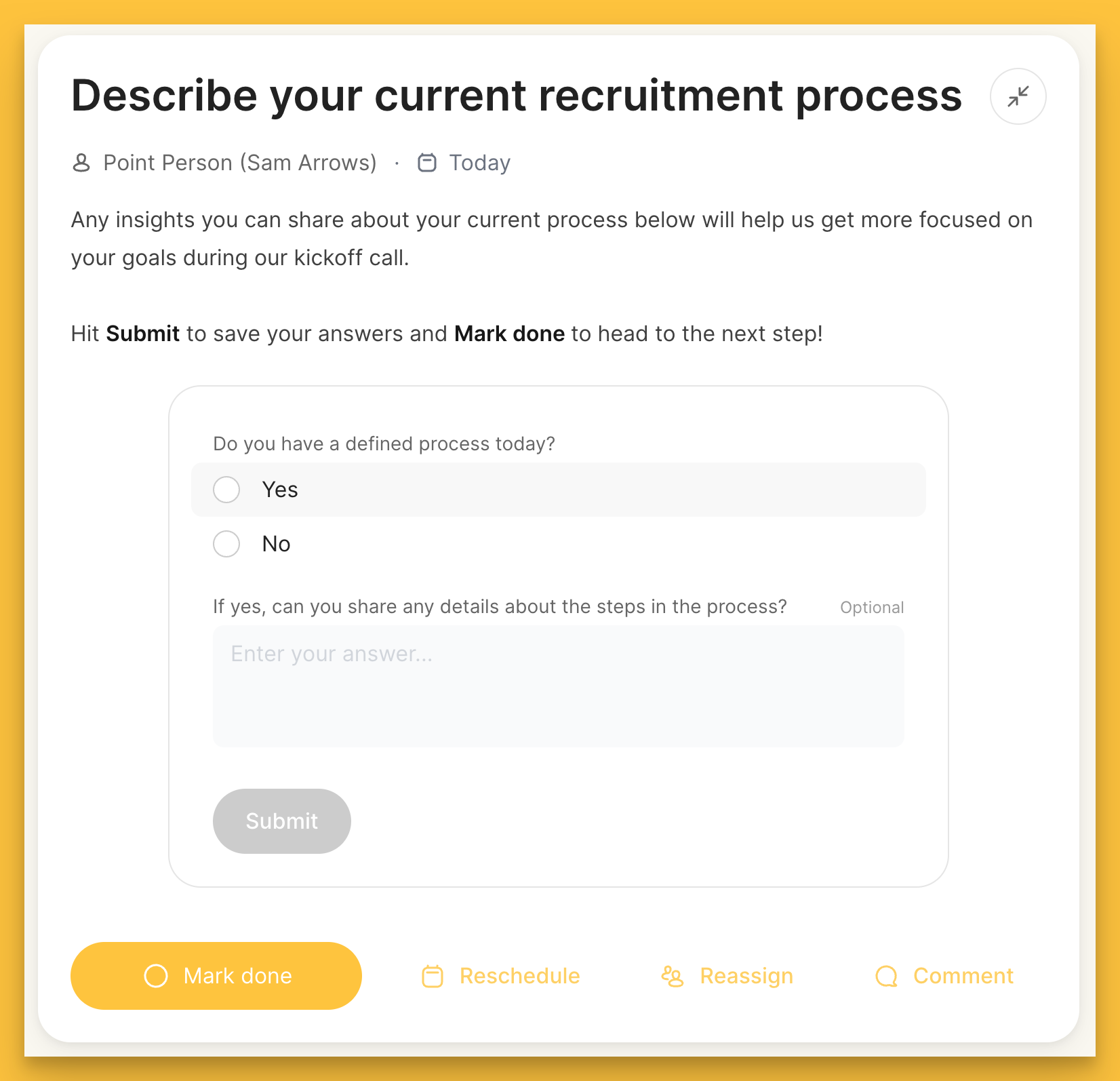
Using the Form task action, you can create form fields directly into your tasks.
This gives your customers a place to provide answers to questions you have throughout the process!
You can use multiple different form formats to craft your questionnaires.
Here is an example of a form using the radio button and multi-line text formats…
💘
You can sync the answers from these forms directly into a property on the associated HubSpot Deal or Ticket. This reduces the need for manual copying and pasting of answers while ensuring customer information ends up in your CRM!
Setup view:
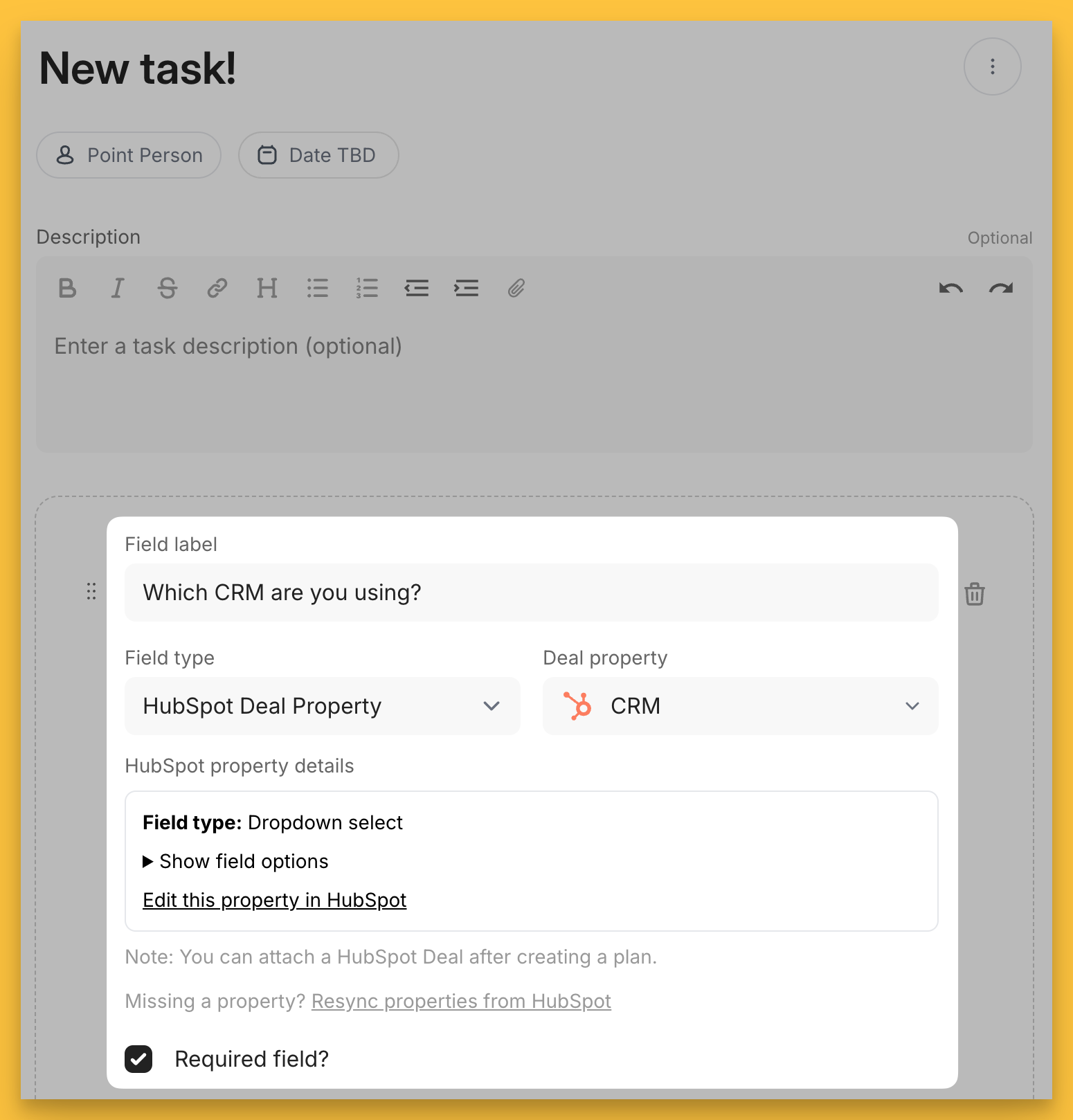
For your Field type on your form action, select HubSpot Deal/Ticket Property and then the respective property (you’ll need to create this property in HubSpot if it doesn’t already exist).
In this example, we are wanting to update the CRM property on the HubSpot Deal object that this plan is connected to.
Arrows will automatically detect the property type and pull in the respective information, in this case all of the options in the dropdown select property for CRM.
Customer view:
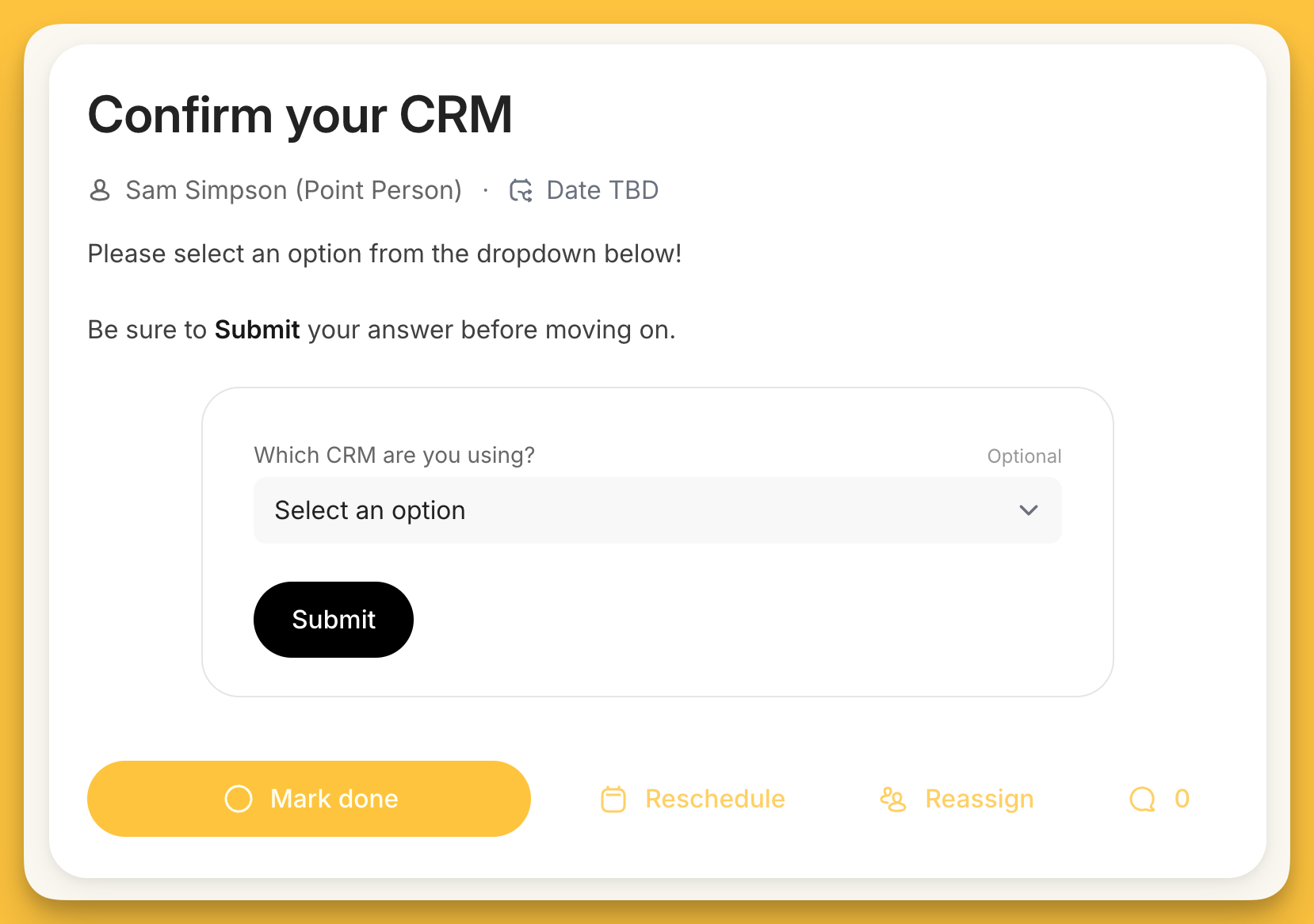
When your customer gets to this task in their plan, they’ll see a dropdown select option to pick their CRM.
When they Submit the form, their answers will be recorded in Arrows for them to reference AND in HubSpot for you and the rest of your company to see!
File requests
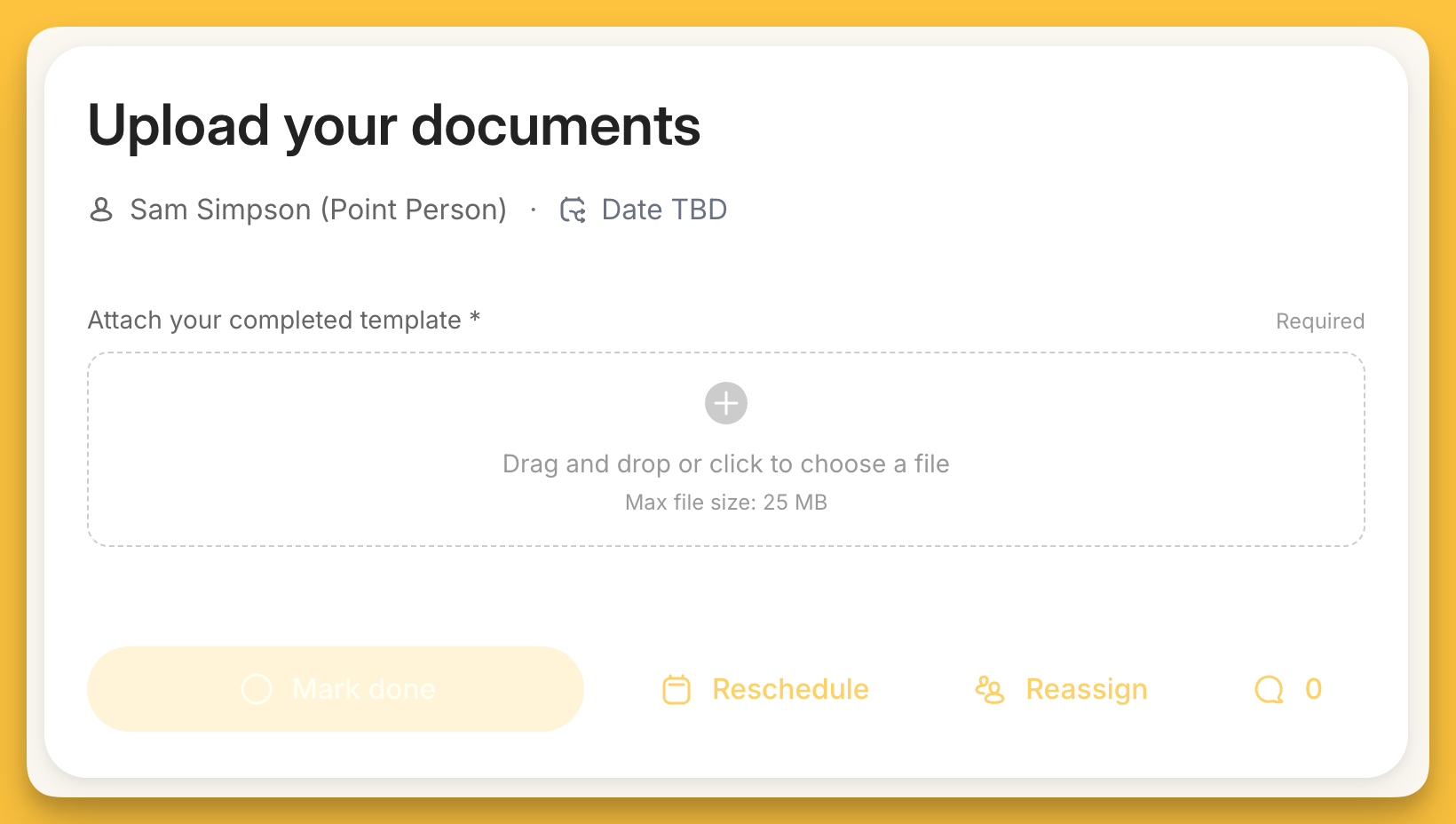
The File request action allows you to request your plan participants to upload files directly from their computer.
Customers will be able to upload from their computer or drag and drop files directly into the task.
They can do multiple uploads at once and you can add multiple file requests into the same task!
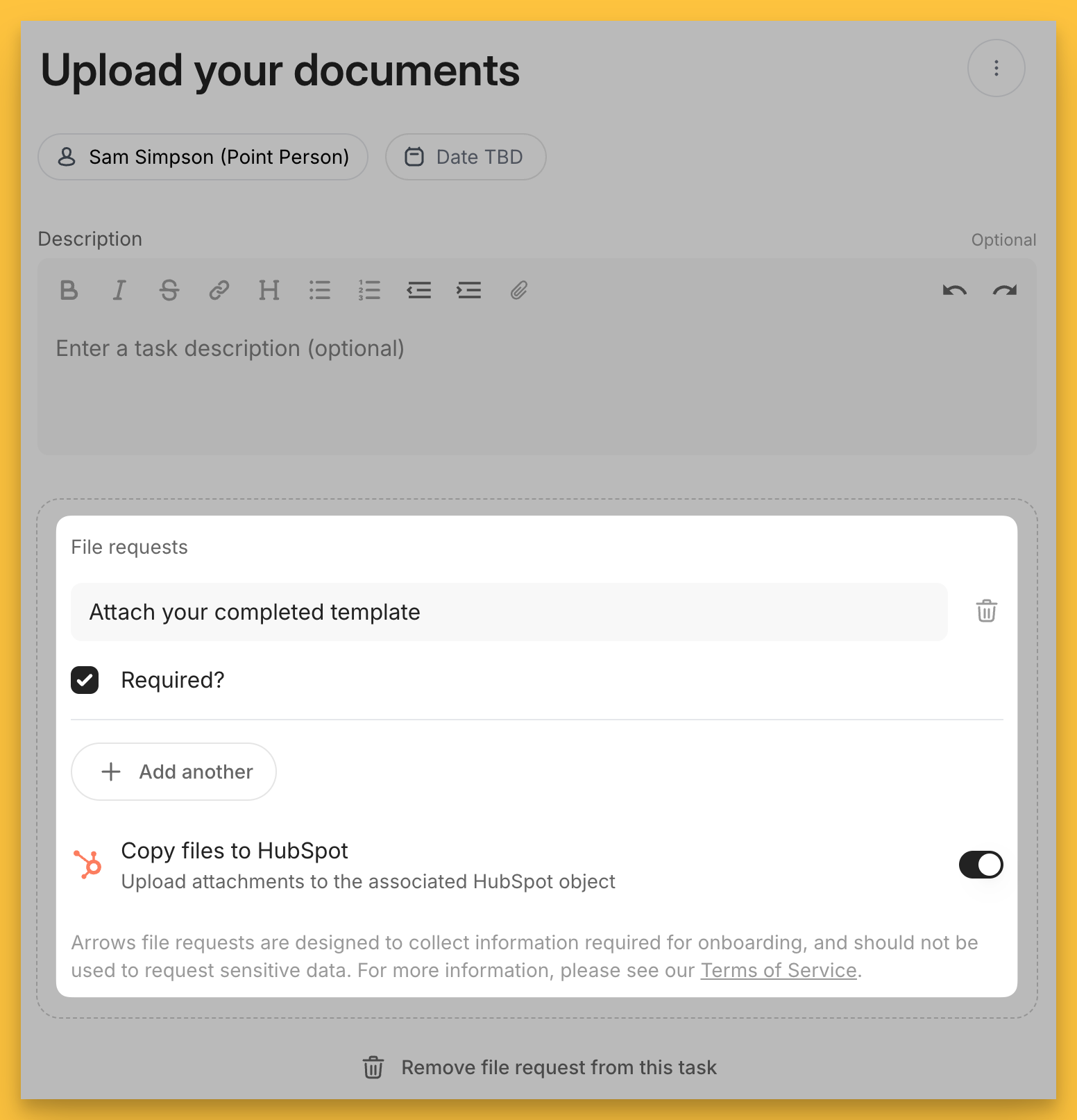
Here’s an example asking for completed template to be attached.
Setup view:
name your file request - “Attach your completed template” in this example
Add another file request if necessary (optional)
toggle on/off required - on means the task can NOT be marked done until any file is physically uploaded
toggle on/off Copy files to HubSpot if you want the uploaded file to be added as an attachment on the associated HubSpot record (Arrows Pro Feature)
Customer view:
File download
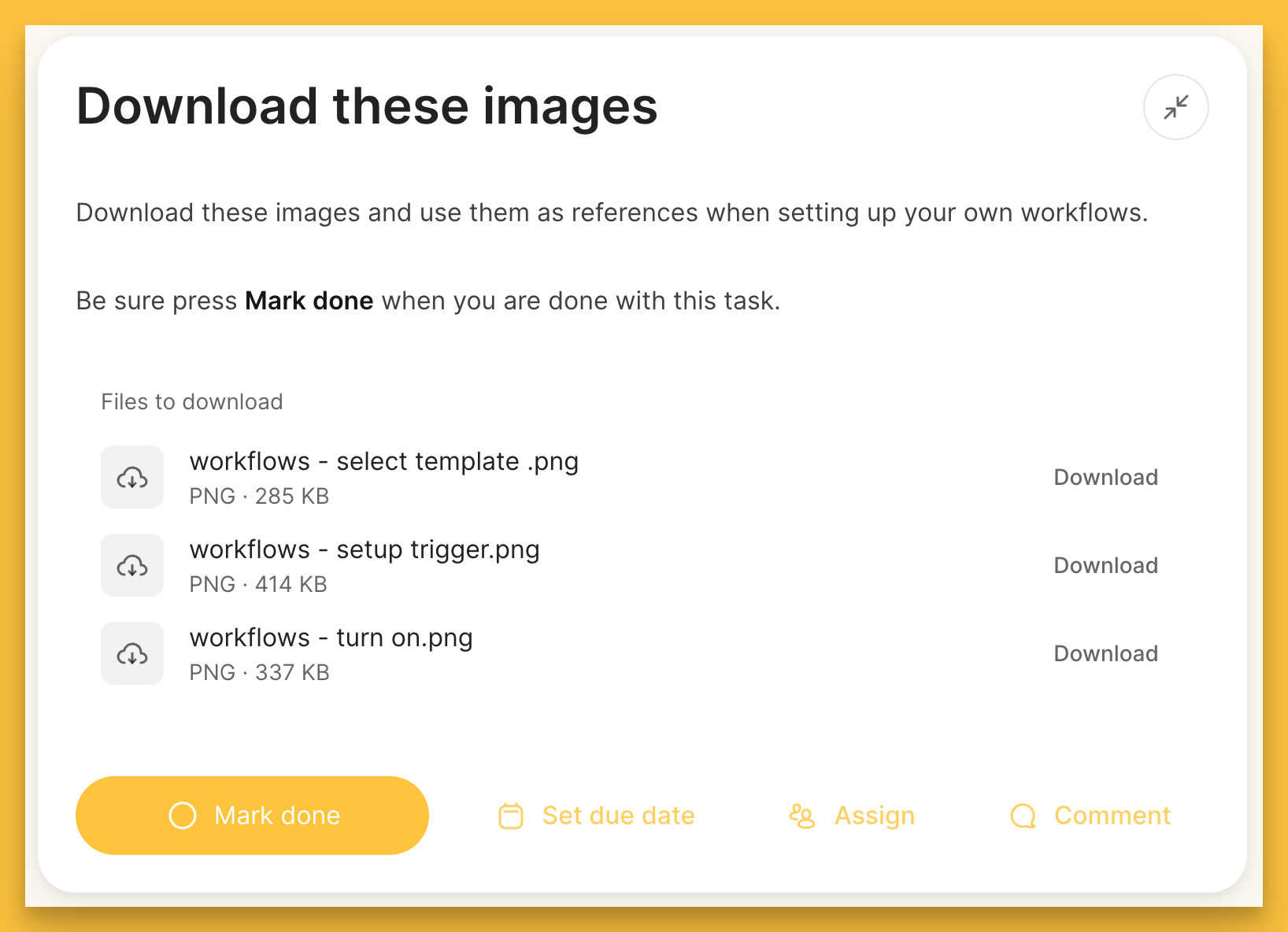
When you use the File download, you can attach a file to the task and ask your customers to download it right from the task!
Sharing images or documents with a customer in this example…
Video
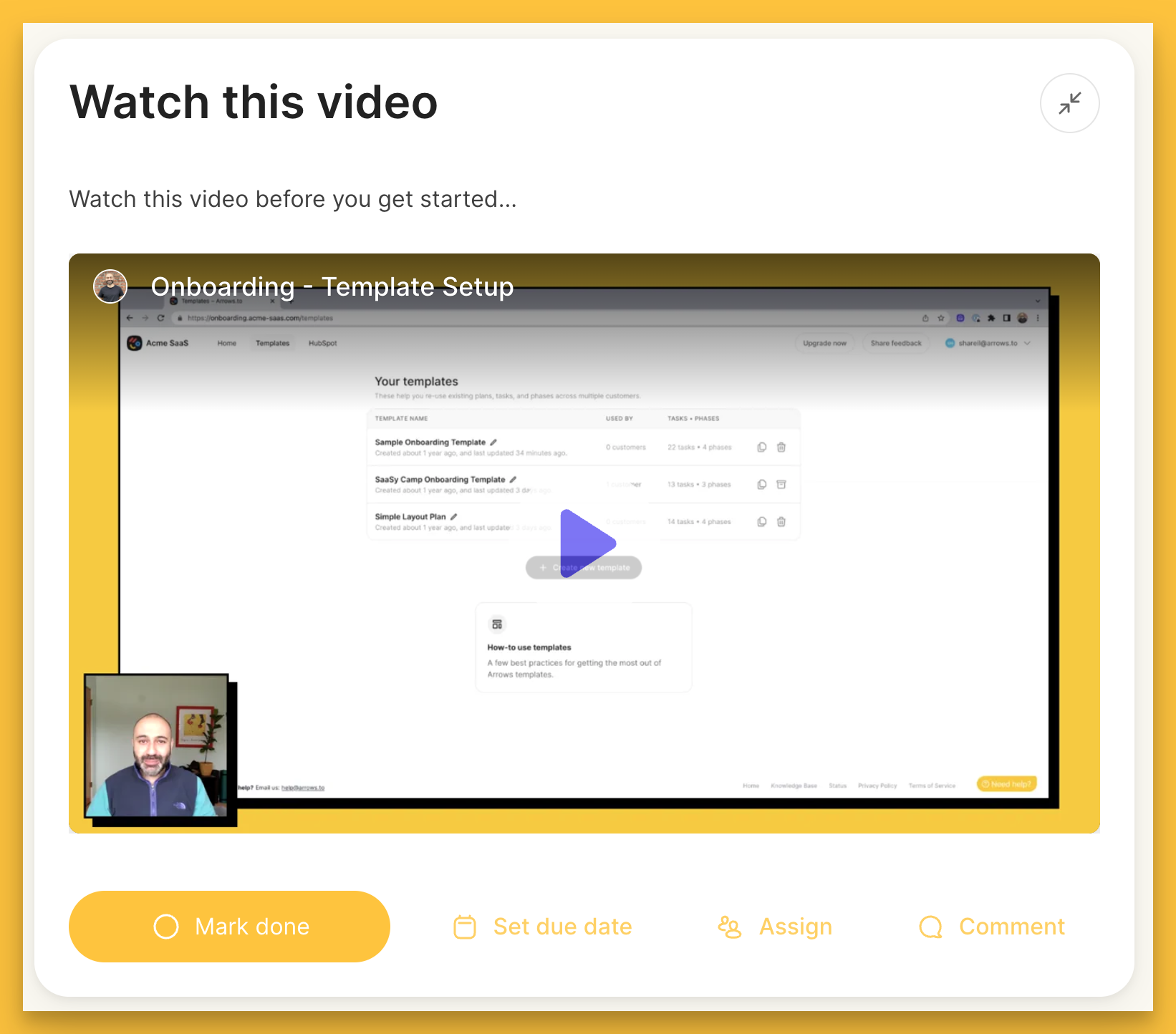
Using the Video task action, you can embed a video inside a task!
This gives your customers a place to quickly watch a video that will help them complete the task without needing to jump to another page!
Checklists
You can add Checklists directly into tasks. Especially helpful for internal tasks with a few extra steps to complete.
When adding checklist items, you also have the option to add bold styling or hyperlink items within the checklist as needed.
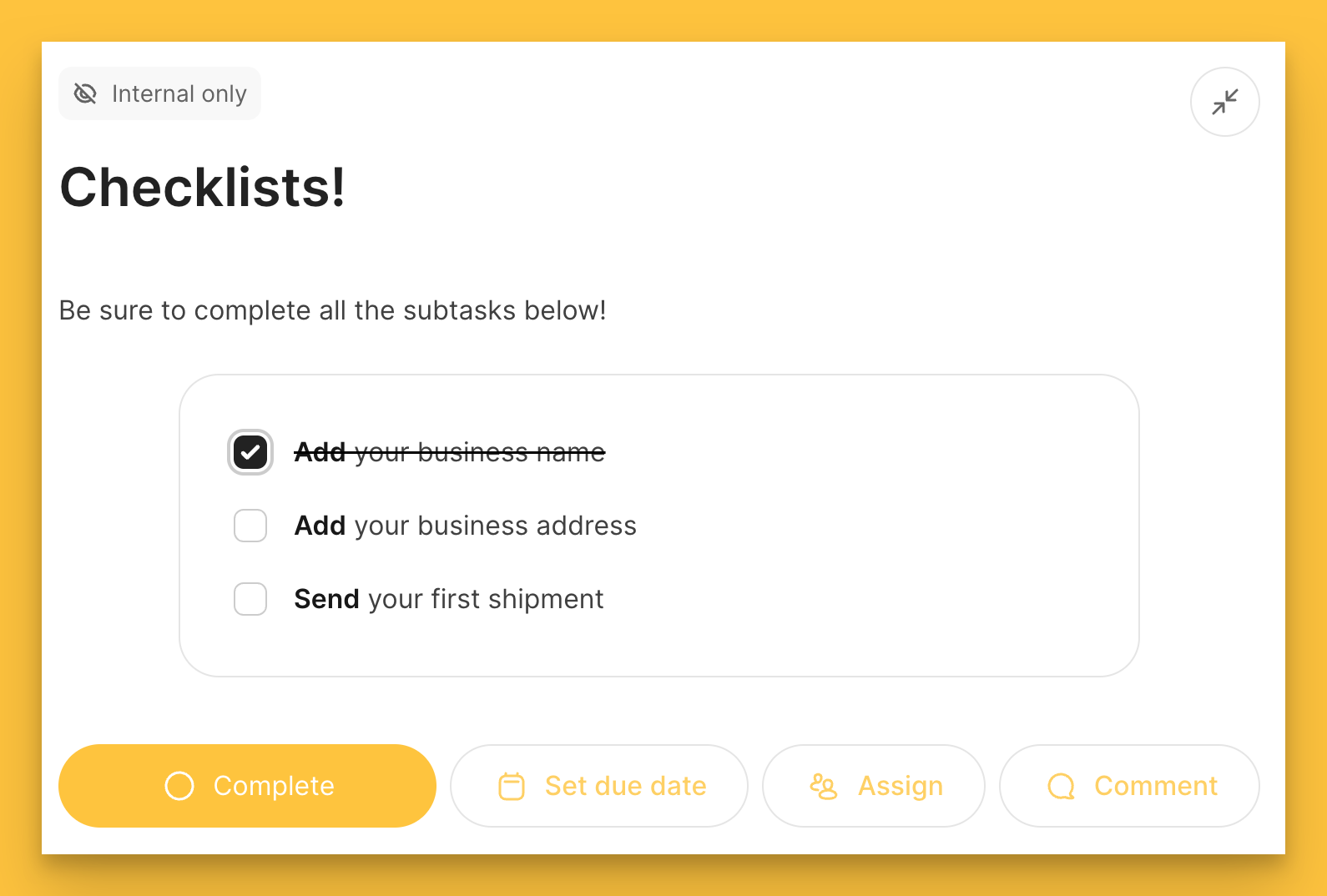
When adding checklist items, you also have the option to add bold styling or hyperlink items within the checklist as needed.
Button
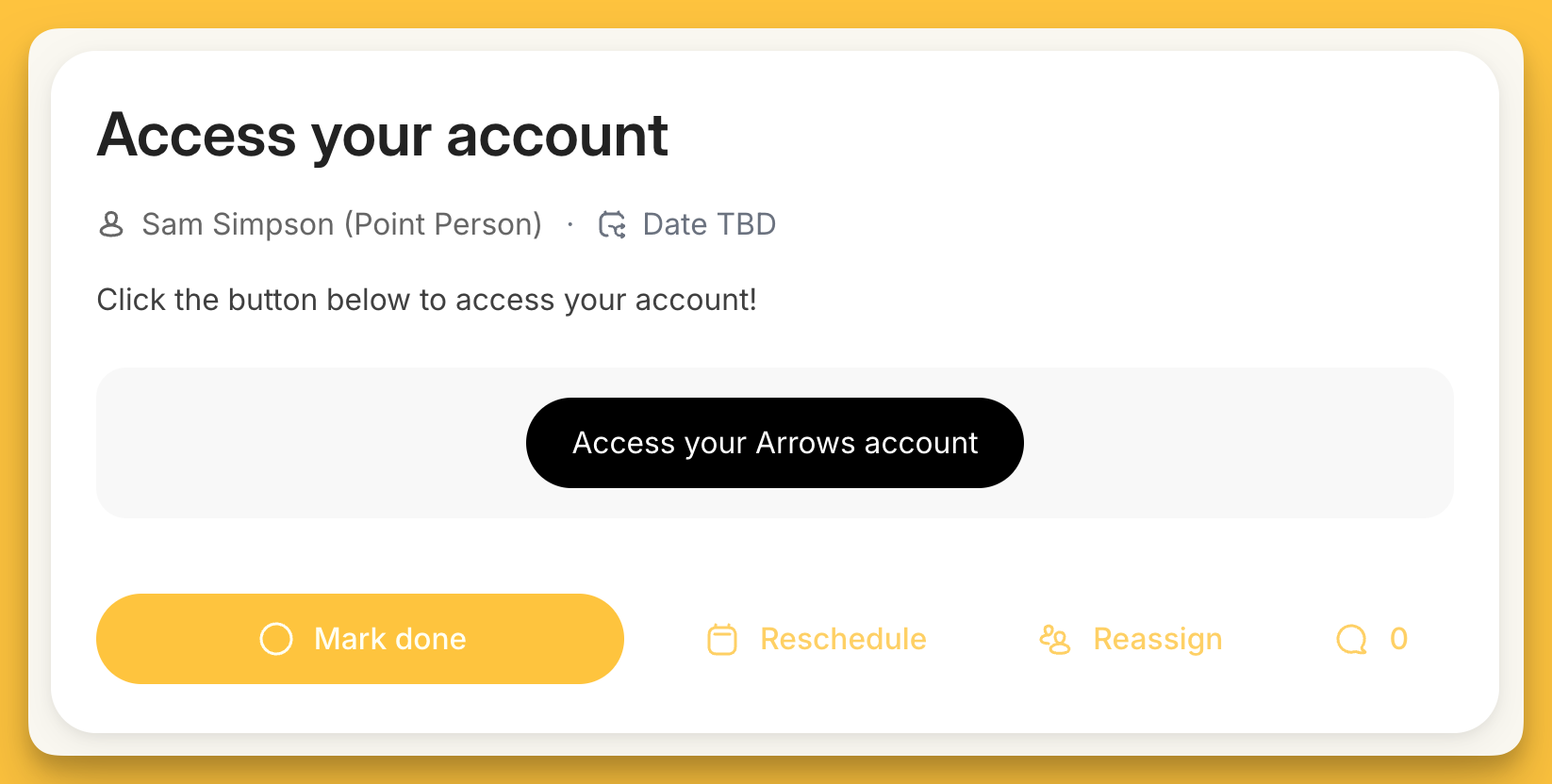
Add a button to point people to a link, such as Access your account.
Setup view:
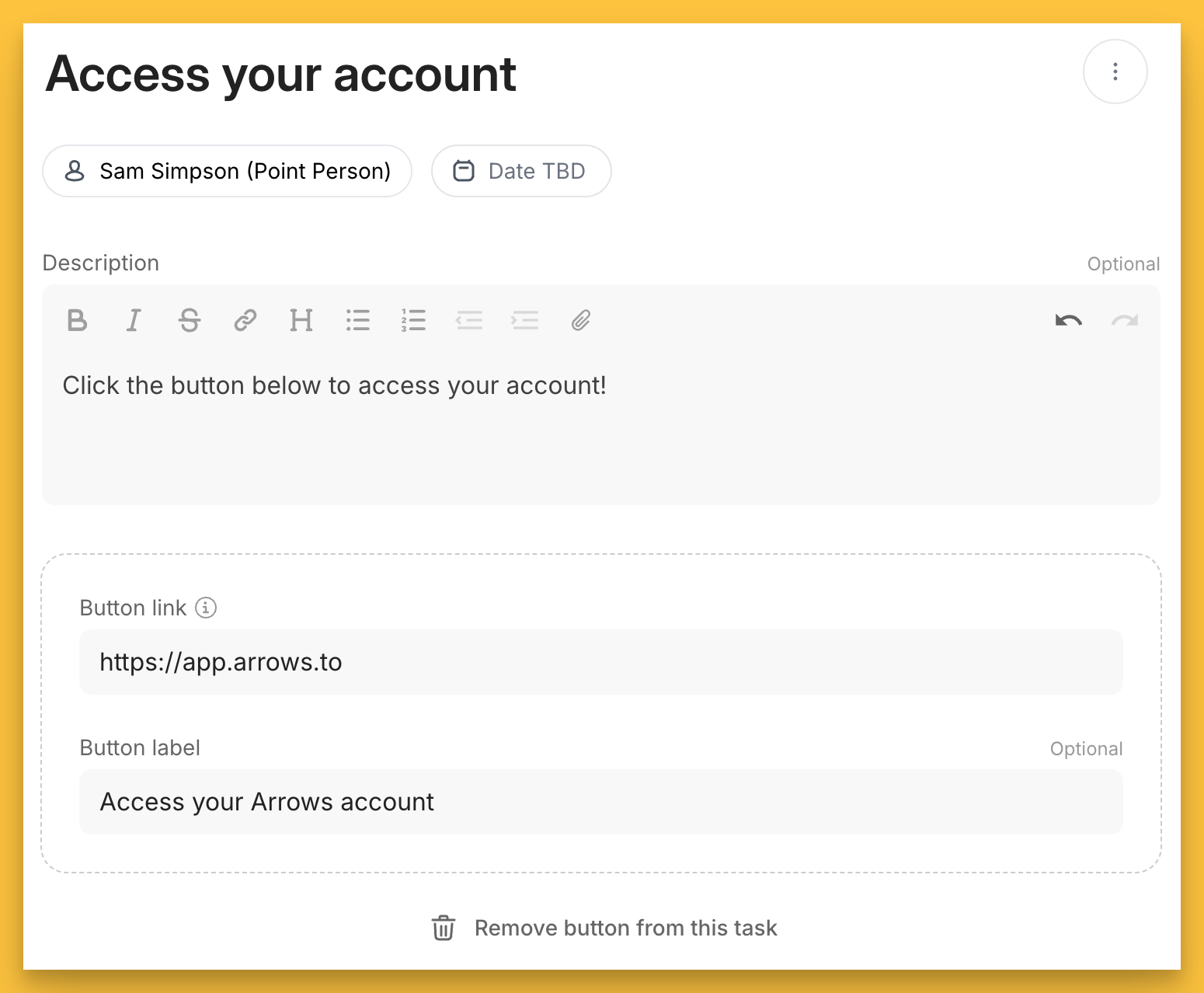
Customer view:
Signature
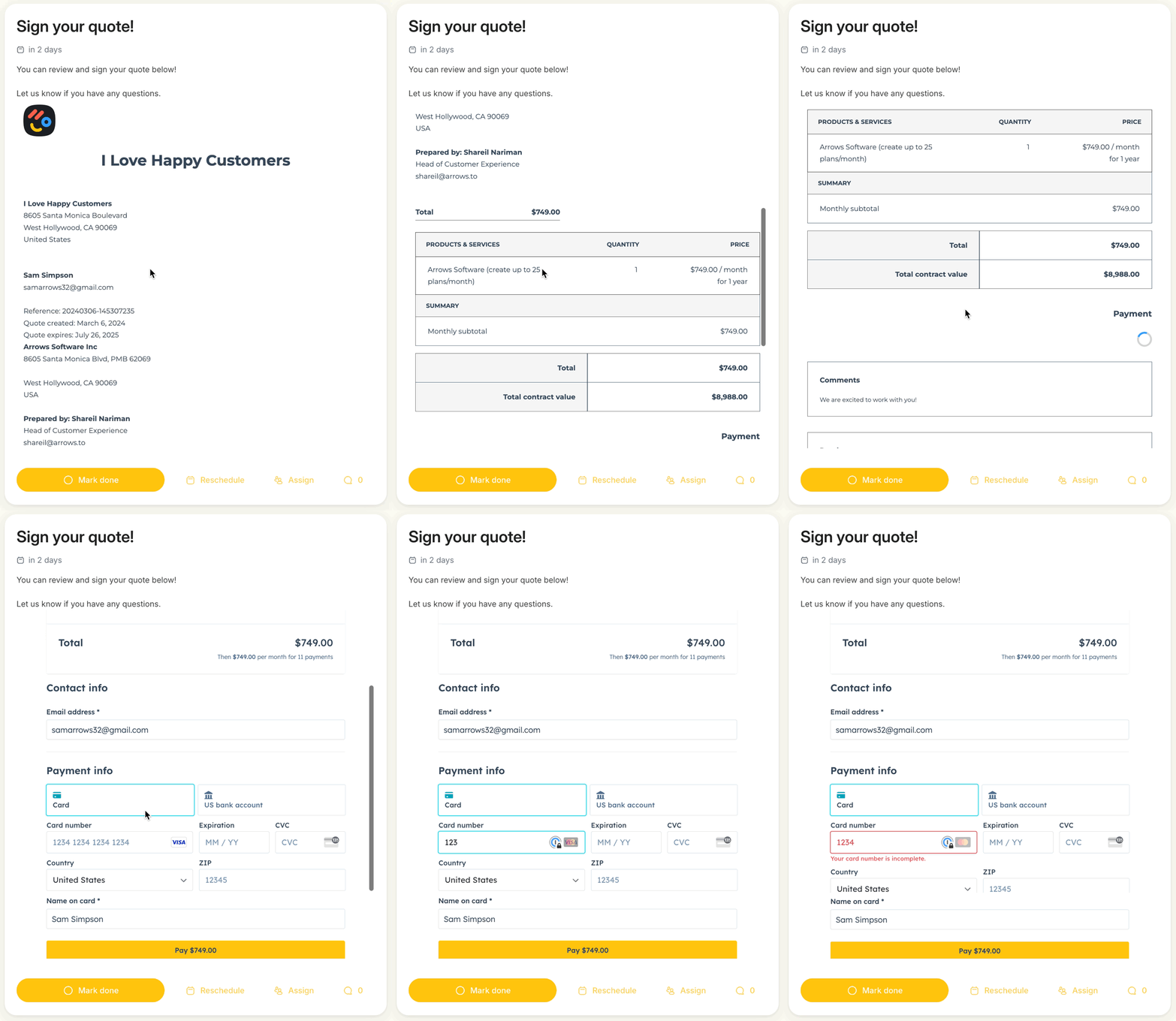
You can embed interactive e-signature quotes to allow customers to review and sign them directly without leaving their onboarding plans!
These e-signature services are supported today:
PandaDocs
HubSpot Quote
DocuSign PowerForm
Adobe Sign Web Form
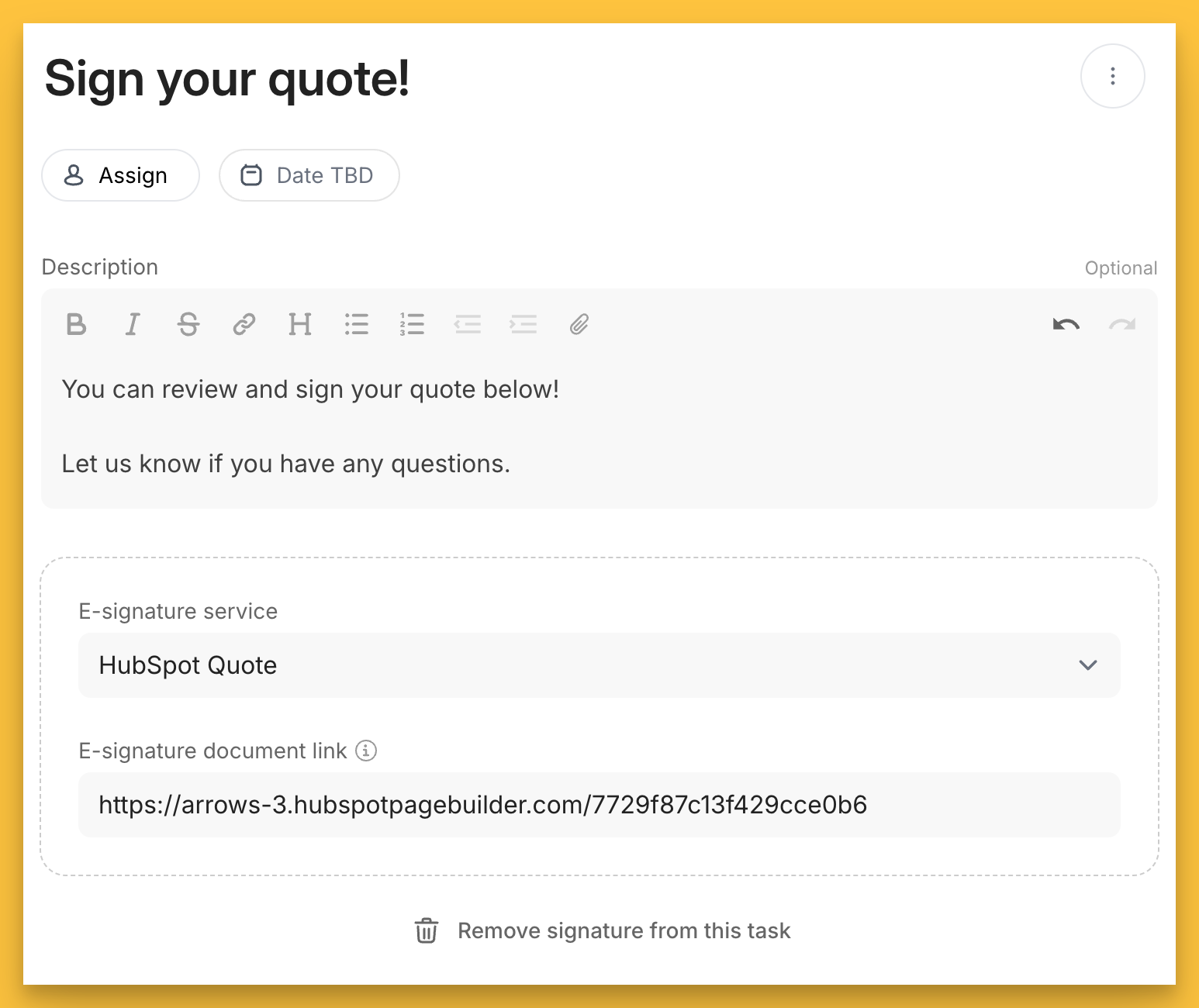
In the example below, we’ll embed a HubSpot Quote…
Setup view:
select the Signature task action
select your E-signature service type
paste the link to your quote
Customer view:
Leveraging task actions is a great way to ensure your plan participants have access to anything they need from one singular place and reduces the need for you to send multiple emails along the way.