
A guide to Arrows email reminders
This guide details the types of email notifications participants will receive from their Arrows plan, and how you can control them!
Email notification settings
From the email notification page in your template settings menu, you'll see the available email notification types and settings.
This page has the following sections:
invite email - select Customize email to personalize the invite sent
task due date reminder emails - preview and control the due date reminder emails
comment emails - turn then on/off or preview the emails
gate unlock emails - these are set at the individual gate-level
coordinator gate unlock emails - these are emails sent to plan coordinators when a participant is blocked from being able to go forward until an internal action is taken.
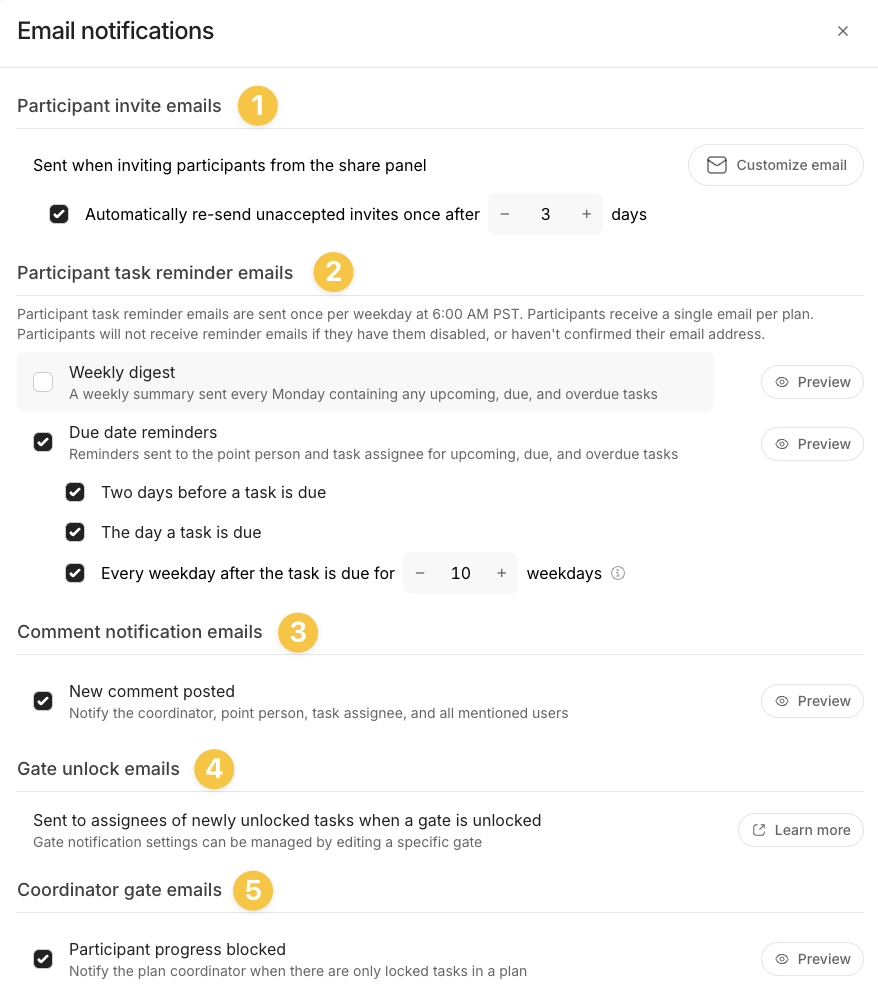
Note: Arrows will only send ONE reminder email a day for overdue tasks. These emails simply state which tasks are overdue and provide links directly to them!
The email reminders
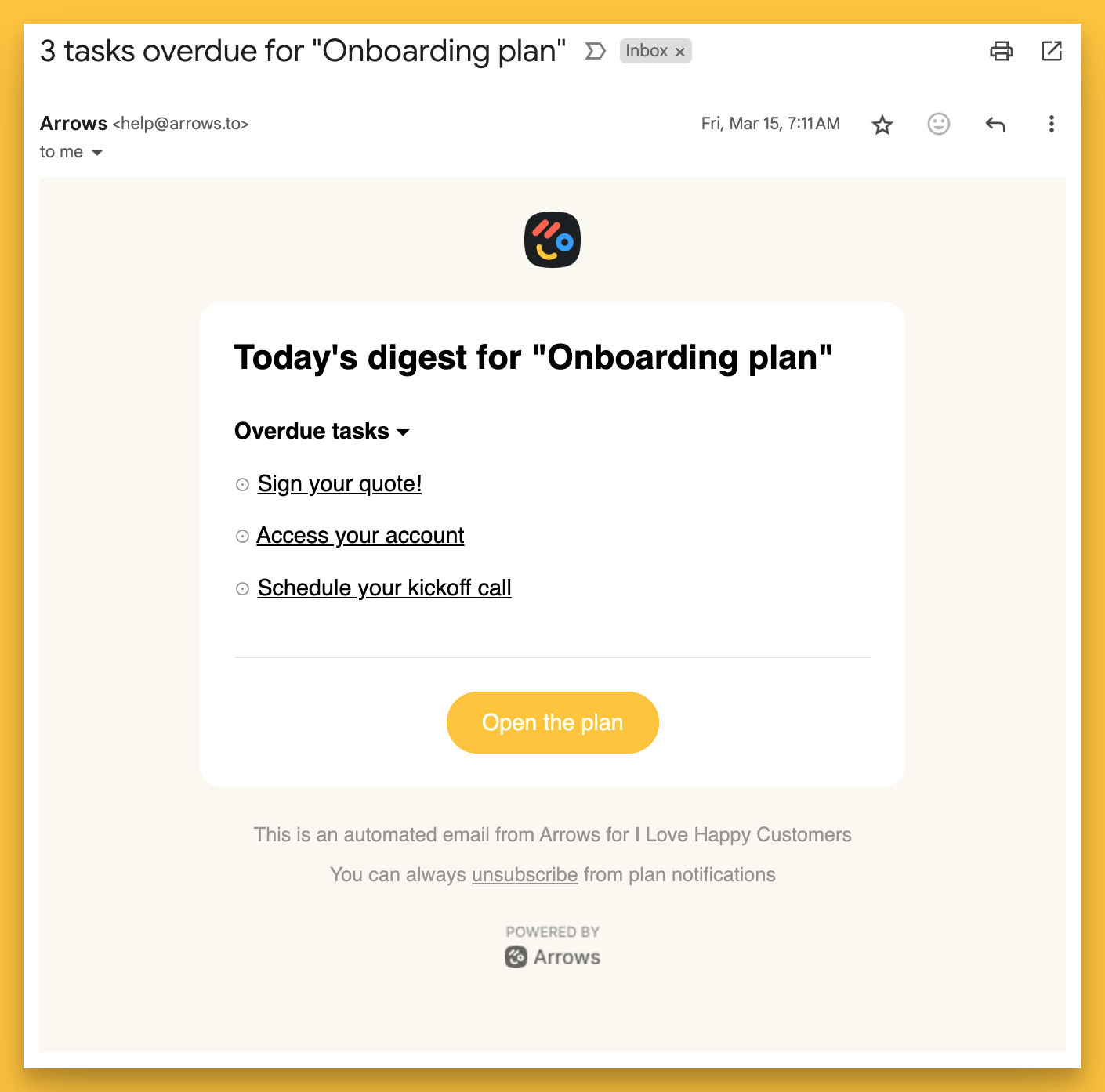
Upcoming and overdue due date emails
An email similar to the digest is sent for tasks with upcoming and overdue due dates (depending on your notification settings).
The idea is simply to remind your participants of this task and encourage them to open the plan to complete it.
Comment notifications
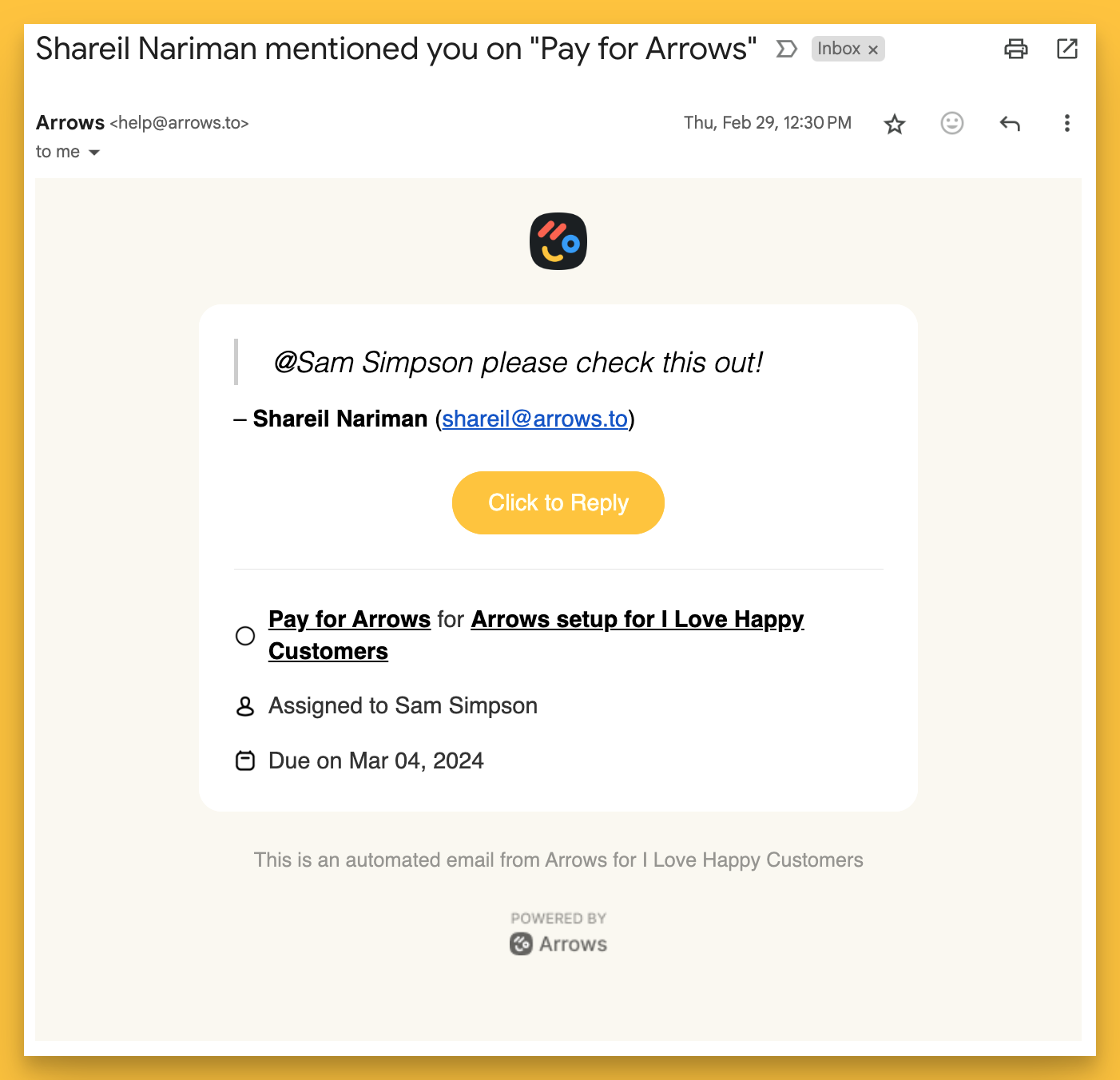
And if the automated reminders still don’t do the trick, you can send comments to participants directly from the task.
This gives the participant a chance to reply with clarifying questions or an update.
And yes, this also sends a reminder email with the goal of getting your participant back into the plan to take action!
Here is an example of what that looks like:
Adjusting the notification settings for individual participants
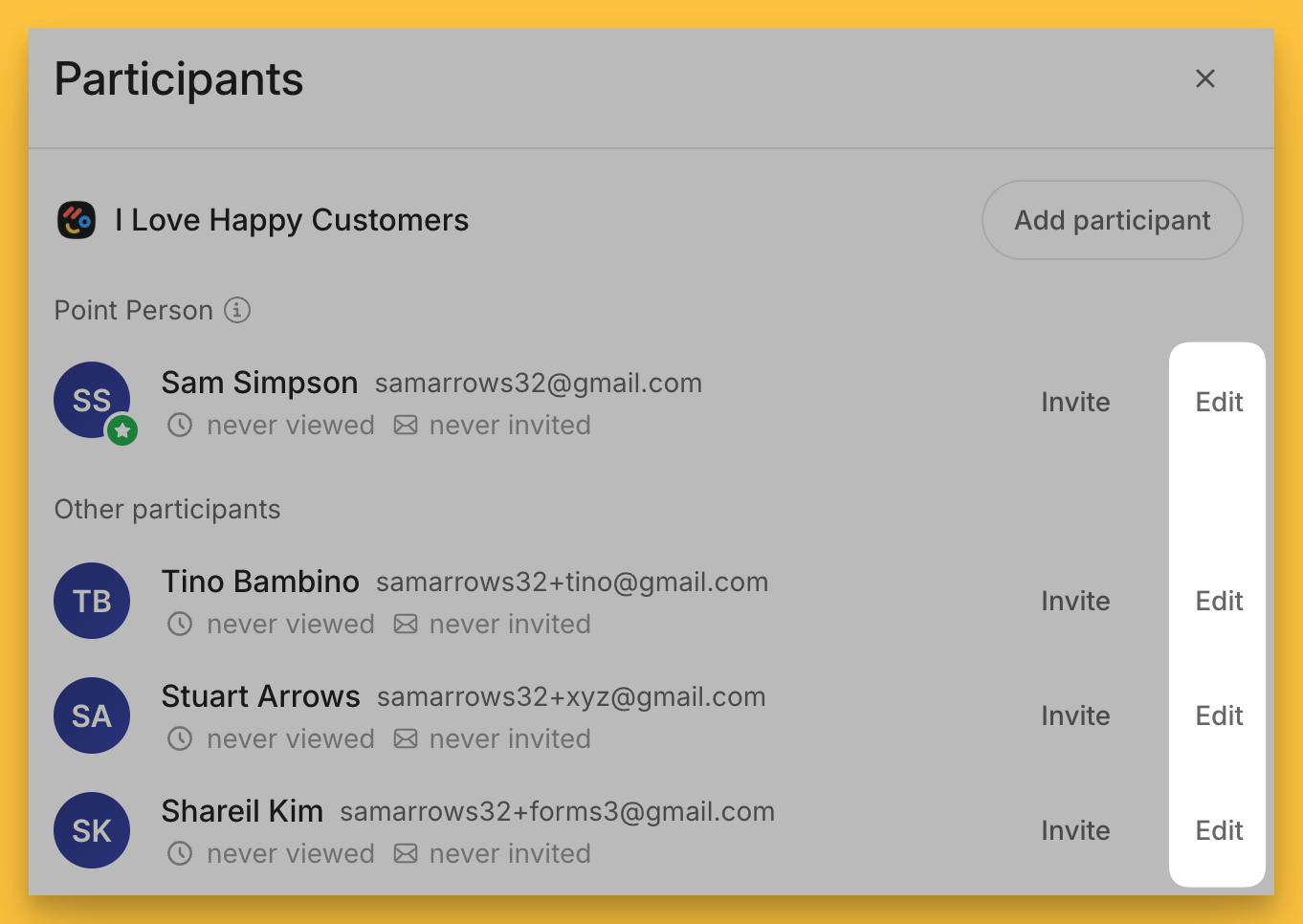
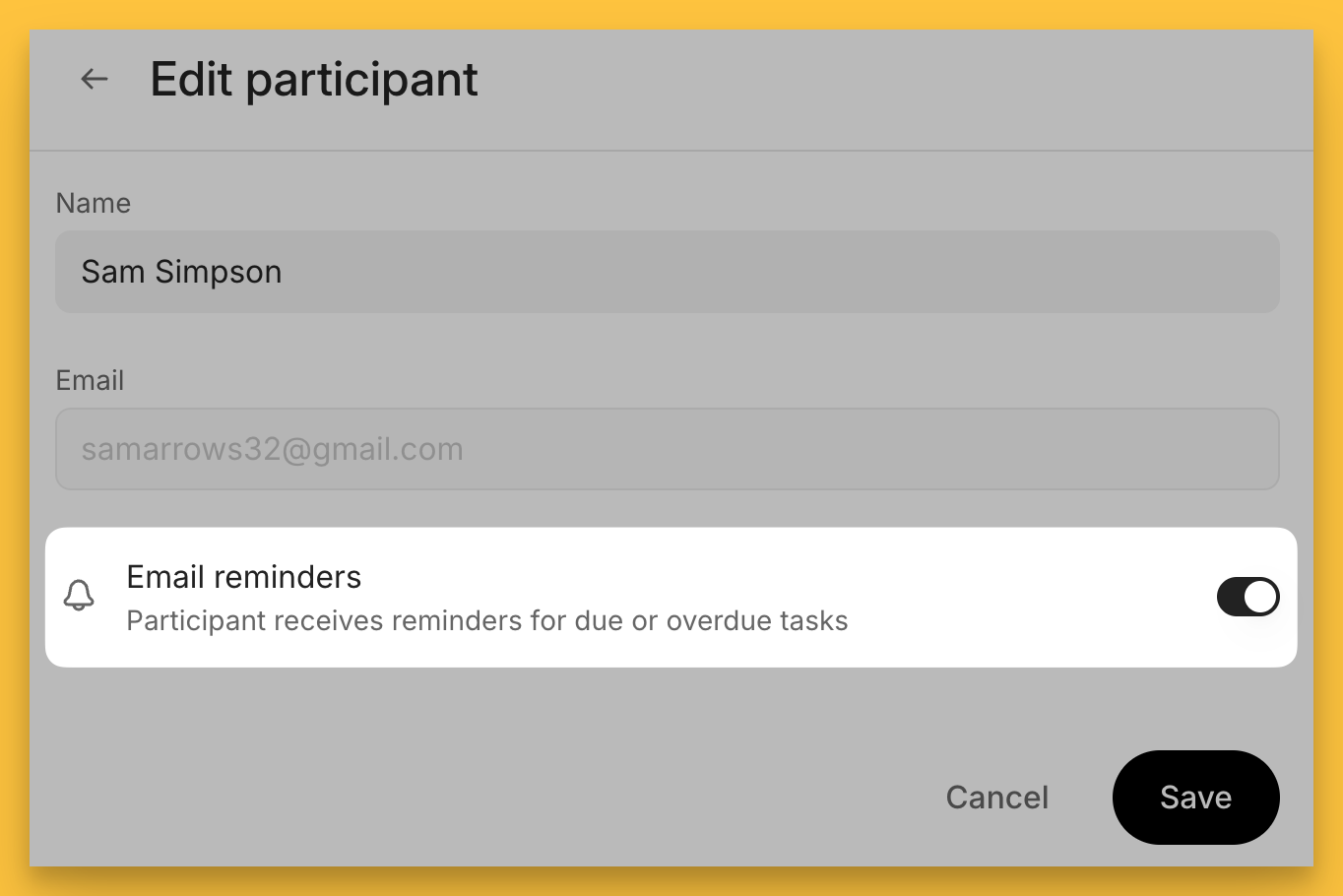
In addition to the organization-level settings we discussed above, you can also turn off notifications for individual plan participants if needed.
This is the same flow for customers who “unsubscribe” from email notifications.
From any plan’s Share panel, you can select Edit and adjust the notification settings accordingly for that participant
As you create more plans and assign more tasks, the reminders will help keep customers moving forward and highlight steps in your process where they might be getting stuck, ideally ones you quickly iterate on and add clarity to keep things moving.