
Using Gates between tasks and phases
A guide for setting up Gates in your onboarding plans to control what tasks and phases a customer can see or access based on conditions of your choice.
Gates are designed to give you flexibility and control over which tasks and phases customers can see or access in your Arrows plans!
Gates can be programmed to automatically unlock when a certain parts of the plan are completed or when certain criteria in HubSpot are met. They can also be manually unlocked by your internal plan managers!
To help you communicate to customers AND encourage plan progress, you can customize the message for each gate itself or set up automatic email reminders to trigger to customers when certain gates become unlocked.
Gates are a great way to…
make sure critical tasks are completed BEFORE a customer can proceed
help make longer, more complex onboarding processes feel less overwhelming
and, reduce manual workload traditionally placed on your onboarding teams
Gates between tasks in a phase
When you are in Edit mode on a template (or plan), you’ll see the option to + Gate when you hover your mouse between tasks in a phase.
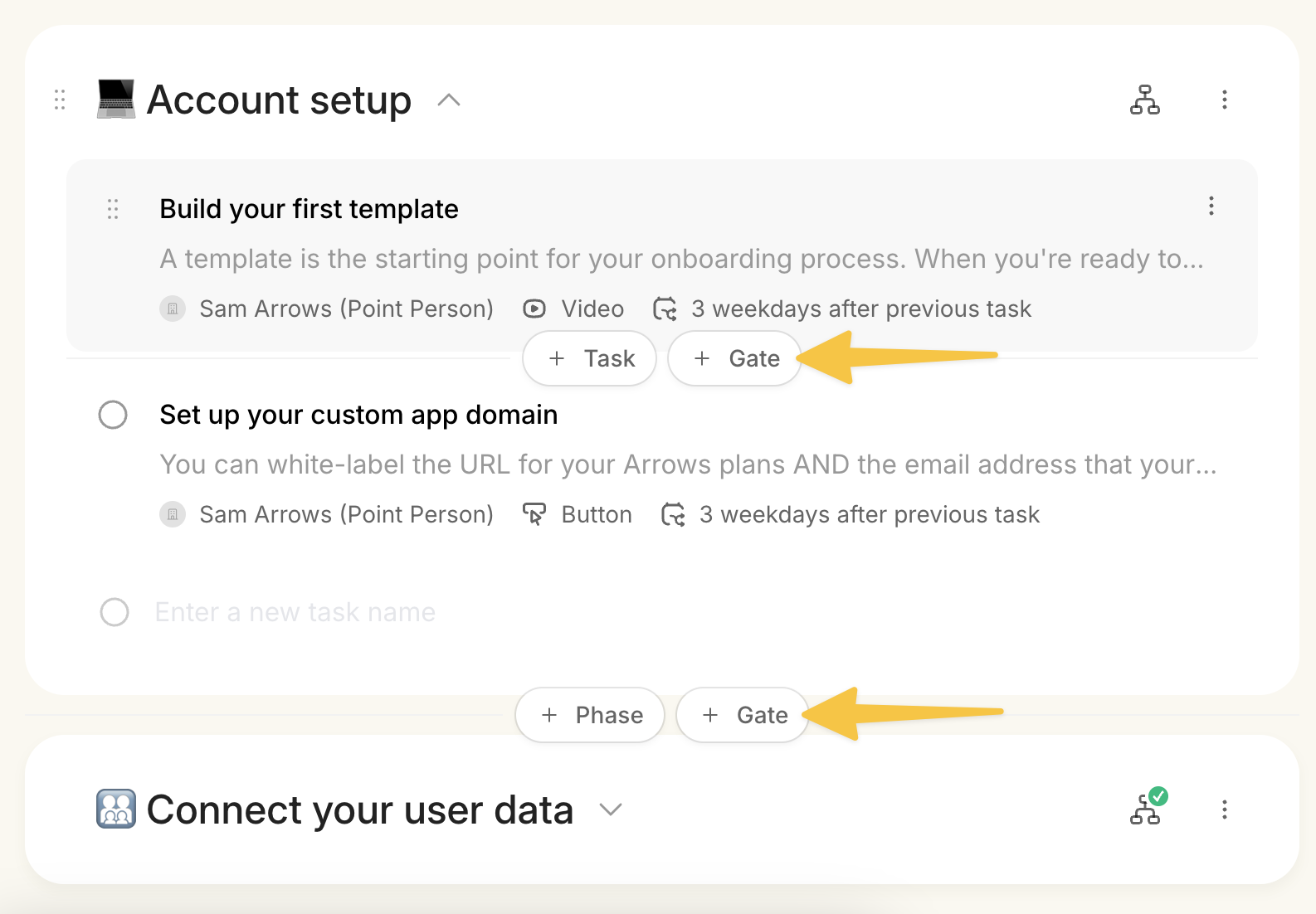
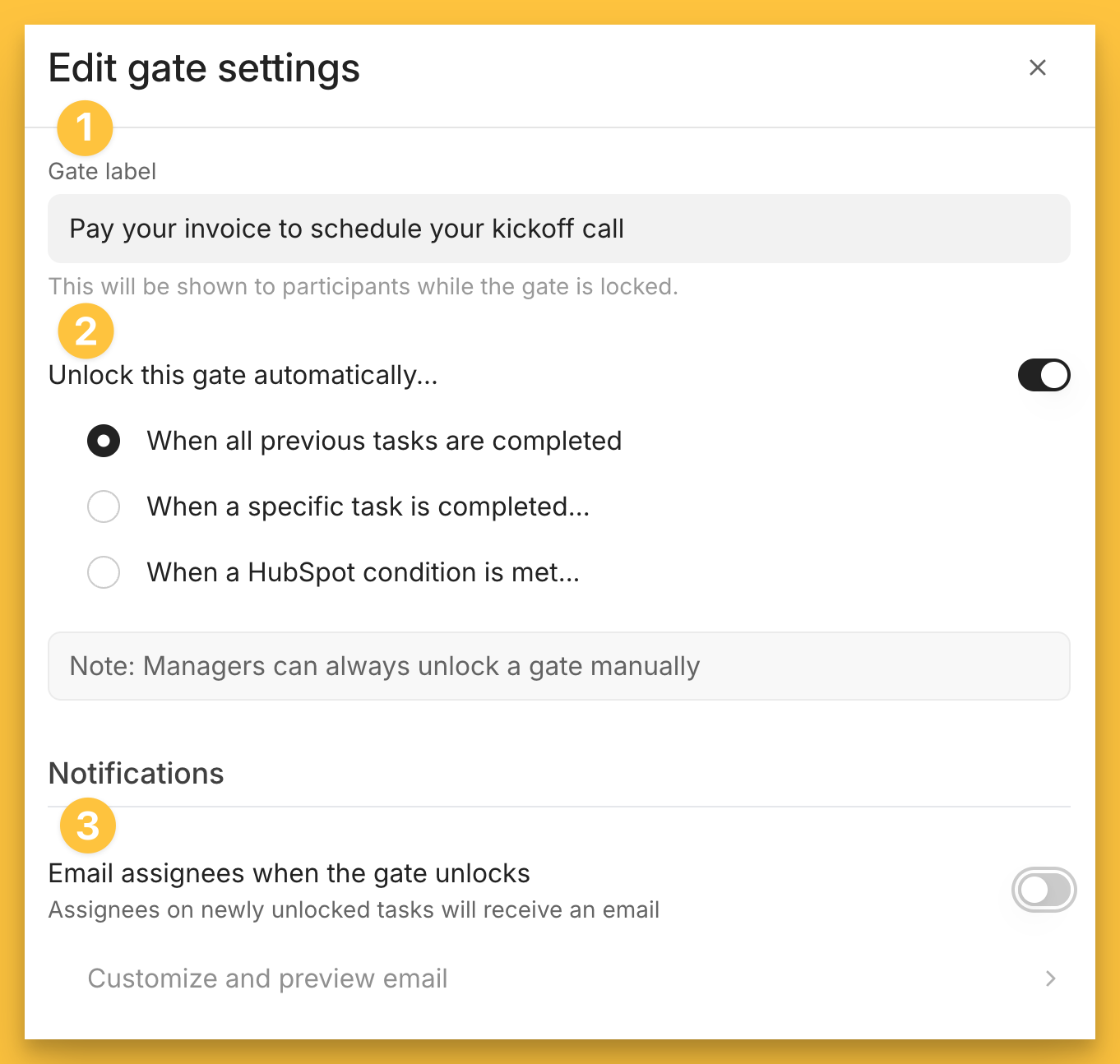
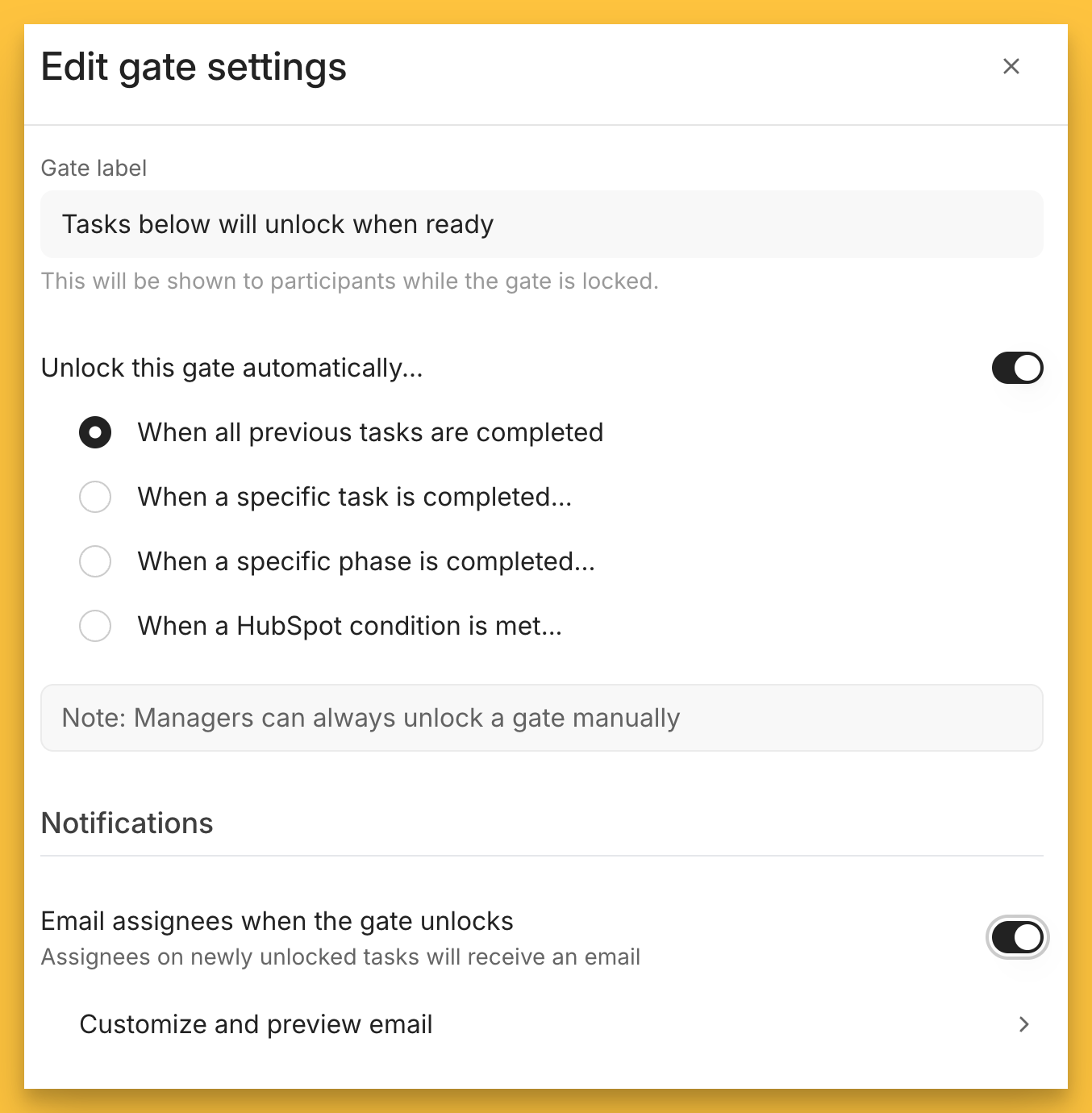
Once you insert the new gate, you’ll have the options to…
customize the gate label
set conditions as to when the next set of tasks will become available
and, add and customize an email to be sent to customers letting them know the next set of tasks are available (use this when you might expect customers to leave the plan versus continue progress like in this example)
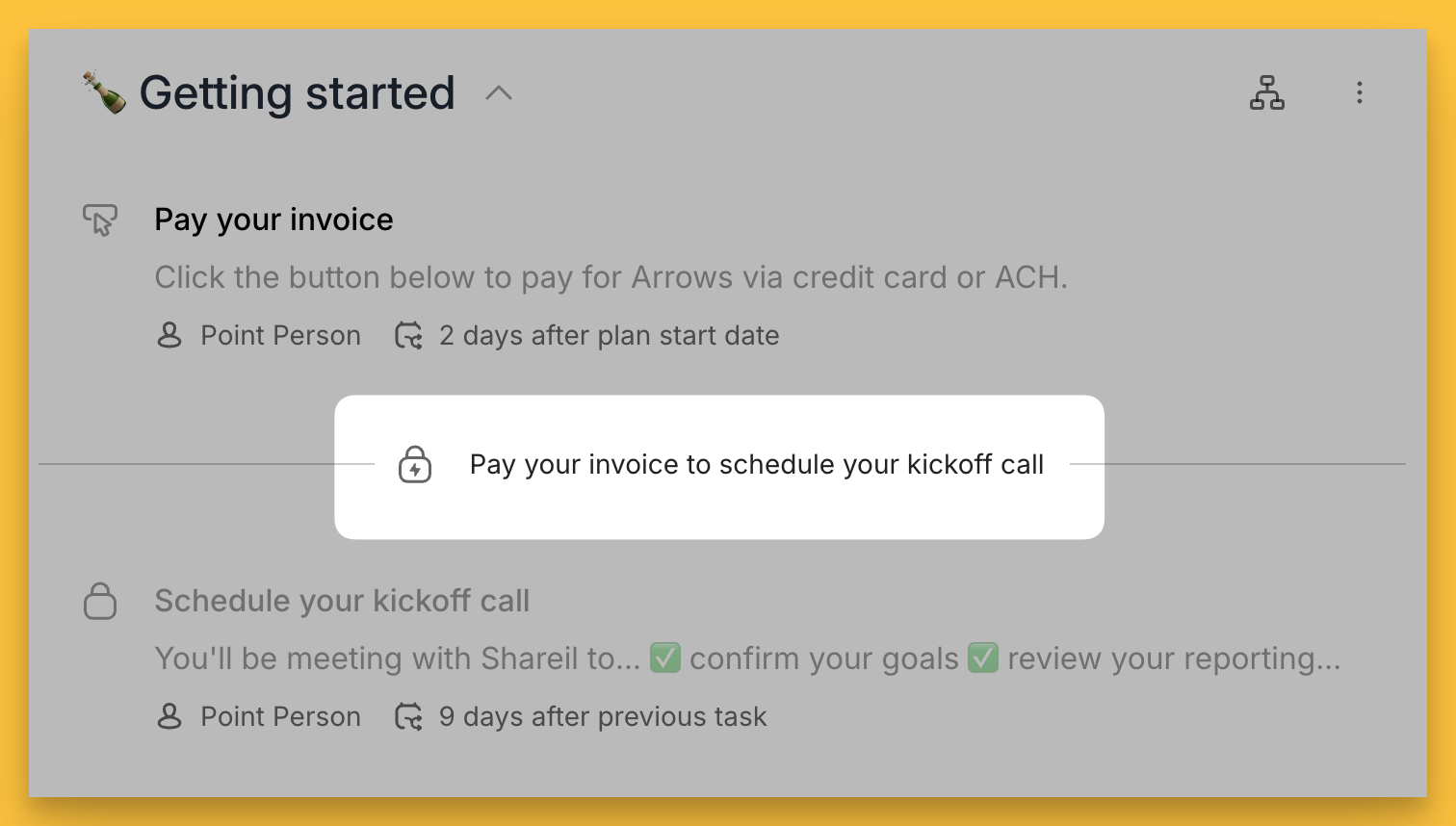
A customized gate label can also serve as a great communication tool between you and your customers
Gates between phases
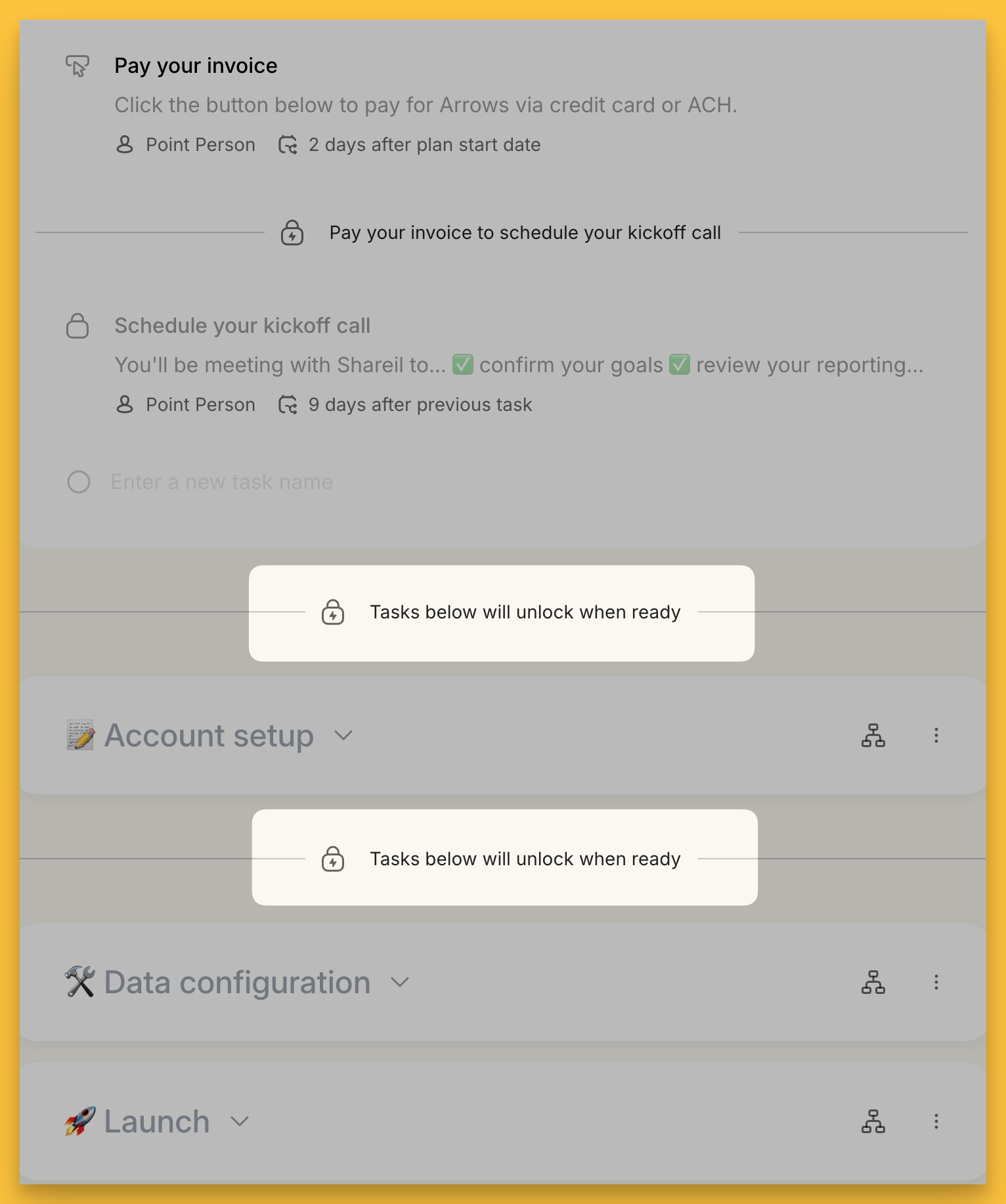
Gates can also be placed between phases of your choice!
In this example, the Account setup phase would only become available once EVERYTHING above it is completed.
And the Data configuration AND Launch phases would both become available once the Account setup phase is completed.
This gives you full flexibility over what you do and do not want to give customers access to.
When you edit a gate between phases, you’ll see similar options as the task-level gates, plus the ability to set conditions to unlock the gate based on specific phase completion as well.
Visibility setting for tasks beyond gates
From left-side template settings menu, you have the option to choose what you want your customers to see beyond a locked gate.
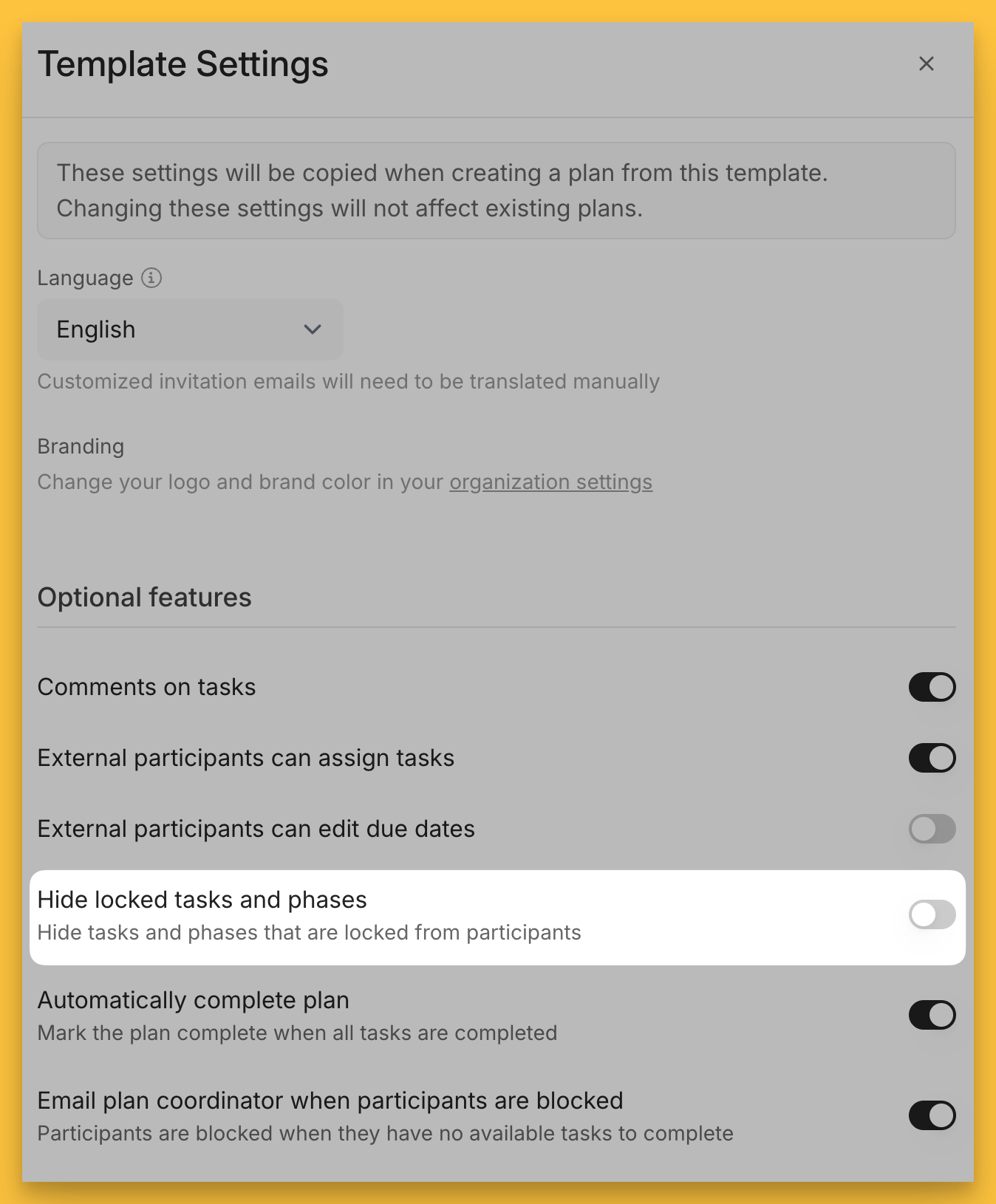
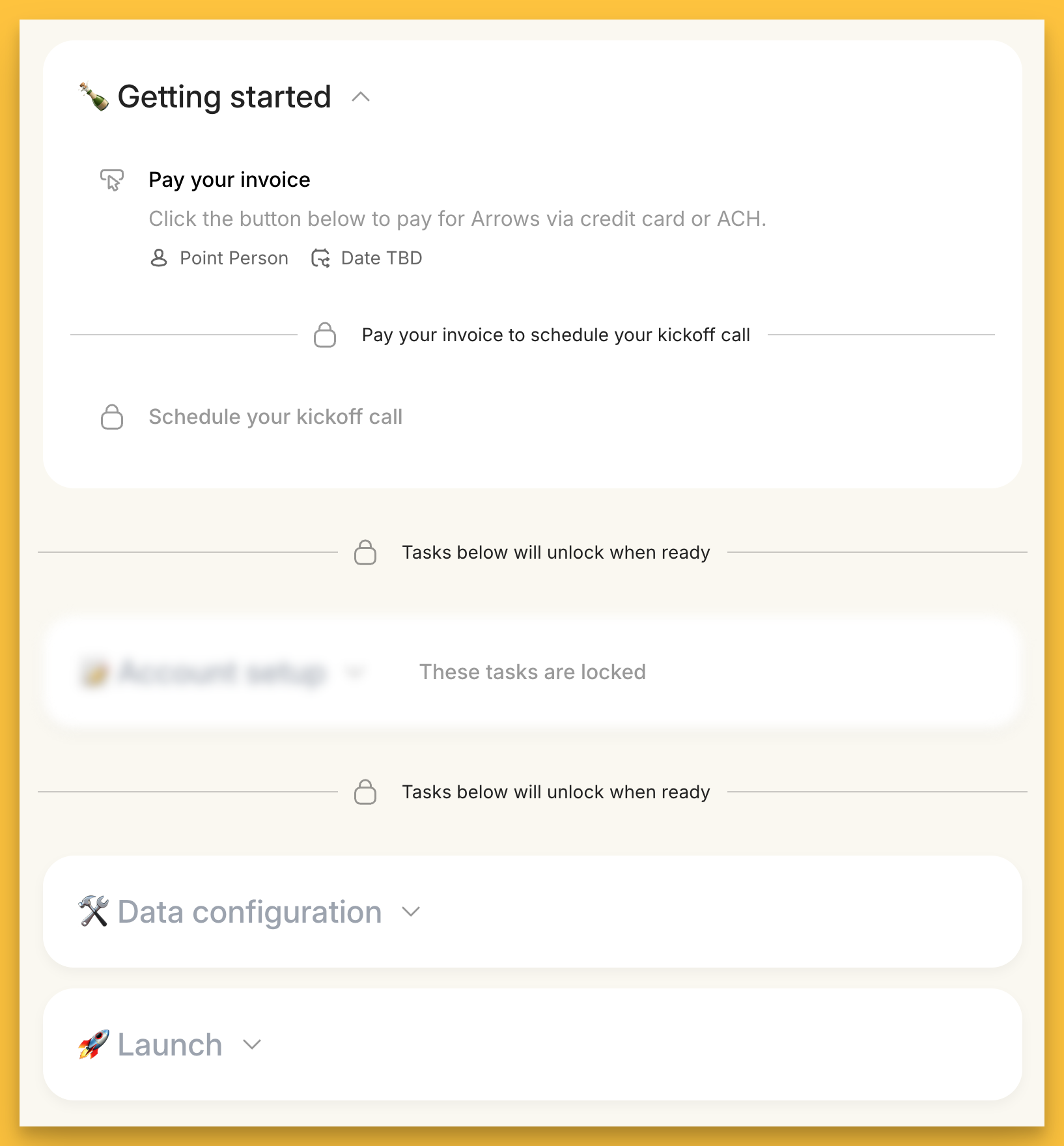
When this toggle is OFF, participants can get a sense of what’s to come, but tasks and phase grey and locked.
If a participant tries to click a locked task or phase, they will see a message that “These tasks are locked”
When this toggle is ON, participants will only see the available tasks (or phases) without visibility into the rest of the plan
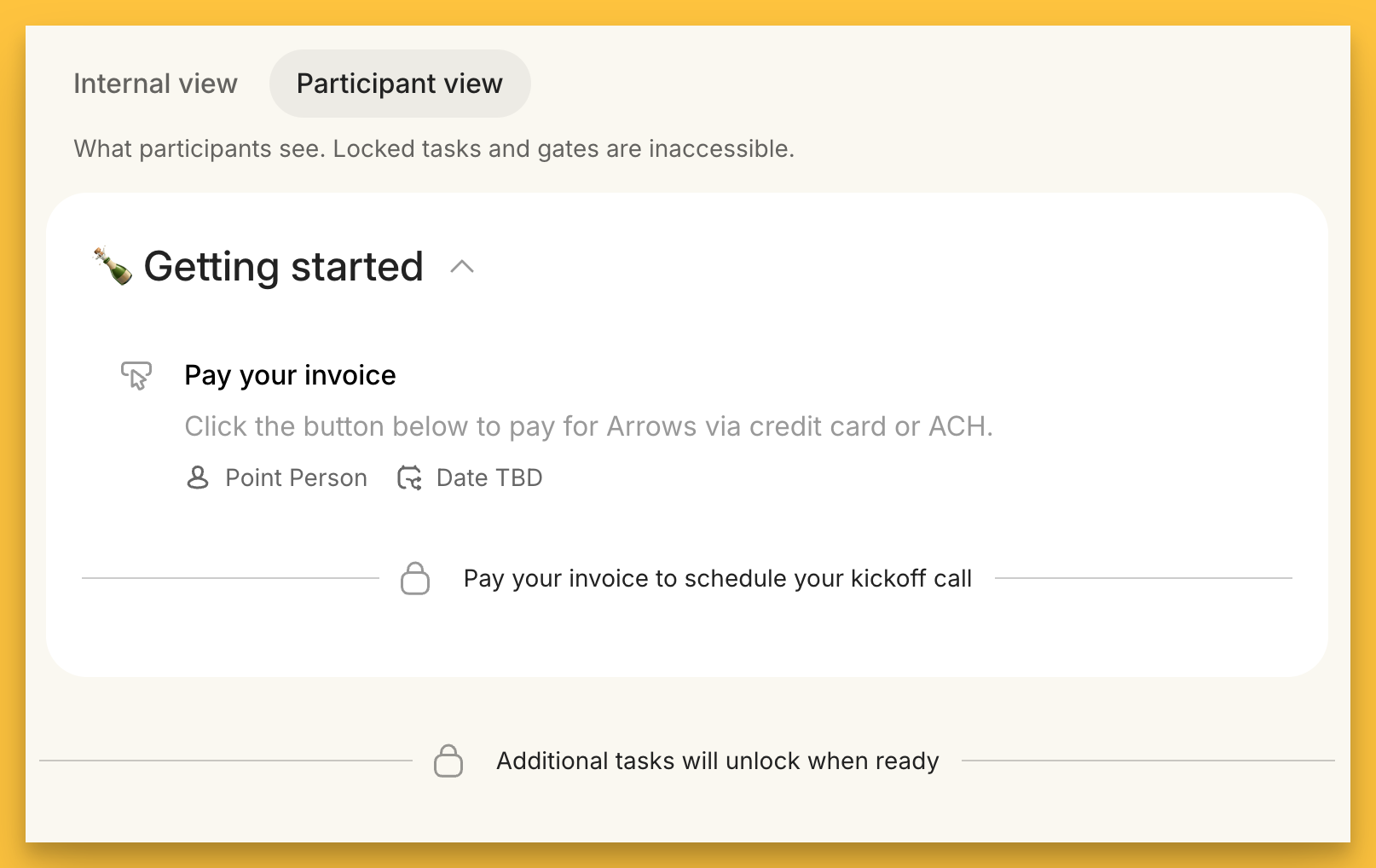
Note: you can always jump between internal and participant view to see what your plan participants will see on their side!