Managing File Uploads and Form Submissions
Learn how to seamlessly collect and sync customer information between Arrows and HubSpot using file uploads and form submissions.
Using Arrows task actions for file requests and form fields, you can easily collect customer information in Arrows and then access all that data inside HubSpot, right where it should be with all the rest of your customer data.
Accessing files and form submissions inside Arrows
When you're in your Arrows plan, you'll notice a "Submissions" drawer in the right side navigation. This centralizes all customer files and form submissions in one convenient location.

Inside the Submissions drawer, you'll find:
Form submissions: Access all the details your customers have shared. You can easily copy values or export the data as a CSV file.

File uploads: View all documents uploaded by your customers. You can download files individually or all at once.
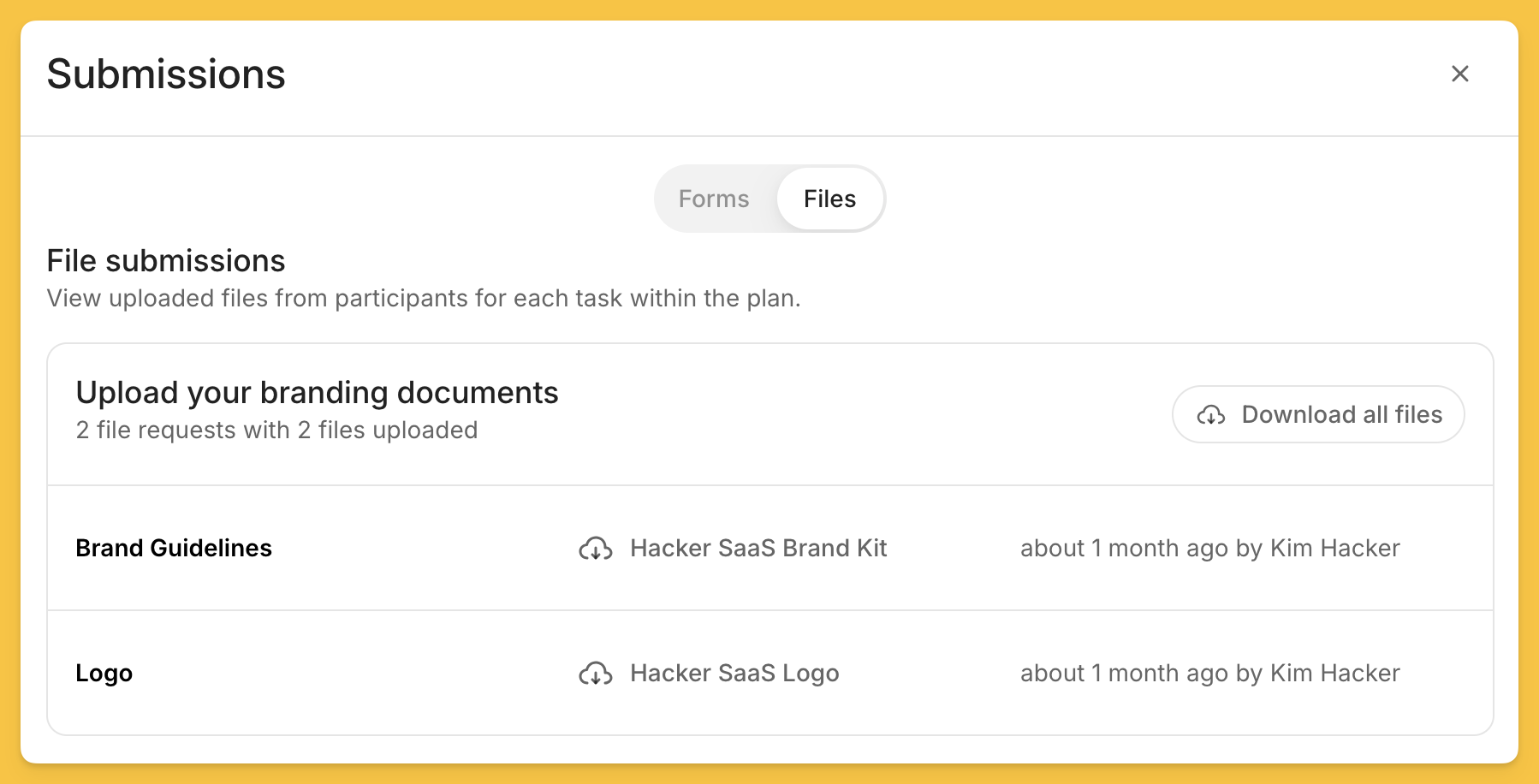
This centralized view ensures you have quick access to all necessary customer information without needing to search through multiple platforms.
Accessing files and form submissions inside HubSpot
Form Submissions
Form submissions in Arrows can be directly linked to HubSpot properties:
When creating a form field in Arrows, you can connect it to a specific HubSpot deal or ticket property.
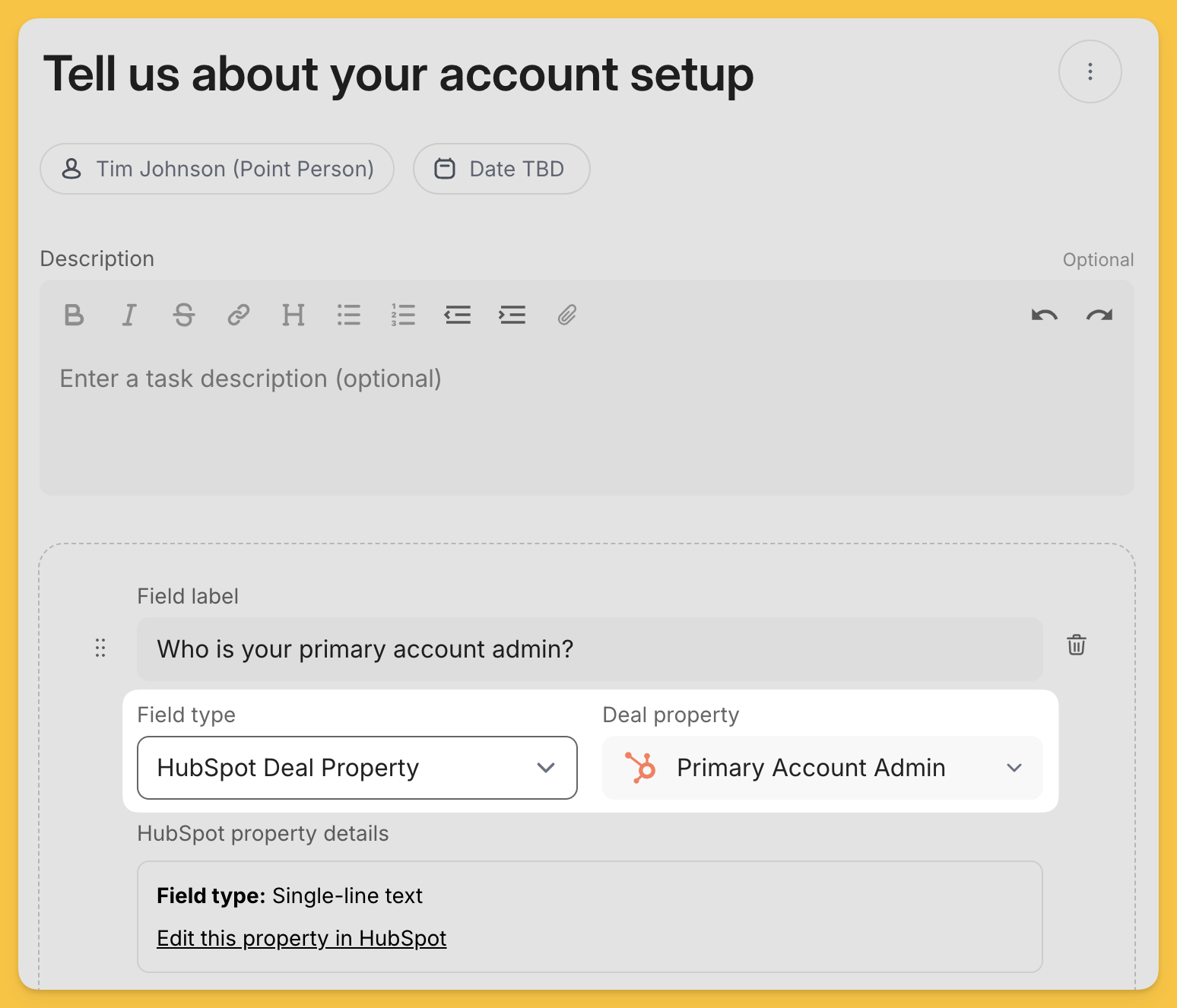
Once you’ve got that set up, as soon as a customer submits the form in Arrows, the data syncs to the corresponding property in HubSpot in real-time.
For example, if you have a "Project Goals" form field in Arrows linked to a HubSpot property, any submission will instantly update that property on the associated HubSpot record.
💡 Remember, the sync works both ways. Any updates made to these properties in HubSpot will also reflect in Arrows, ensuring your data stays consistent across both tools.
File Uploads
Syncing files from Arrows to HubSpot is straightforward:
In any file request task in Arrows, toggle on the "Copy files to HubSpot" option.
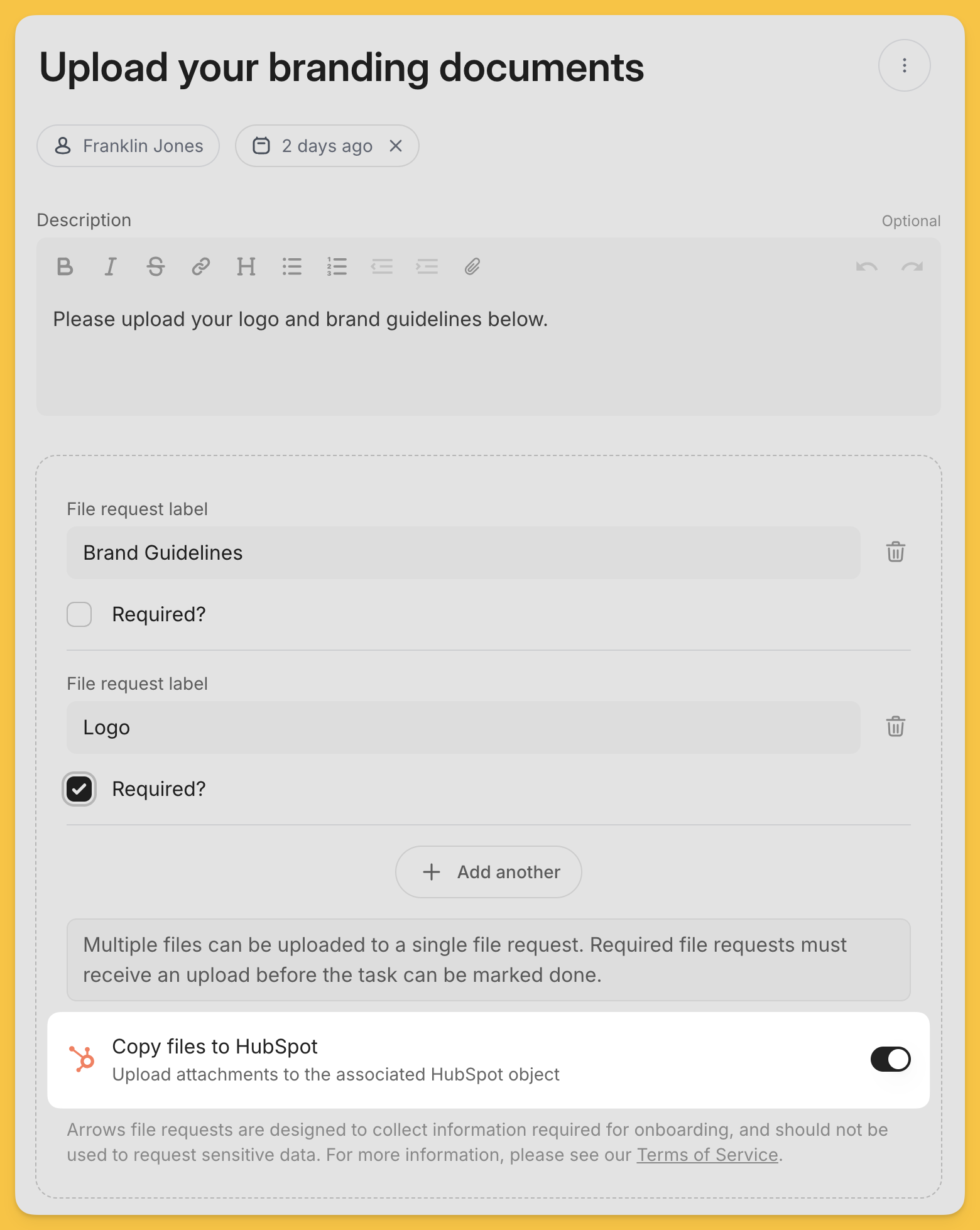
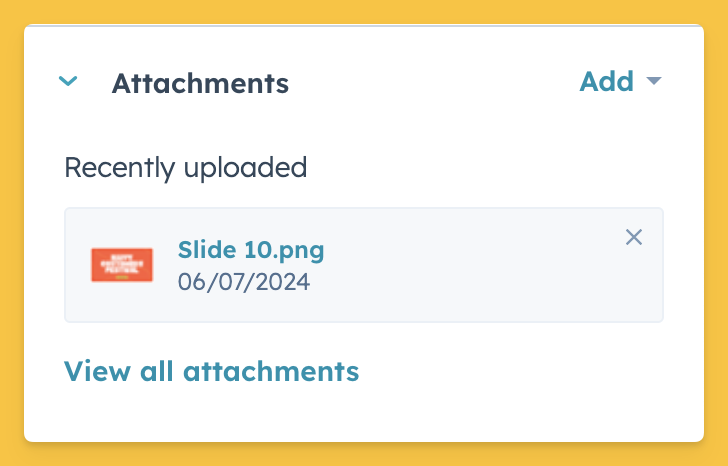
Then, when a customer uploads a file to this task, it automatically appears in HubSpot in two places:
In the Attachments section of the associated HubSpot object.
As a note in the activity feed, including details about which task the file was uploaded from.
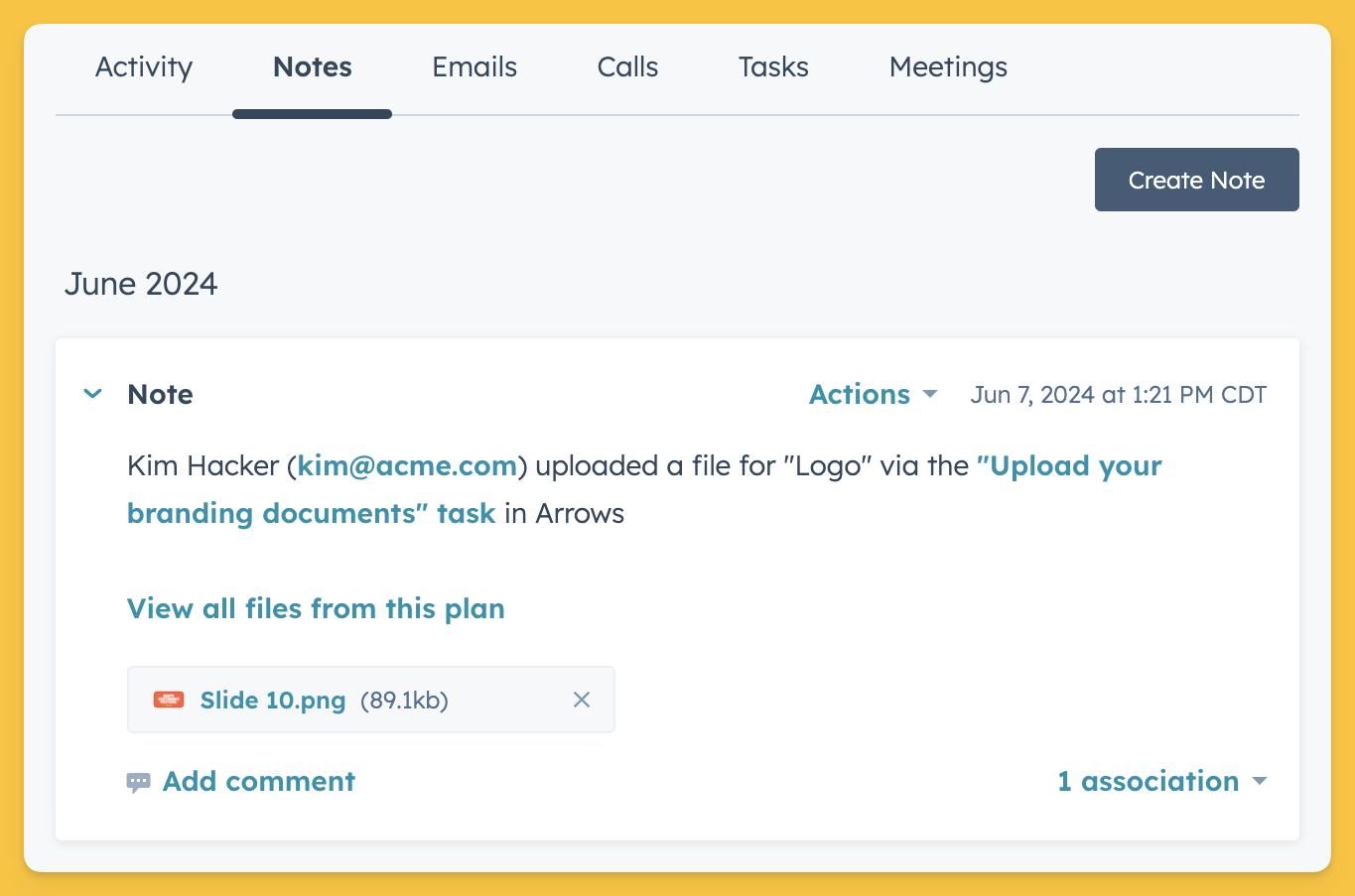
This automatic syncing ensures that all important customer documents are readily available in HubSpot, eliminating the need for manual transfers.
File and form submission CRM cards
There are also File and From Submissions CRM cards available in HubSpot to display this information directly (without syncing forms or copying files to HubSpot)
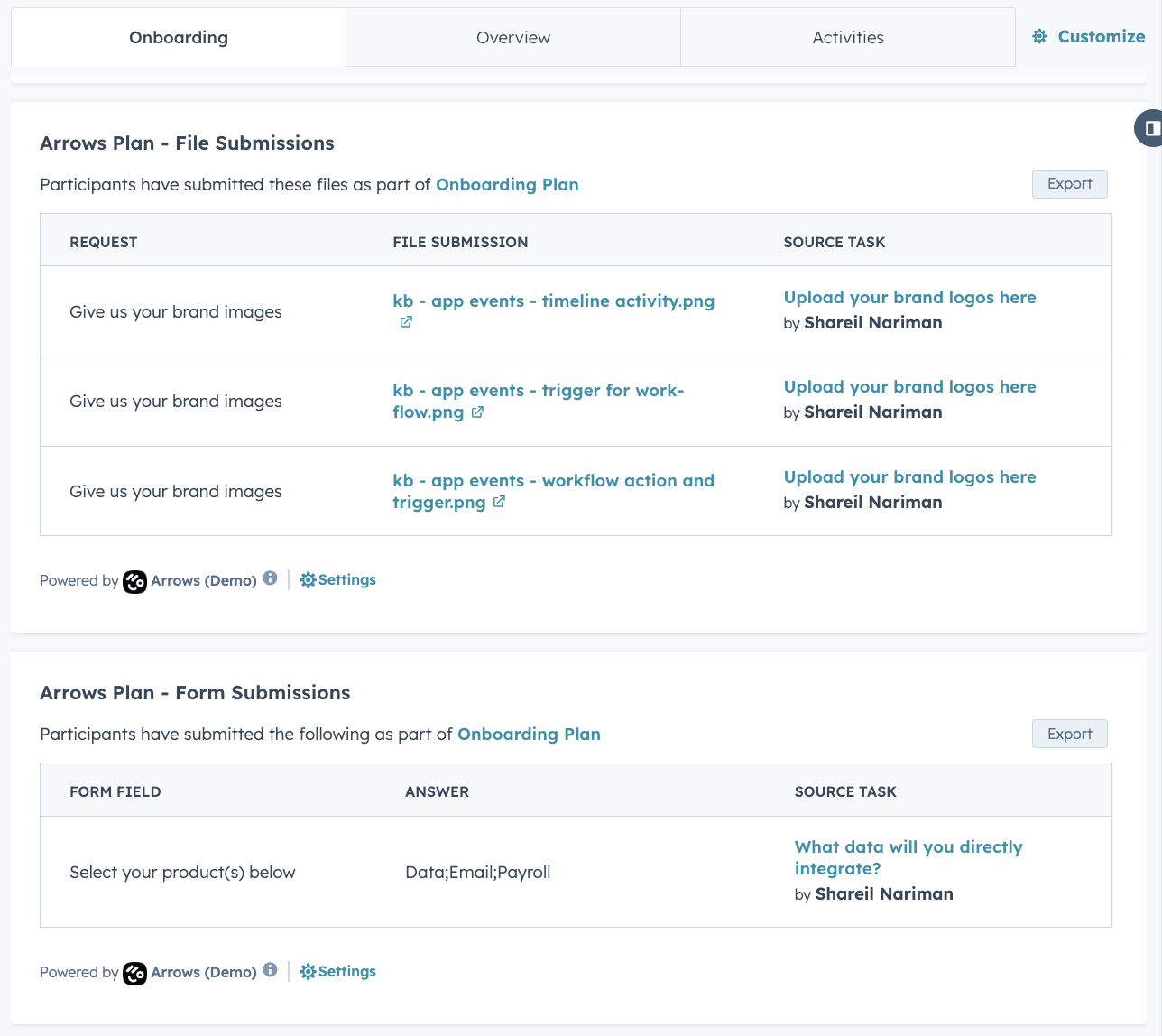
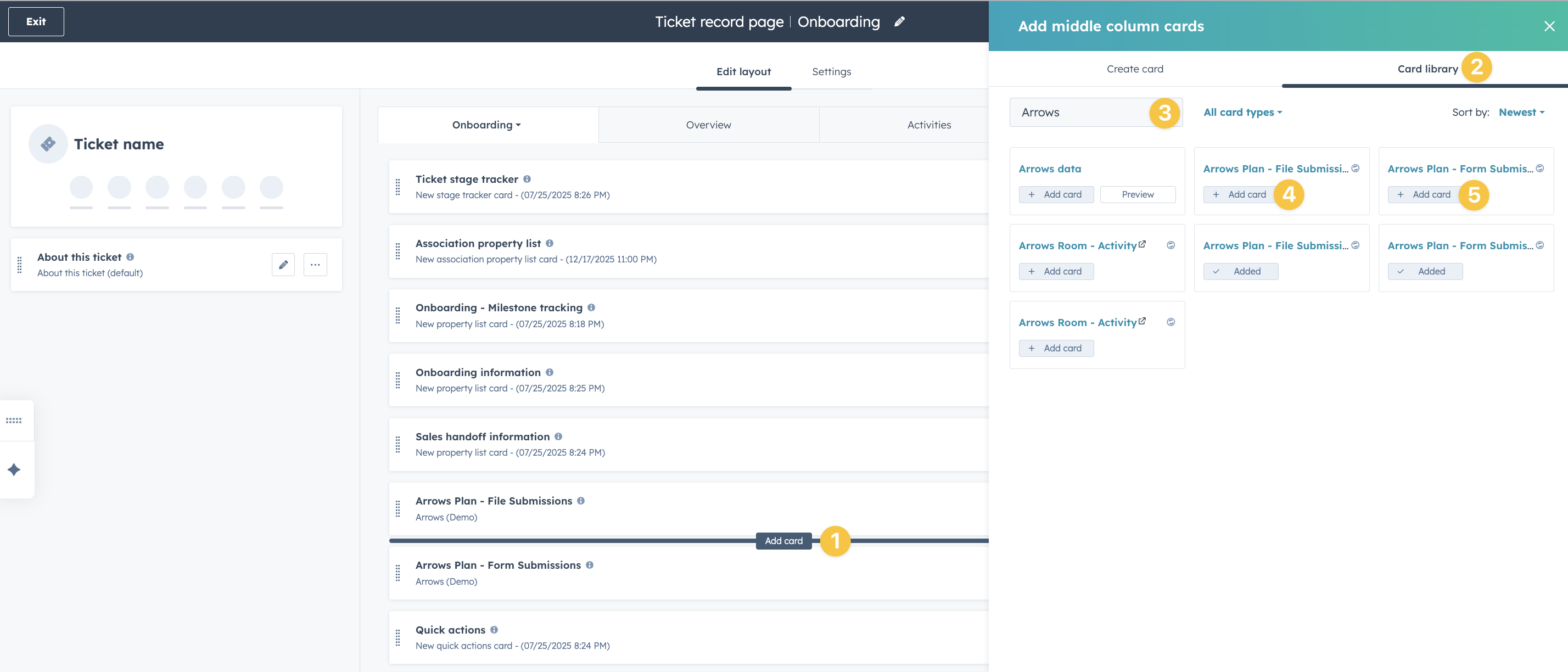
To turn on the file and form submission CRM Cards your HubSpot admin will need to edit the record used with your plans.
For that record, you can add the cards to the center activity view.
Start by...
selecting Add card on your overview or custom tab
select the Card library
search for "Arrows"
add the File Submission card
add the Form Submission card
(be sure to Save the changes in HubSpot)