
Gate notification emails
Setting up custom gate notification emails to alert customers about their next set of tasks.
Gates can help you control plan progress by preventing when tasks and phases become available for your participants.
Where it makes sense, you can also set up an email notification to go out to the assignees of subsequent tasks after a phase is unlocked!
Each gate can have it’s own customized email to help you communicate exactly what’s next, give your customers direct access back to their plan, and save you the trouble of sending another manual email.
Edit your gate settings
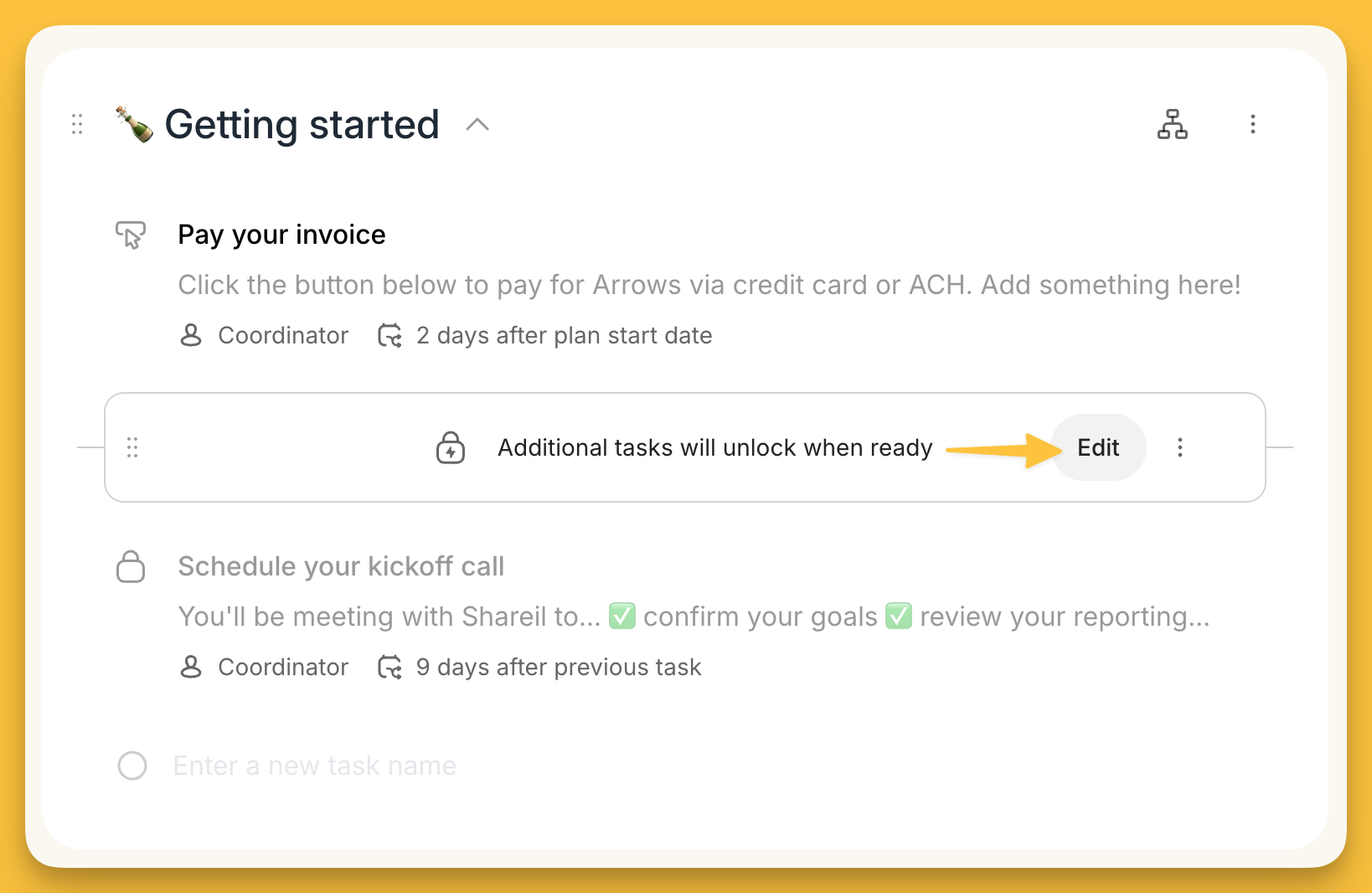
After you’ve added a gate between a task or phase, select the Edit button to access your gate settings
Turn on the notification toggle
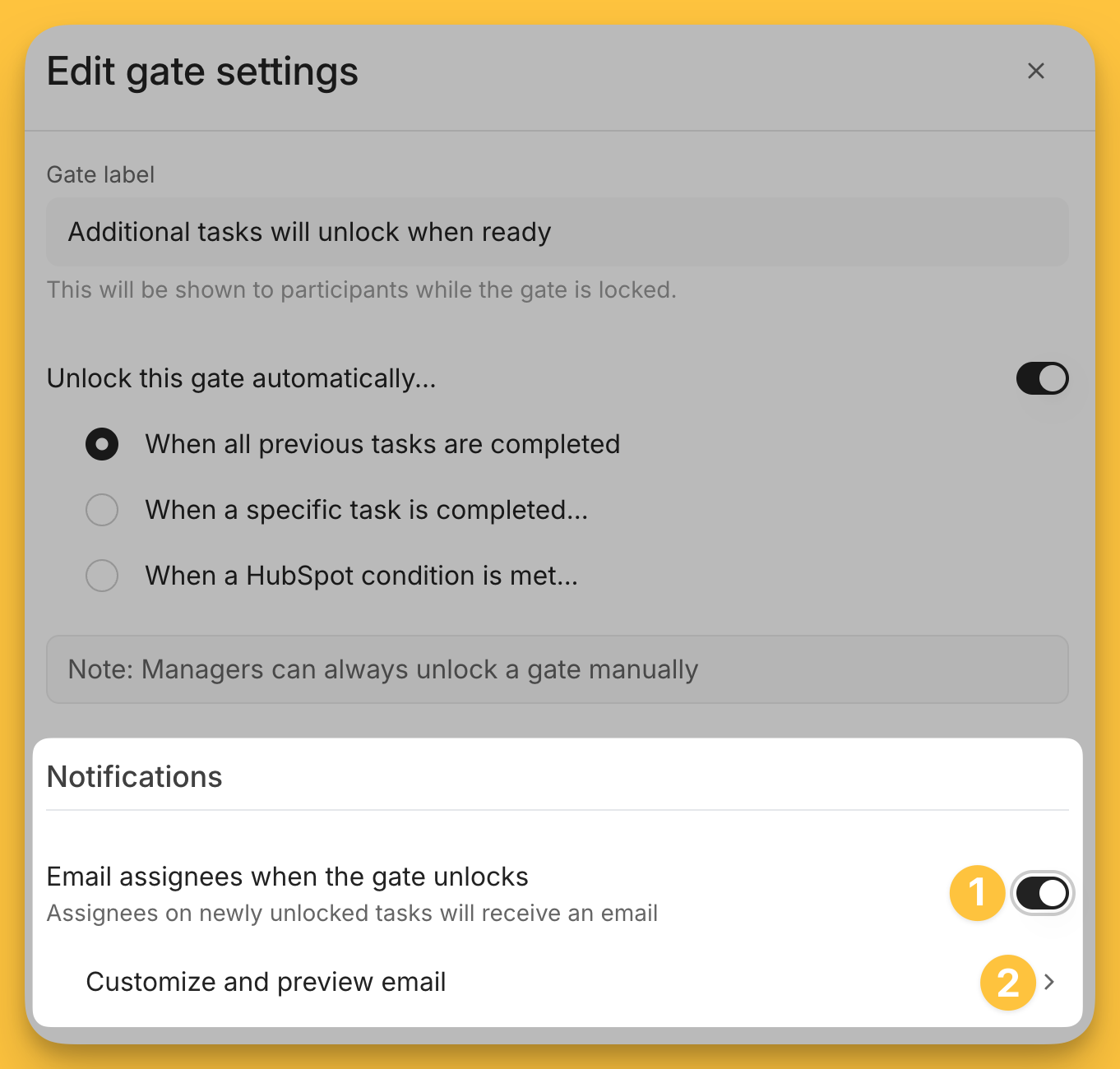
Once you are in the gate settings, you can…
turn on the toggle to Email assignees when the gate unlocks
and, customize the email that gets sent (or just preview the default)
Customize and preview the email
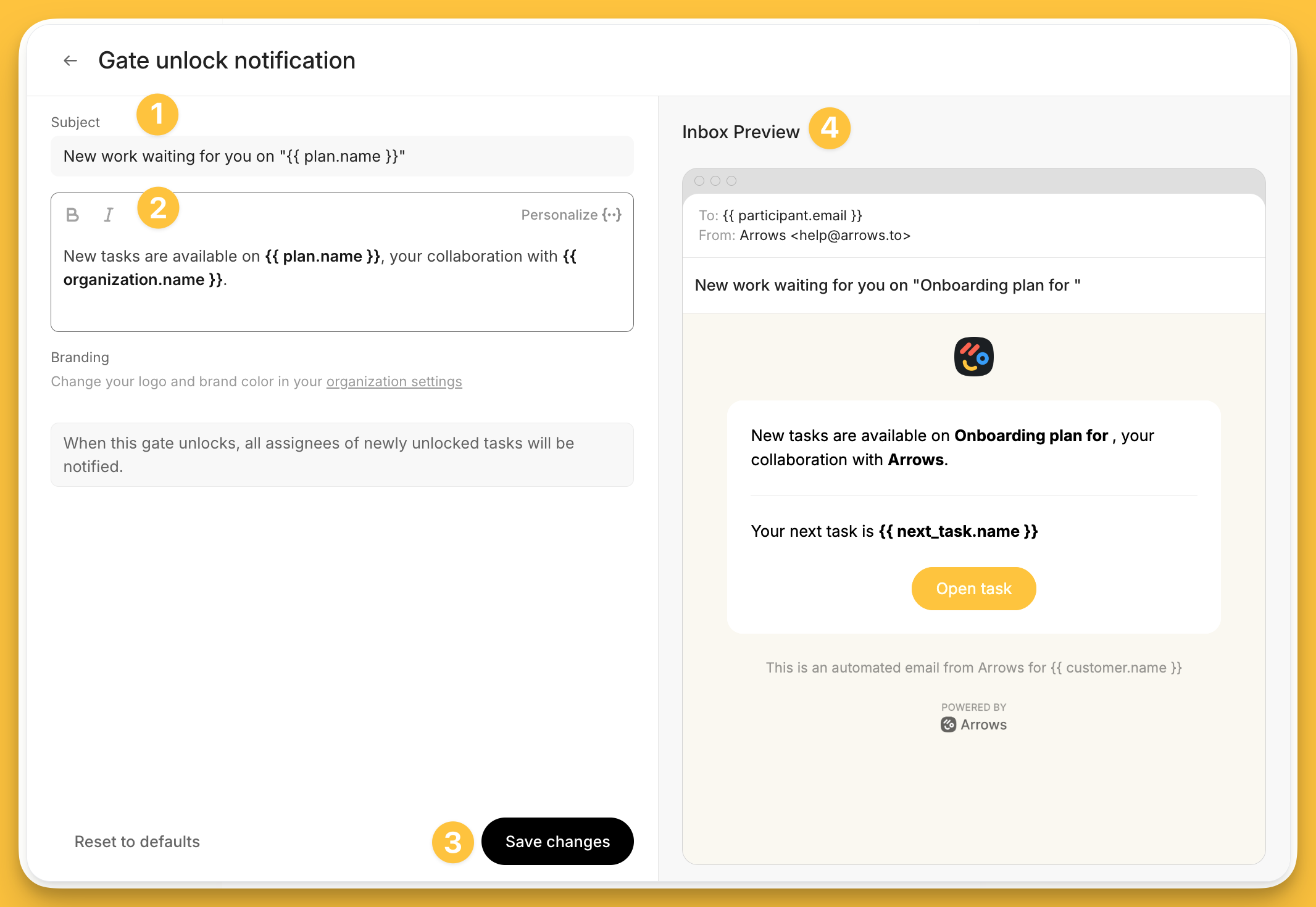
Upon opening the email preview, you’ll see the default email that will be sent if you use this option.
Here you can also…
adjust the subject line for your email
adjust the body for your email
save your changes
and, preview exactly what your customers will see!
Once you feel comfortable with your edits, save and close this window!
Note - you can always Reset to defaults by pressing that option in the bottom left corner of your editing screen.