
How to change the coordinator of an onboarding plan
Learn how to update the onboarding plan coordinator either in Arrows or directly from HubSpot.
Change the plan coordinator from Arrows
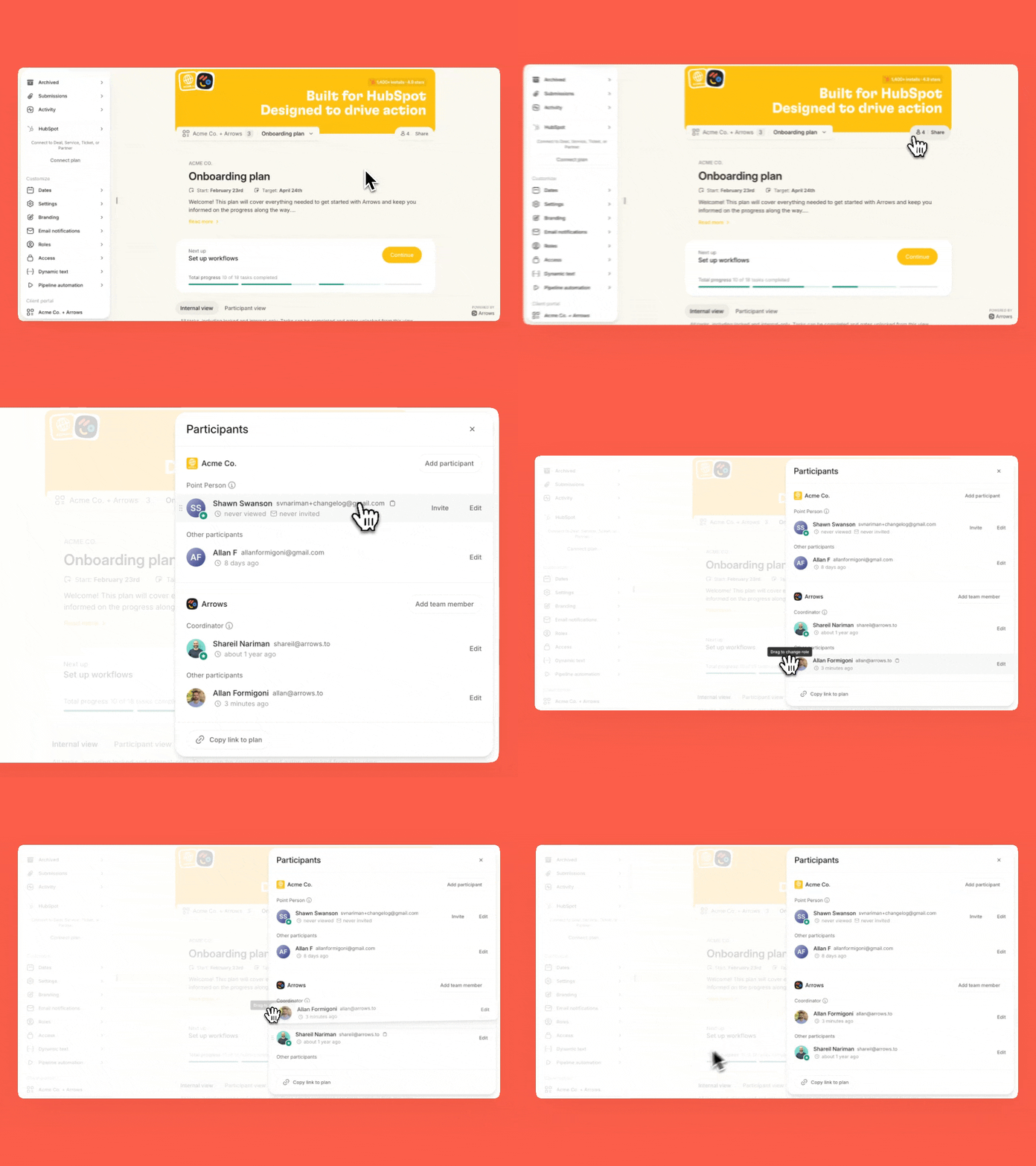
Open the onboarding plan
Click into the Share (It will say "Invite Participants" if you haven't sent an invite yet) button right below the plan banner
Drag the new coordinator over the current one to update ownership
You can always add new custom roles by going to the Roles option on the left navigation bar on Arrows.
Change the plan coordinator from HubSpot
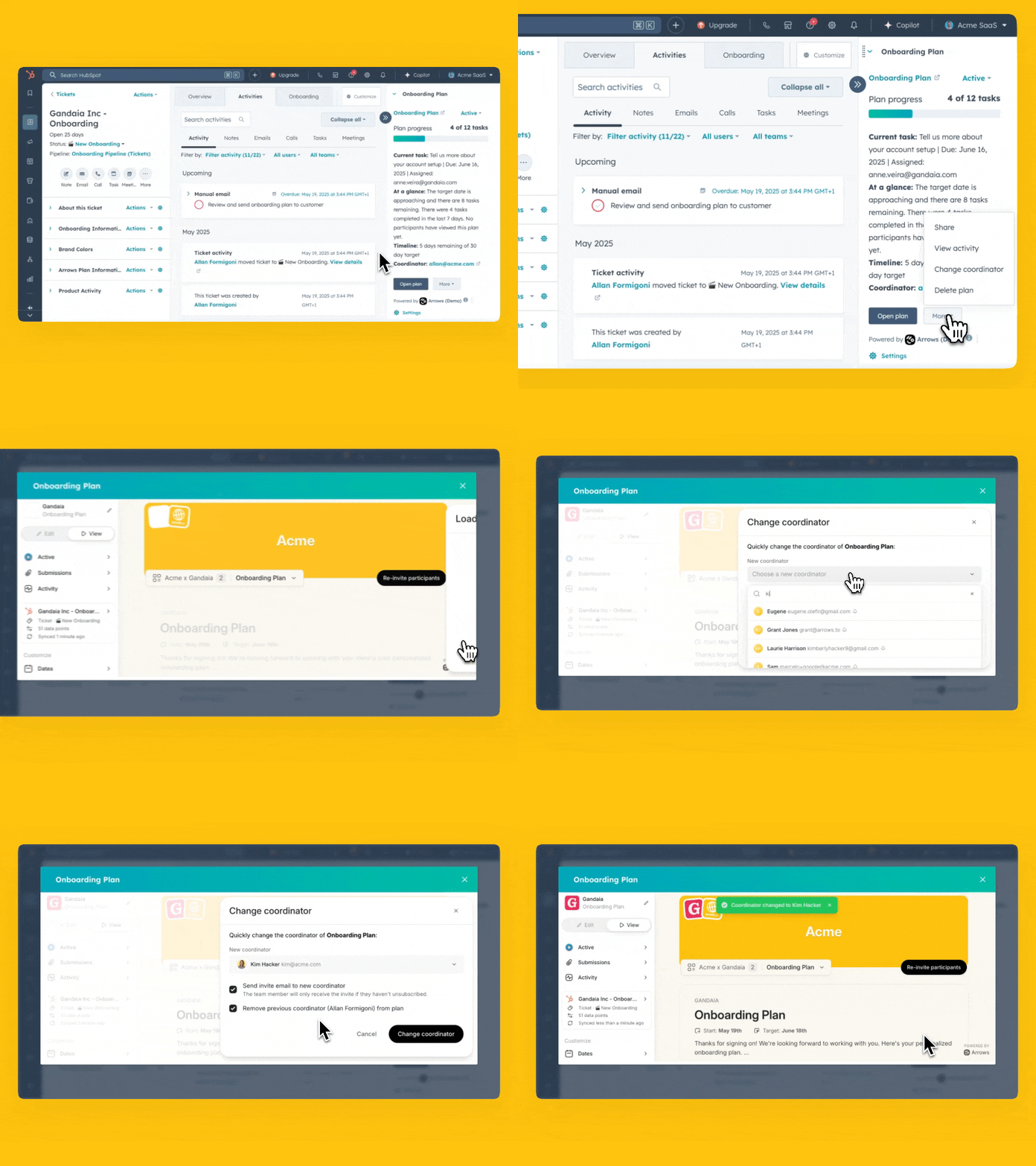
Navigate to the HubSpot object (ticket, deal, service object, or custom object)
Find the Arrows onboarding plan app card
Click More → Change coordinator
Select the new coordinator from the Change coordinator tab
Choose to send an invite email and optionally remove or keep the previous one
💡 NOTE:
By default, changing the object owner in HubSpot will not update the plan coordinator in Arrows.
However, if you’ve enabled Dynamic role assignment for the coordinator role, updating the configured HubSpot owner property will update the plan coordinator in Arrows