
Building your content block library
A guide to creating content blocks in your block library. These pre-saved blocks can be manually added into rooms and suggested by Arrows AI intelligence when appropriate, saving you and your team countless hours of manual effort.
Your content in Arrows sales rooms is organized into different block types. Your templates are made of these blocks and can be used as a starting point to create individual rooms for prospects.
More often than not, those rooms need customization and editing to make them unique to each prospect - this is where your block library comes in!
You can save pre-built blocks into your library so your sales reps can QUICKLY add appropriate ones to their prospects sales rooms, without spending hours creating new content.
To get started, head to the Rooms Block Library and follow the directions below.
Create a new block
From your block library, select the button to Create new block
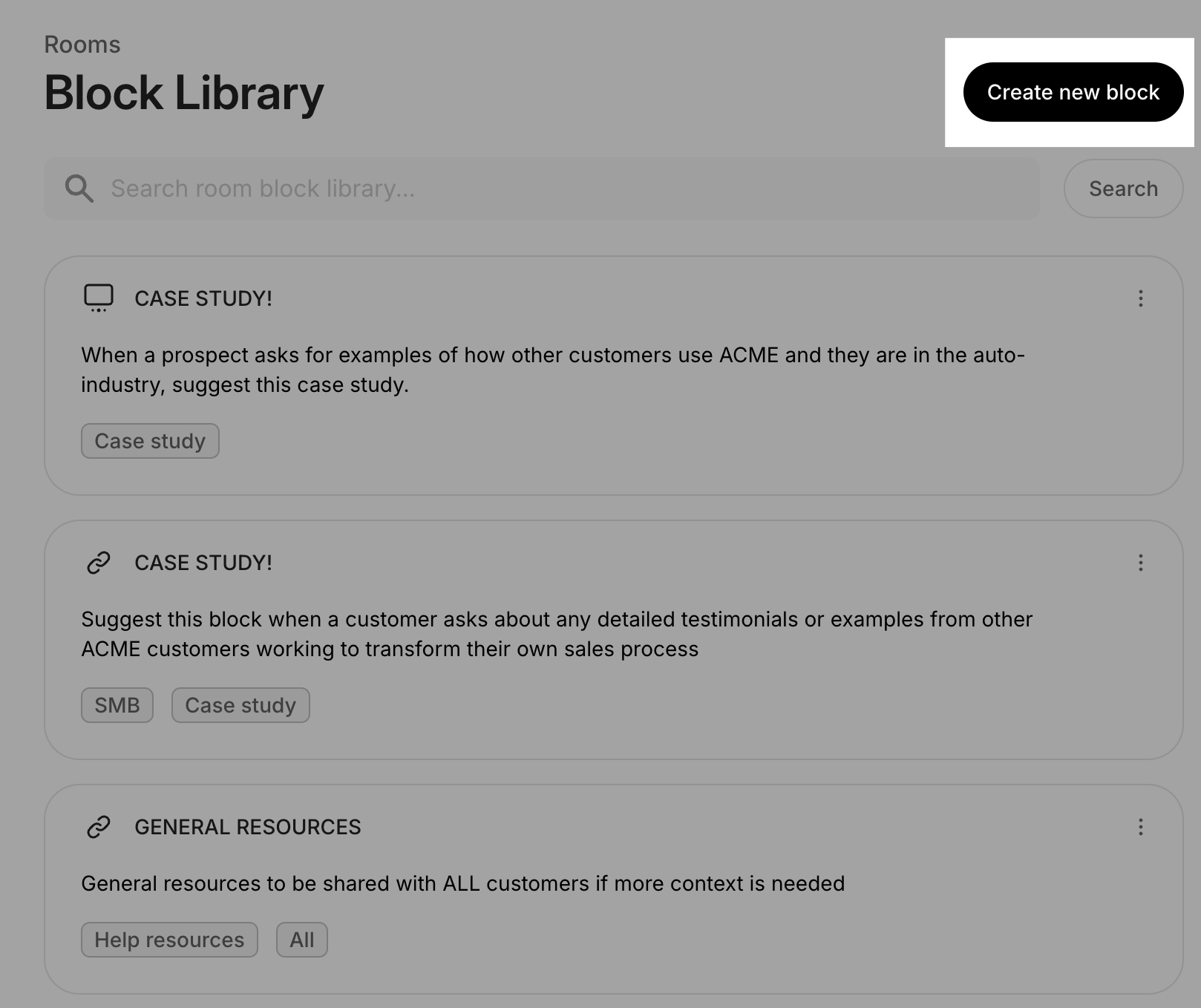
You’ll see the option to select from list of different block types.
There are block types for…
sharing resources with prospects
communicating actions
collecting information through forms
sharing decks, files and resources
sharing videos and call recordings
sharing quotes and e-signature tools
and, more!
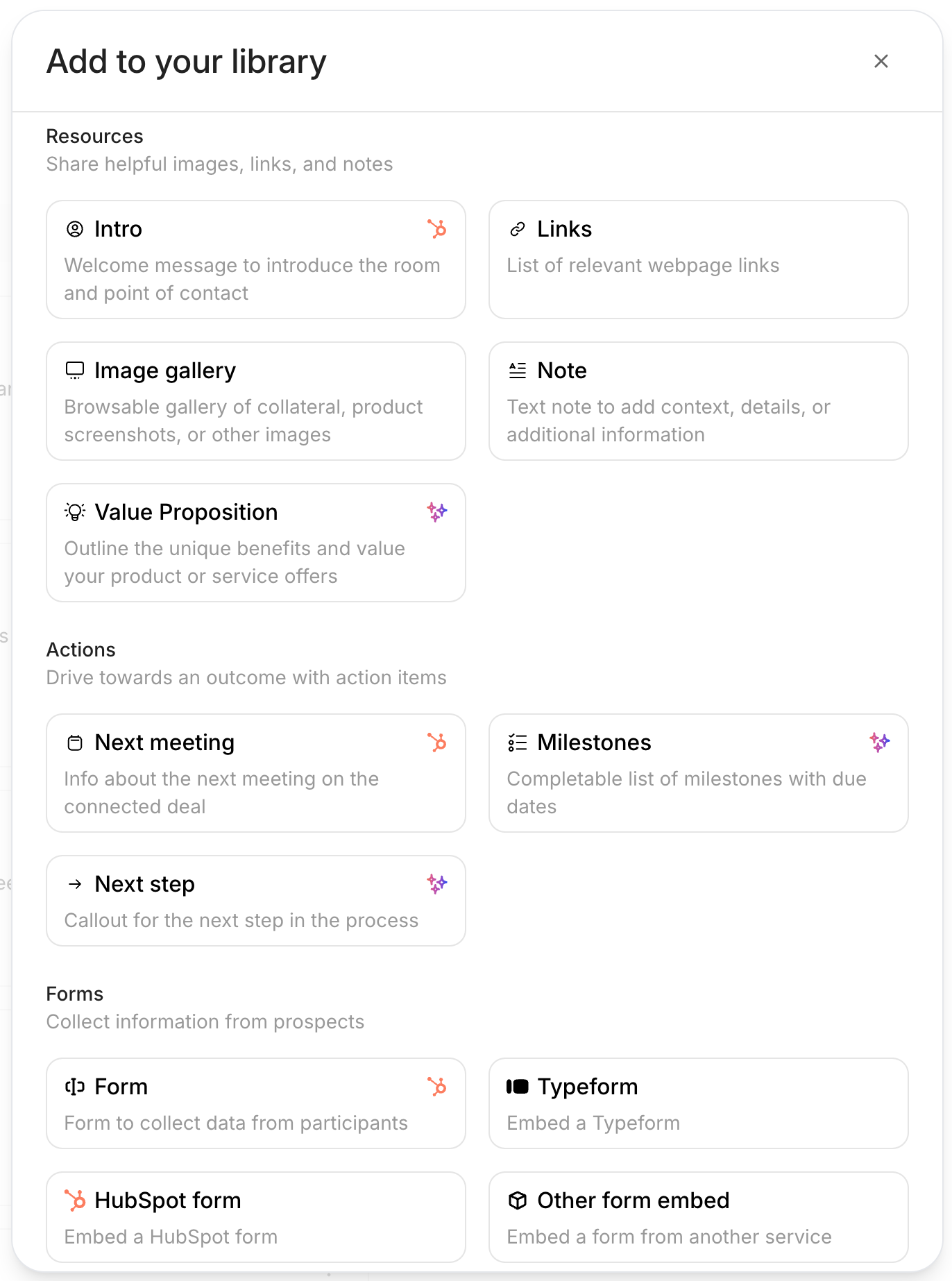
In this example, we selected the Links block type to add a few links to relevant case studies
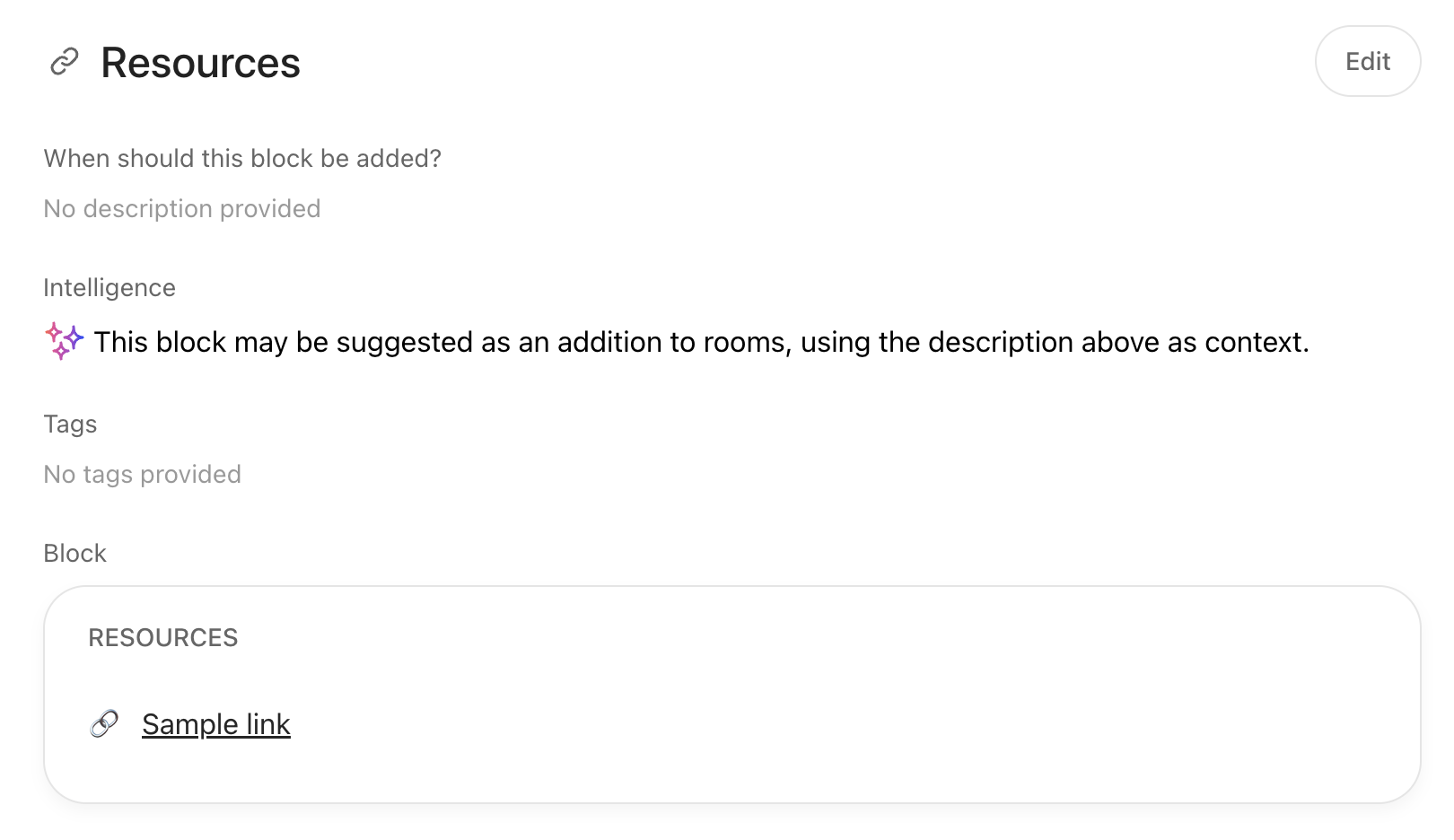
Once the block is created, select Edit to customize the block.
While editing, be sure to…
Give the block a unique link (in this case, we want to link to case studies)
Add a detailed description so your teams know when to use the block
Add a tag to make the block quickly searchable in your library
Add all your appropriate links!
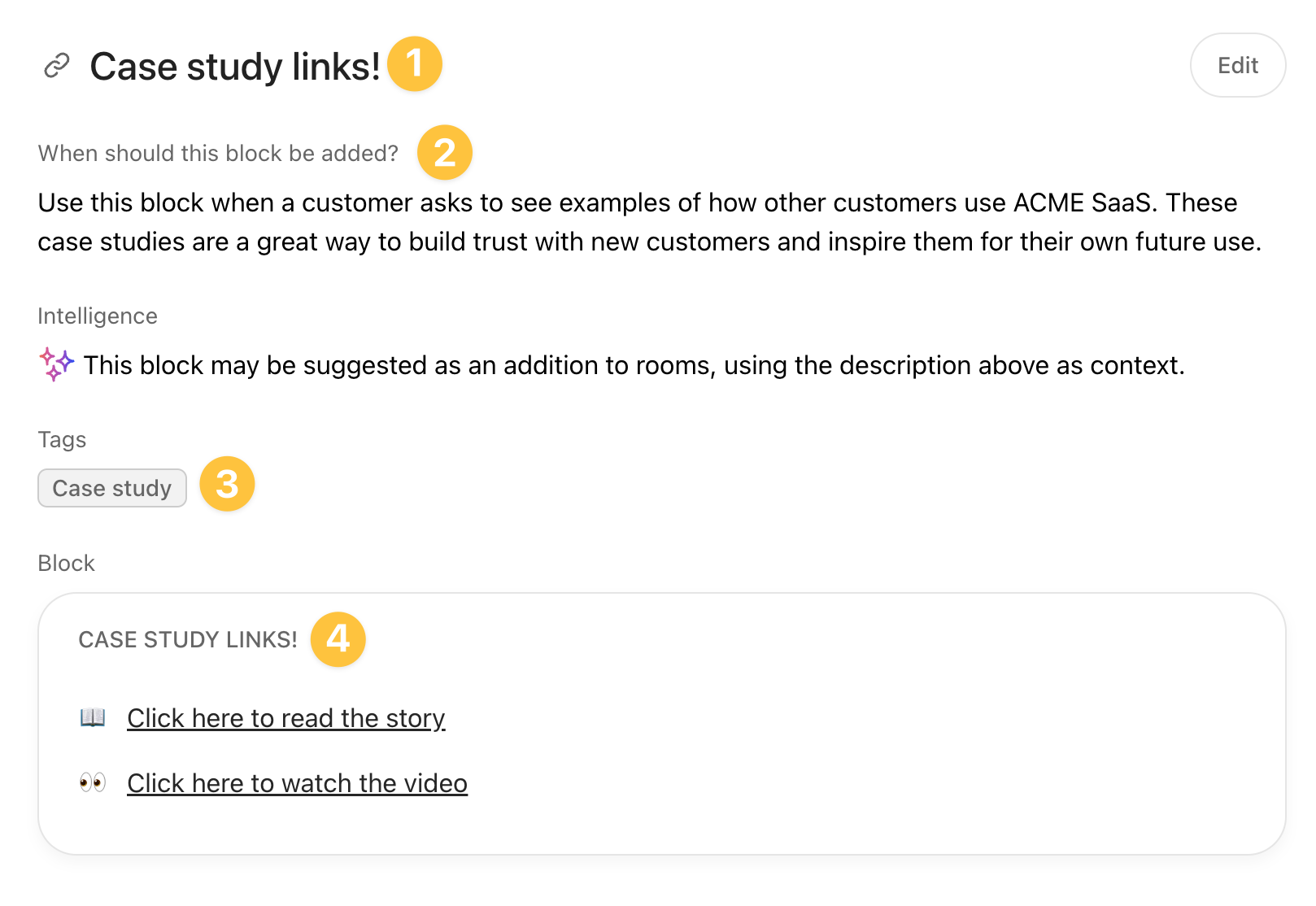
Arrows AI intelligence will use the block description to determine when to suggest your team use that block - the more details you add here, the more accurate those suggestions become!
Using your new block
Now you can add that pre-saved block from your library to any existing room or room template!
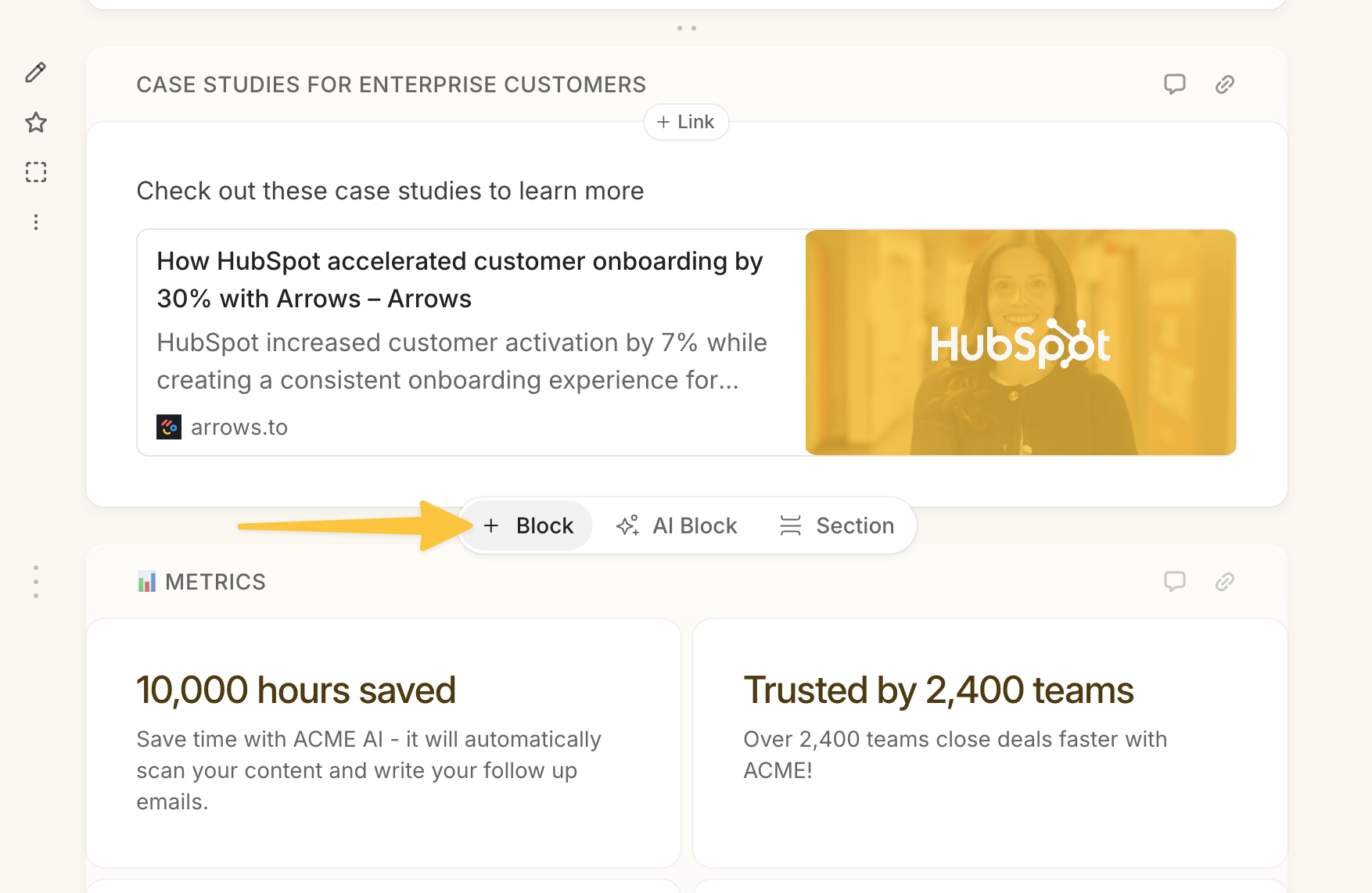
When you hover your mouse between two existing blocks in a room, you’ll see the option to + Block
Then select Library block and search your library by the block title, description, creator, or tag
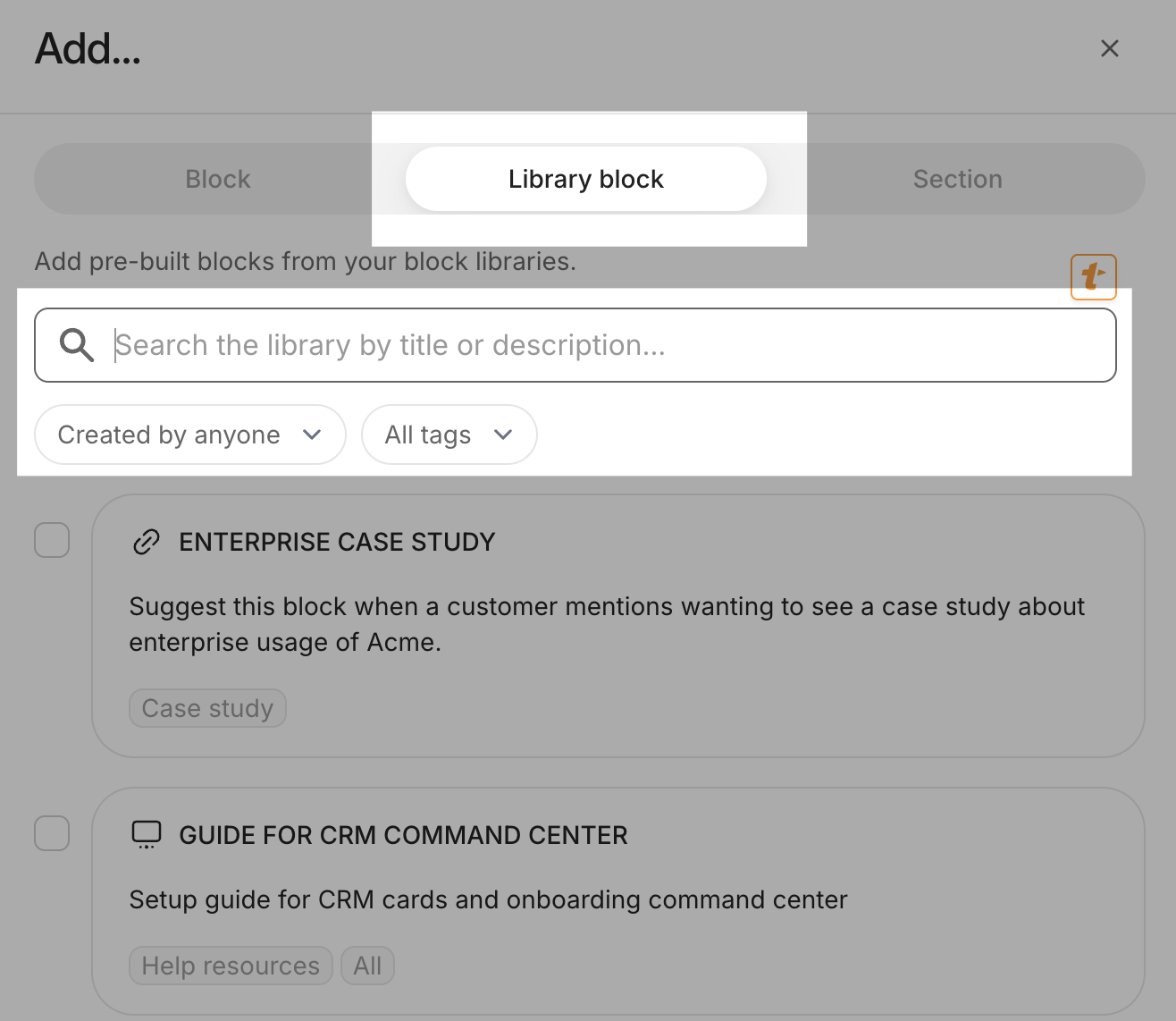
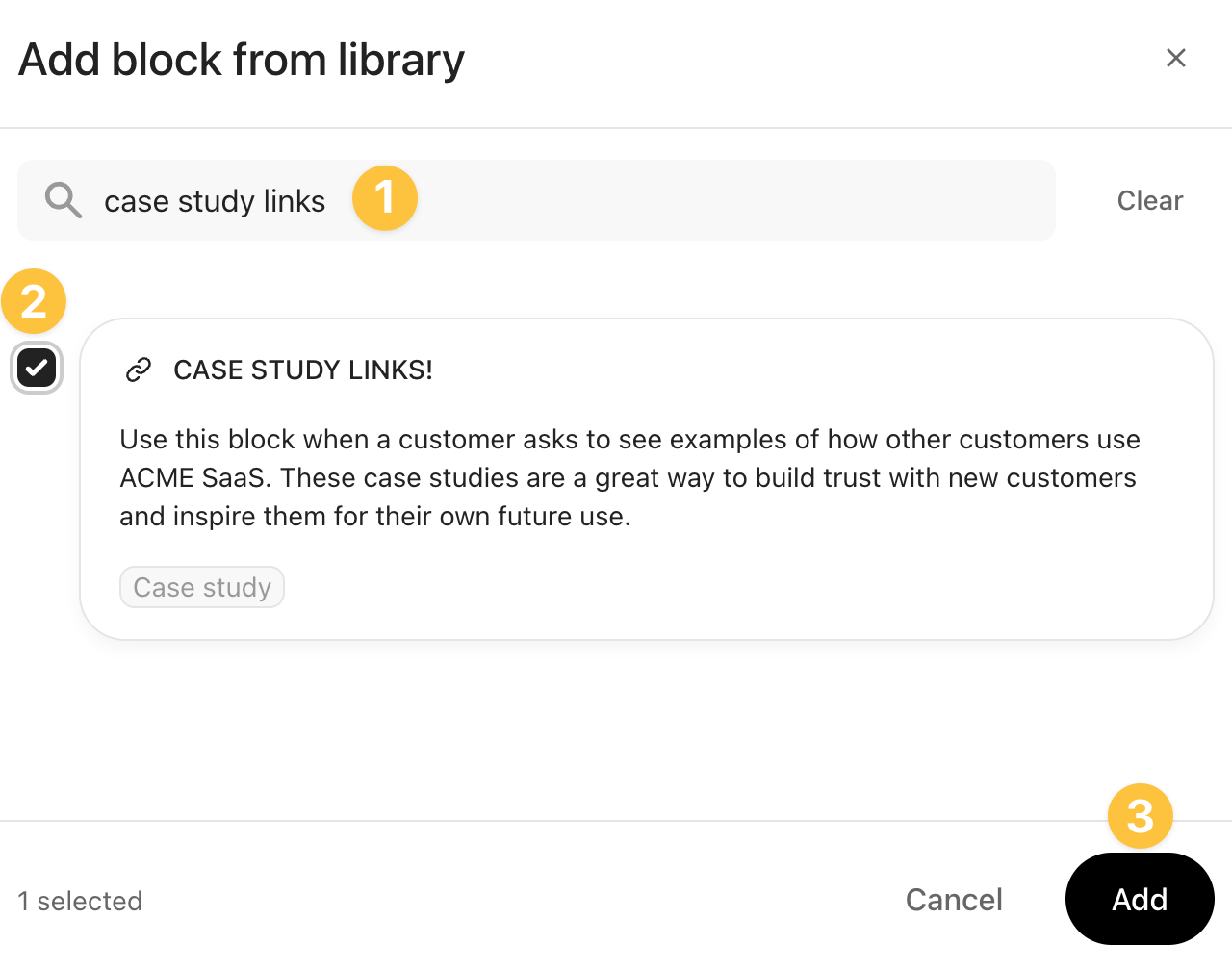
From here you can…
select the block(s) you want to add
press Add to save your changes
Enjoy and share the newly added content
Once you press Add, you’ll see the block and all of it’s content in your room!
The next time your prospects are in the room, they’ll see it too.
Each block also has a unique link that can be copied and shared with prospects to continuously encourage them to rely on your room for all of their resources and questions about your process.