
Automatically create Arrows rooms in HubSpot
Using a HubSpot workflow action, you can automatically create and attach Arrows sales rooms to your HubSpot deals.
The Arrows CRM card is available on any deal record in HubSpot and allows you to quickly create a new room when needed.
There is also a workflow action in HubSpot that can help you automate this process so your reps can focus on closing deals, not doing manual work!
Set a workflow trigger
NOTE: this can be done for whichever object/record you use in HubSpot to manage your sales rooms. In this example (and most commonly) this is done on the deal object/record.
Start by creating a deal-based workflow in HubSpot.
Be sure to give your workflow a name (Sales - create Arrows room) and then add a trigger for when deals get enrolled.
In this example, we are using a Data values trigger for when a Record meets a set of filter conditions - and we will pick specific deal stages for our enrollment to start.
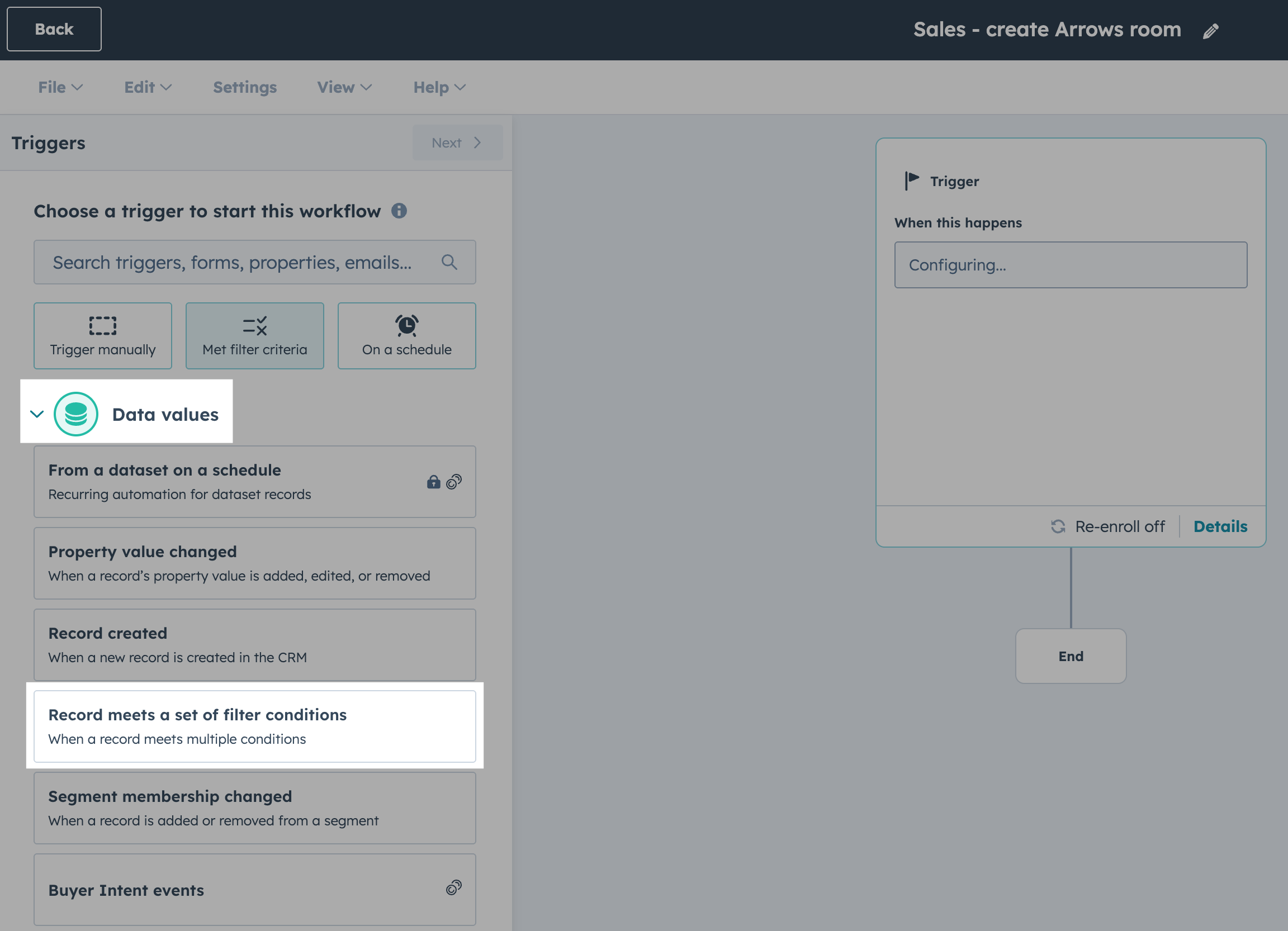
Search for workflow trigger criteria
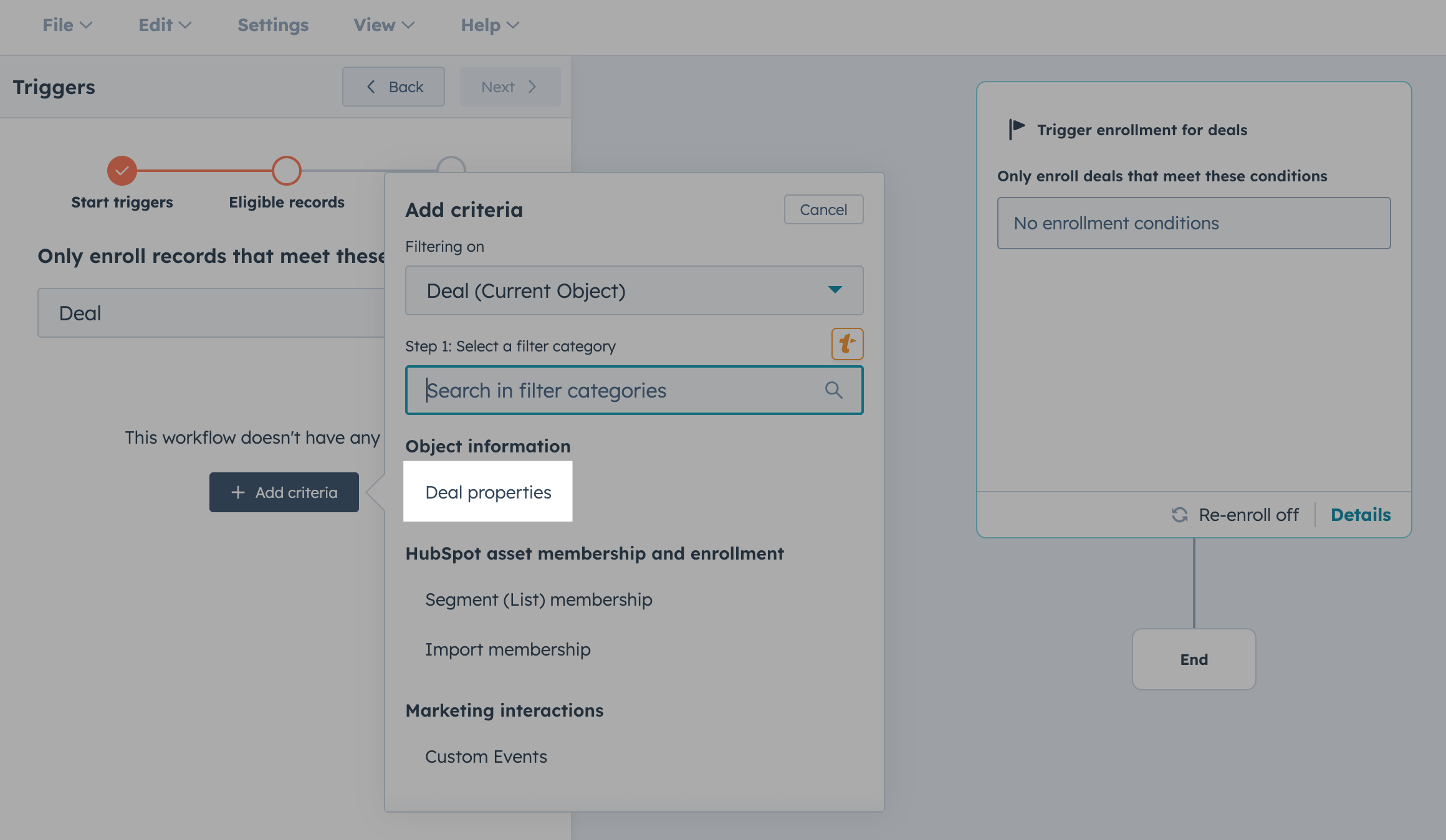
Start by selecting Deal properties…
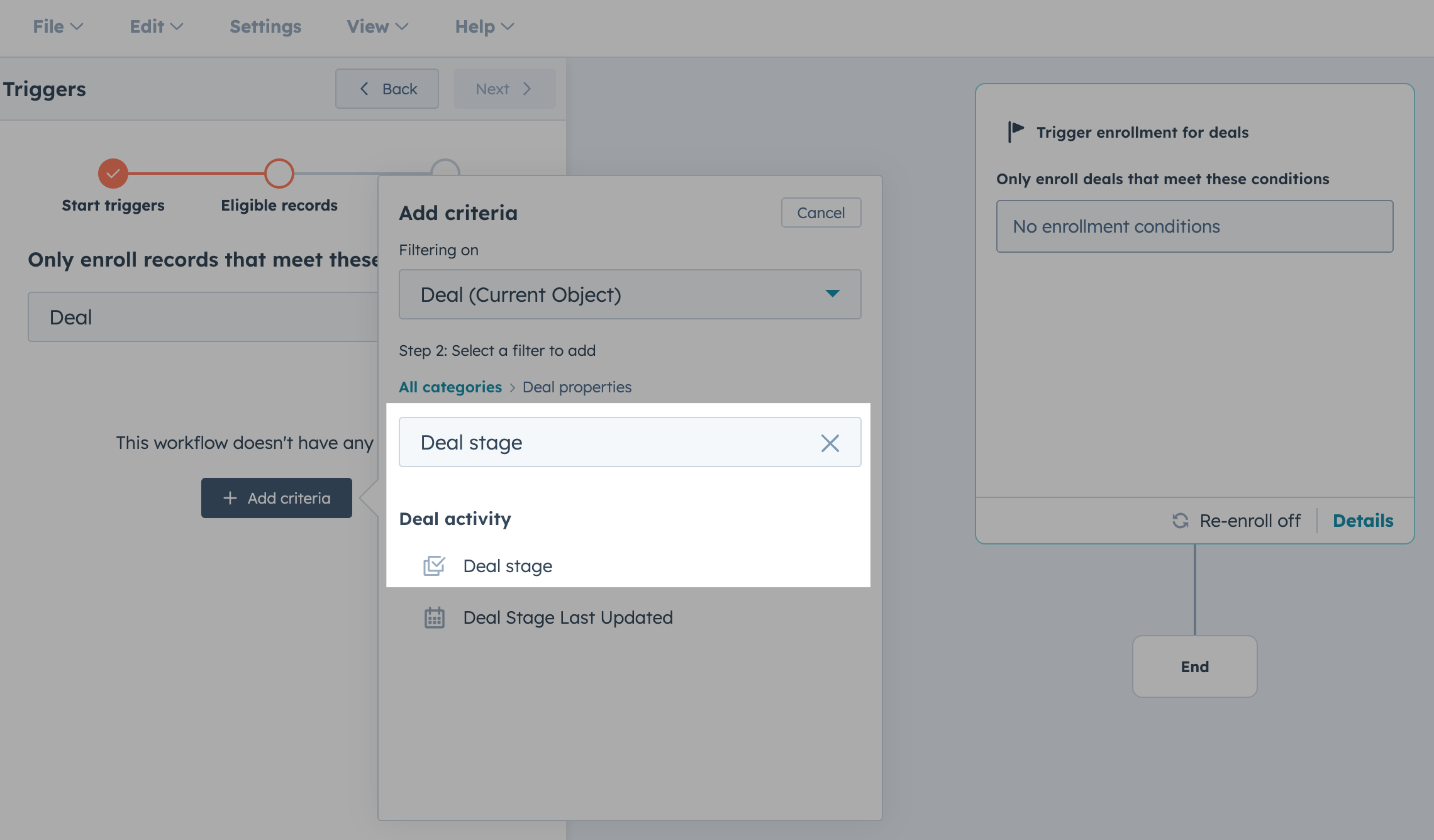
And then search for and select Deal stage…
Select and save your workflow trigger
In this example, we are wanting to create rooms automatically when our deals hit a certain stage in the process.
For the criteria, we are choosing the deal stage Meeting Scheduled in our sales pipeline.
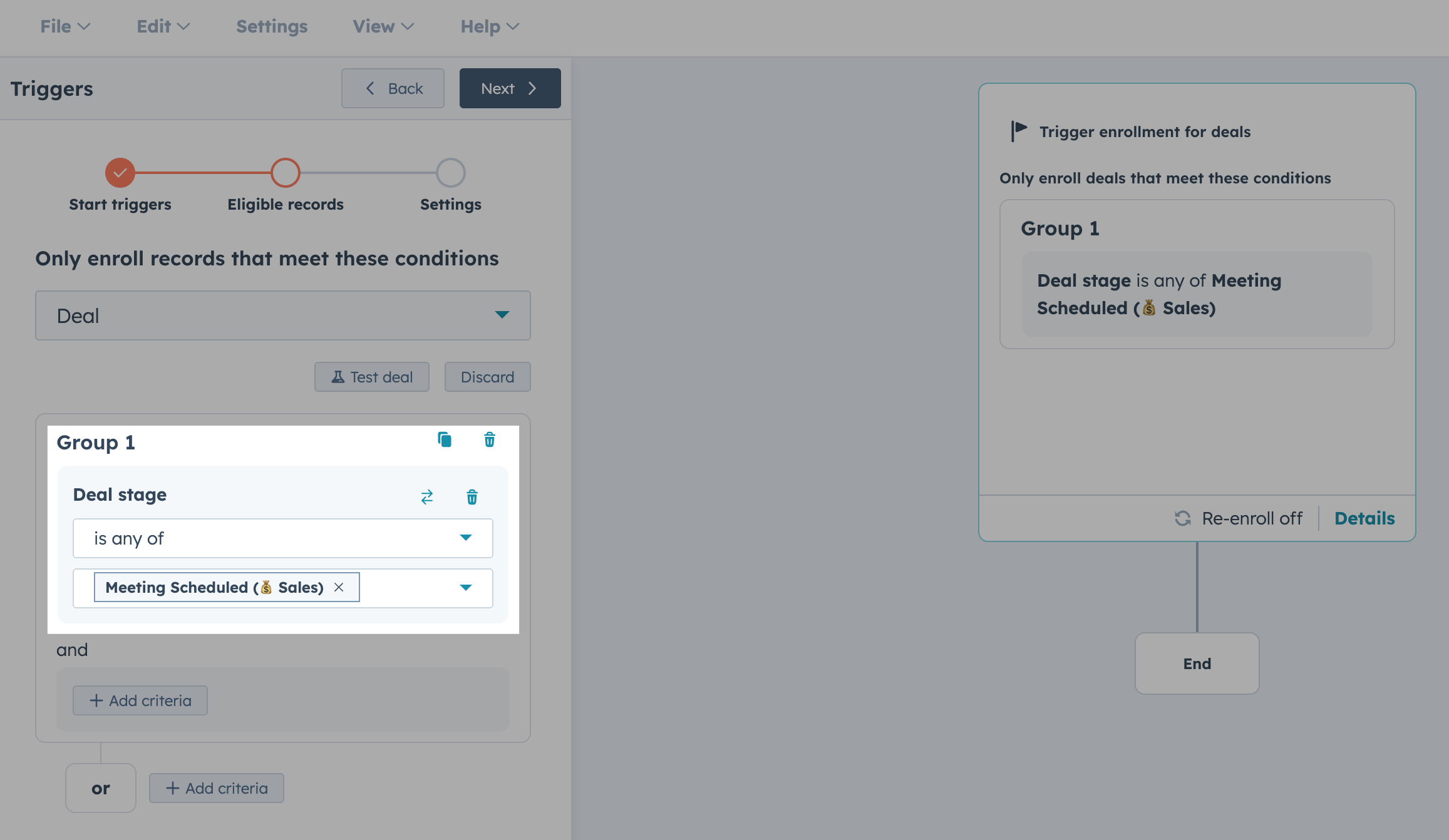
💡Select whatever stage or criteria makes sense for YOUR process. Most commonly a room is created once a deal is created or a demo is scheduled - but you can add/adjust these criteria to match your own needs!
You’ll want to…
select all the appropriate criteria for your flow
press Next when you are ready to move forward.
Add the Create Arrows room workflow action
Once you save your enrollment criteria, you’ll want to…
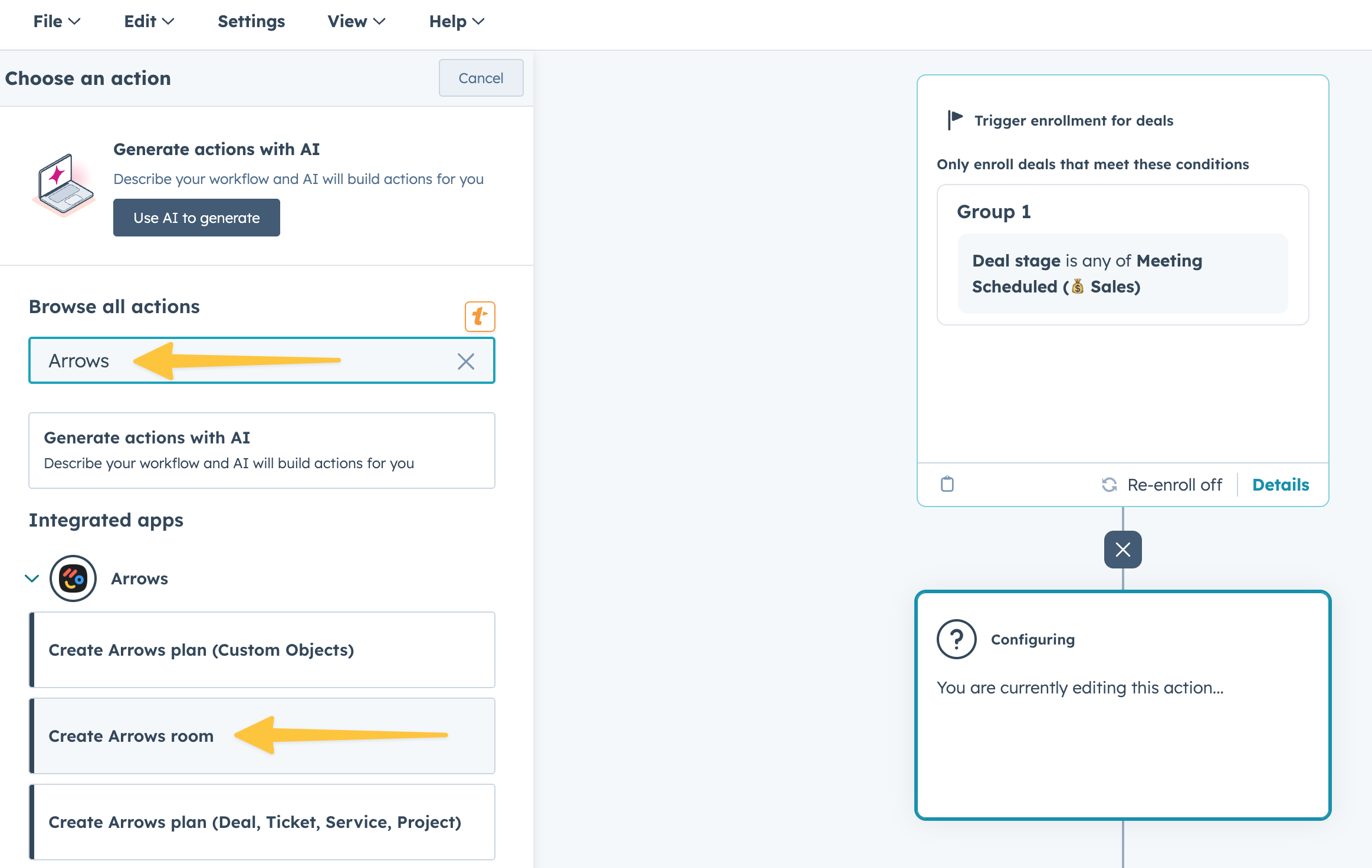
search Arrows for your first workflow action
Select the Create Arrows room workflow action
Configure the workflow action
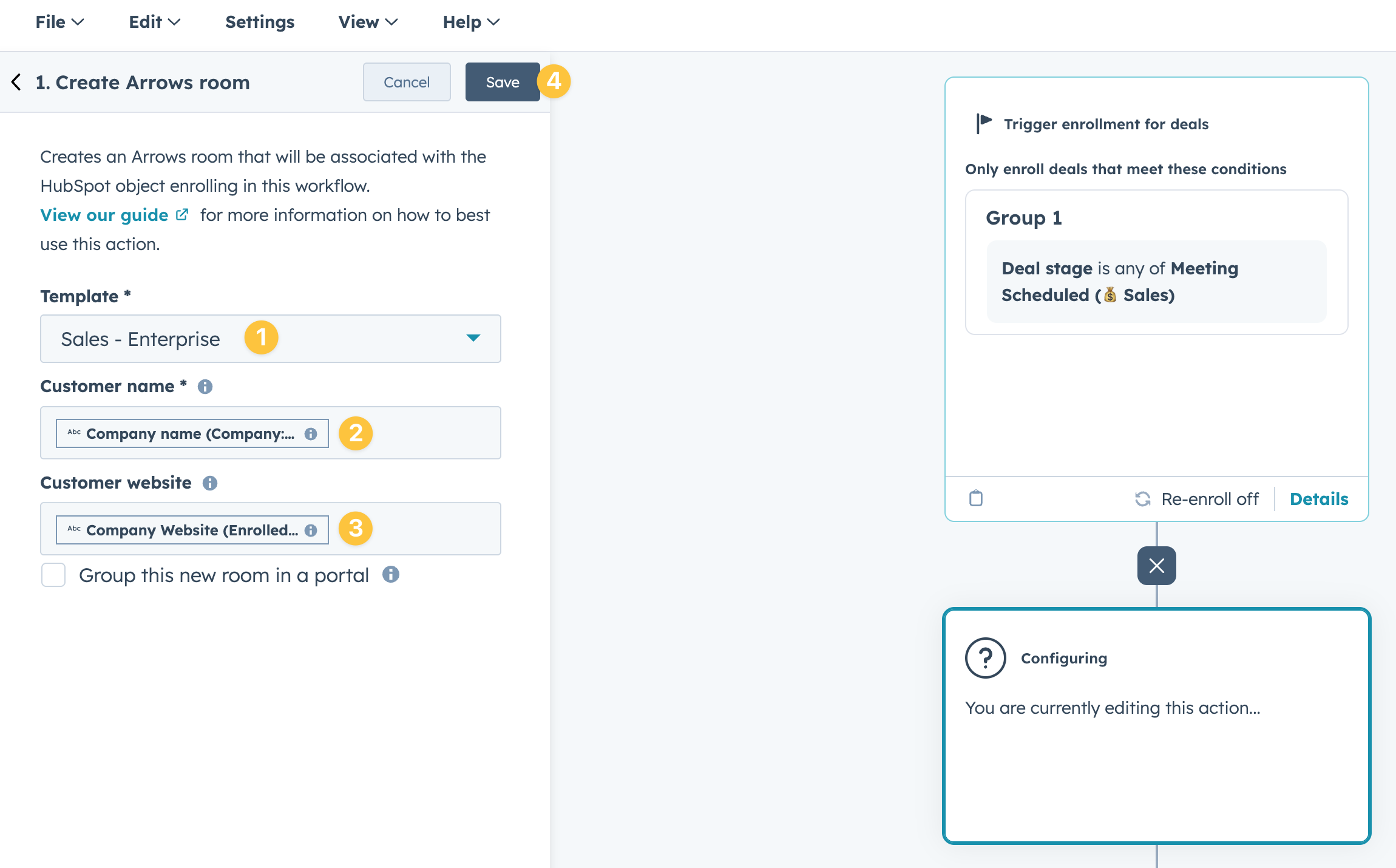
The Create Arrows room workflow action can be configured to your needs. Start by…
choosing the Arrows room template you wish to use for this deal type.
set the customer name - in this example we are using the token for Company name from the company the deal is associated to.
set the customer website - in this example we are using the token for Company website for the enrolled deal.
press Save to finish your set up.
Review and publish your workflow
You can add additional branches or actions as needed if they make sense for your process.
Once you are ready to turn this workflow on, press Review and turn on!
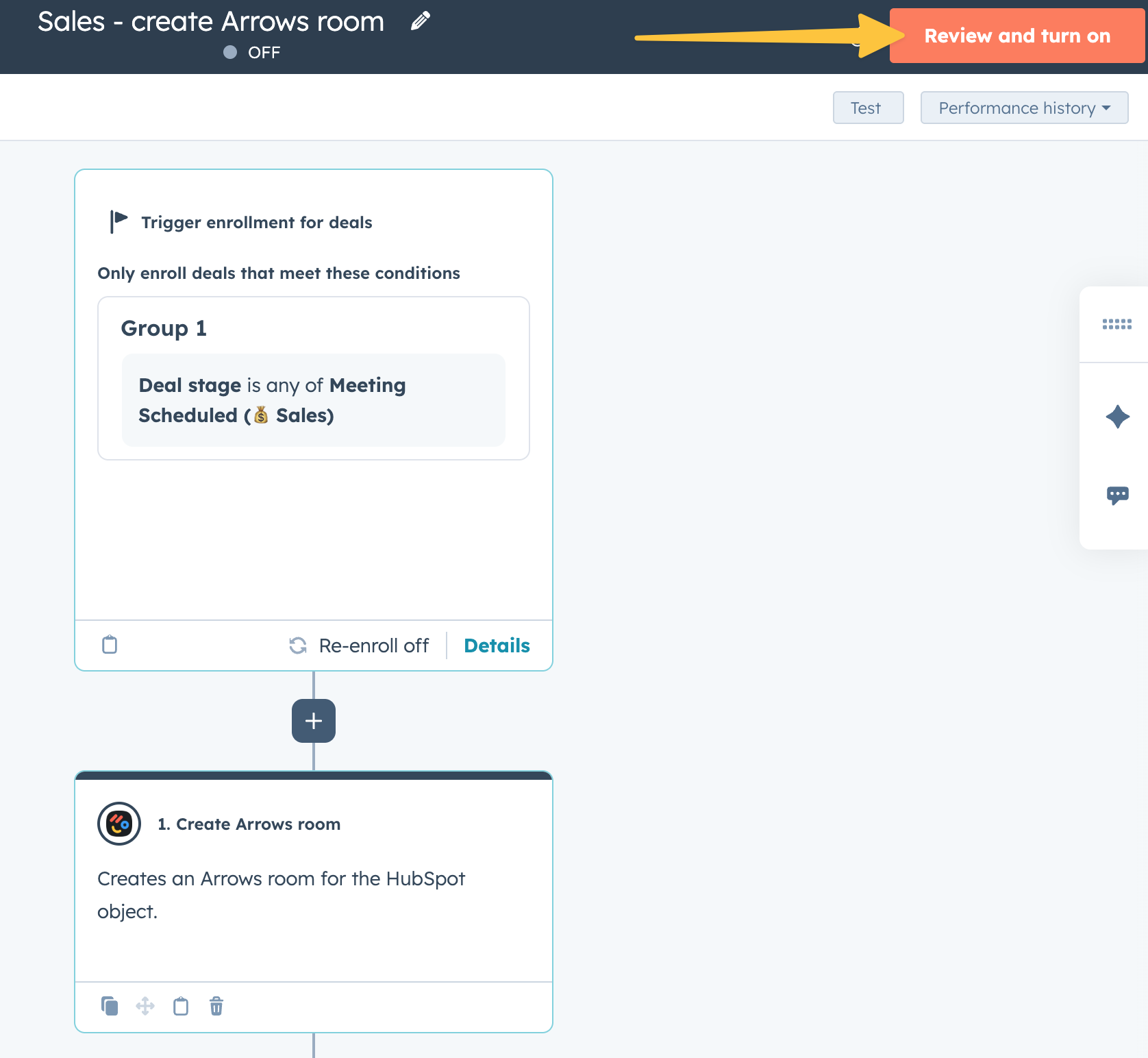
The next time a deal in your sales pipeline meets your enrollment criteria, a room will automatically be created and attached to your deal!
Once a room is created, you’ll still need to share it with your clients!
Arrows AI can help you write the introduction email so your team just needs to copy and send it over to their customer!