
Turning on the Sales room activity card in HubSpot
A guide to enable the Sales room Activity card in HubSpot. This card will allow you to see the activity level, total view time, and total room opens for each respective deal’s sales room.
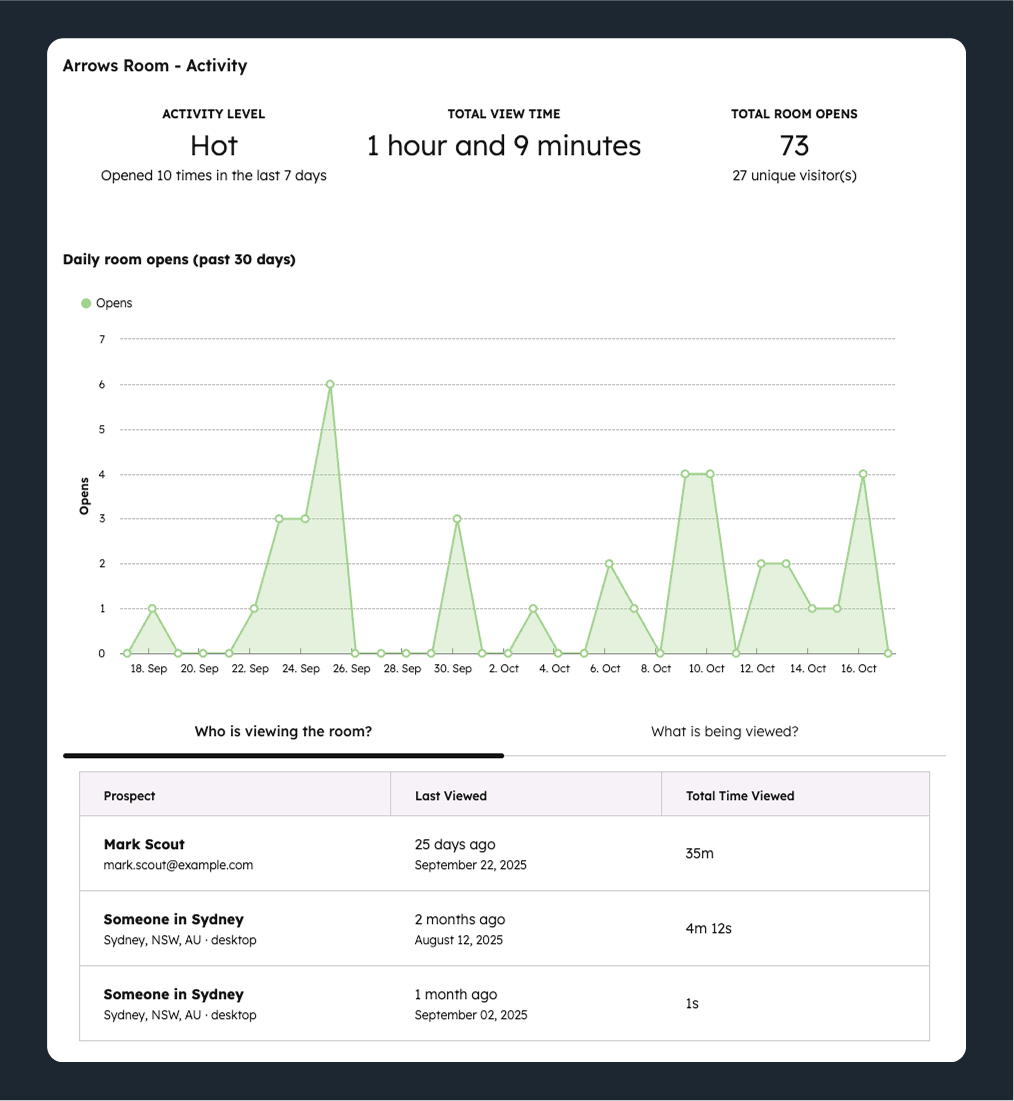
The Arrows sales room activity CRM card is a live view into the most important activity from your sales rooms.
It will show you…
The activity level for each room (unopened, stalled, engaged, or hot)
The total view time across all room viewers
The total count for how many times the room has been opened (and the number of unique visitors)
Who is viewing the room (along with the date they viewed it and for how long)
And, a live graph for daily open counts for the past 30 days!
It will look something like this
Customize your sales record
You’re likely using the Deal object to manage your sales process and your sales room.
From any deal, select customize in the middle column to get started…
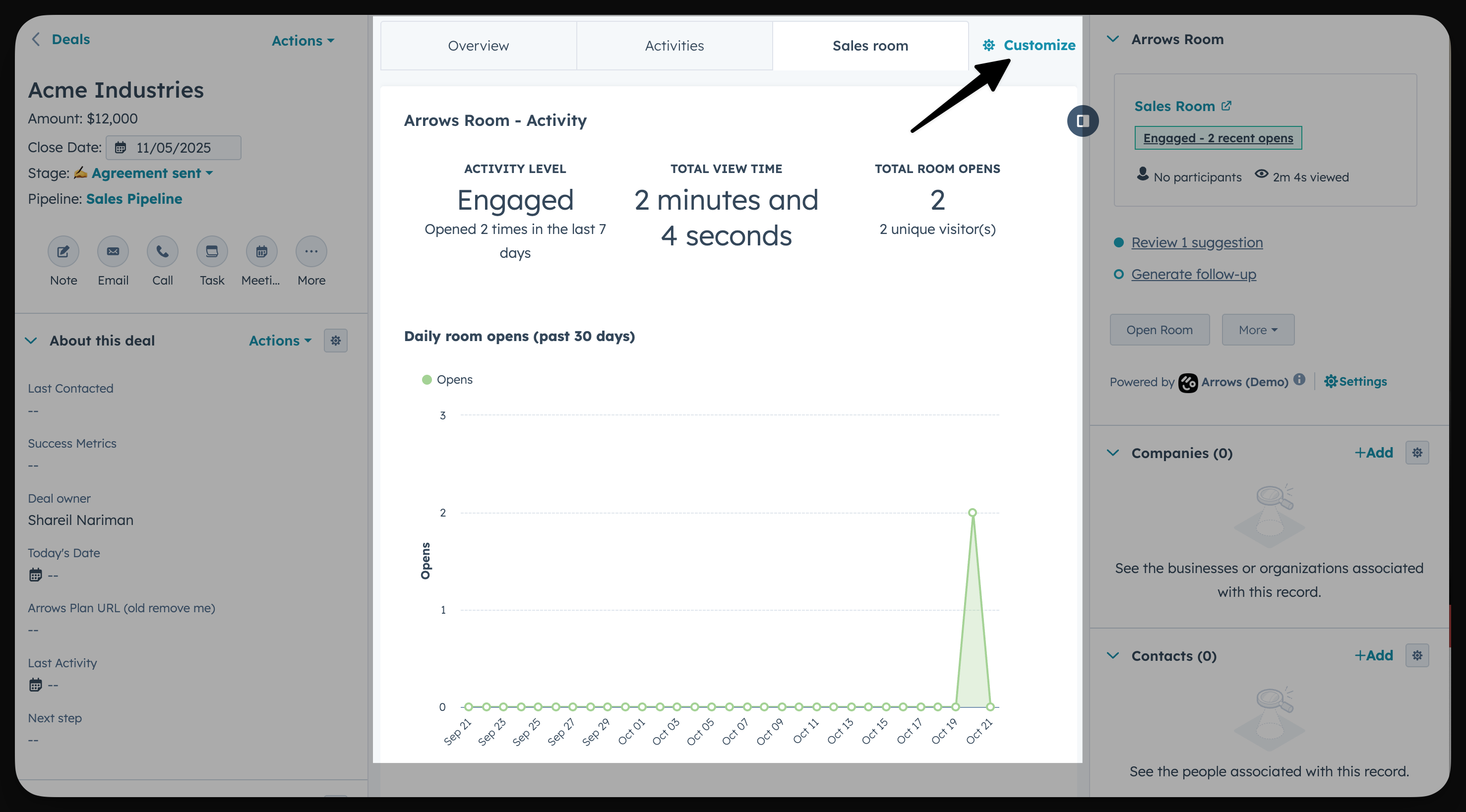
Once you’ve selected the appropriate view for your Sales room activity card…
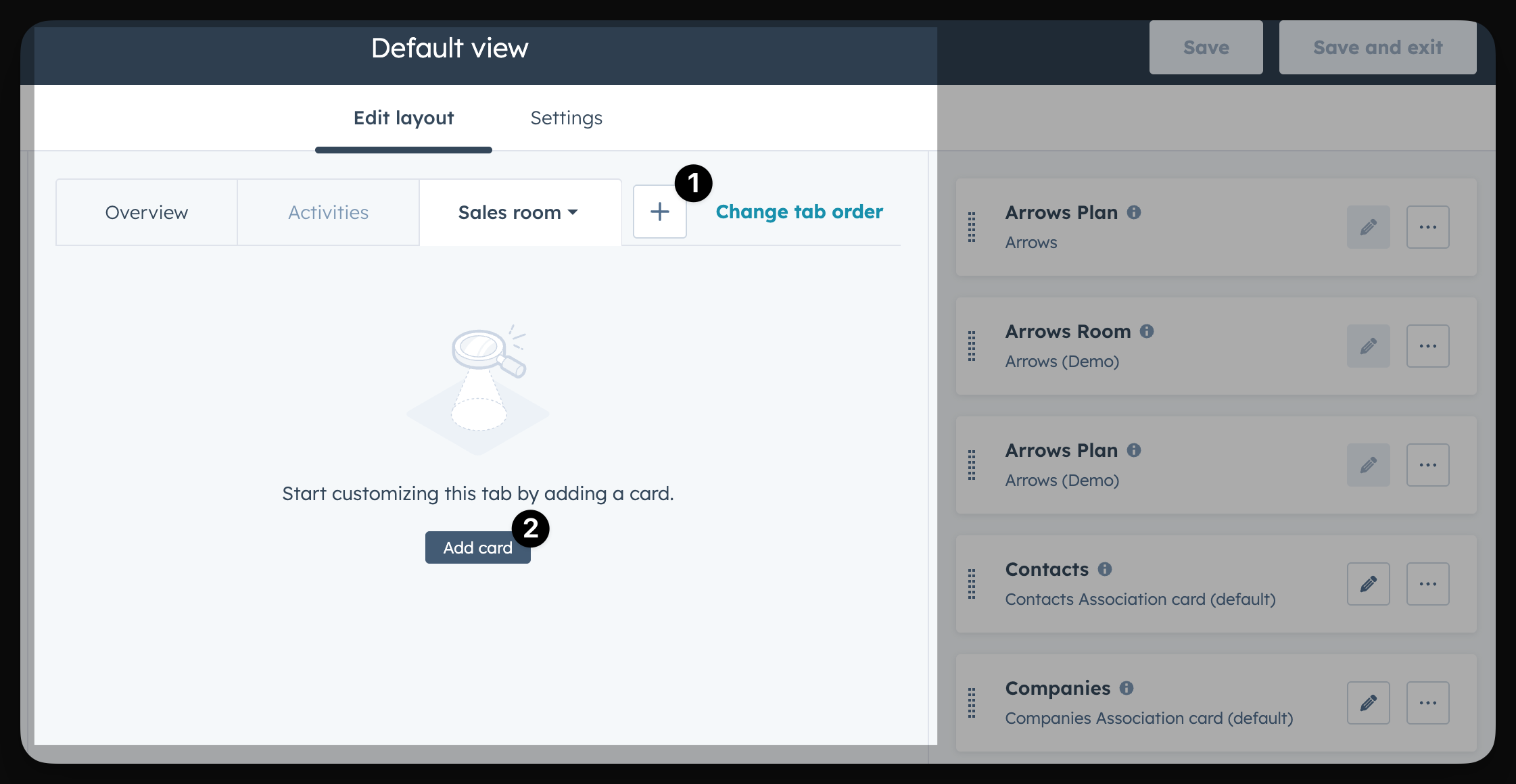
Add a new tab for your Sales room information (if you don’t have access to do so, you can add it the existing Overview tab)
Select Add card
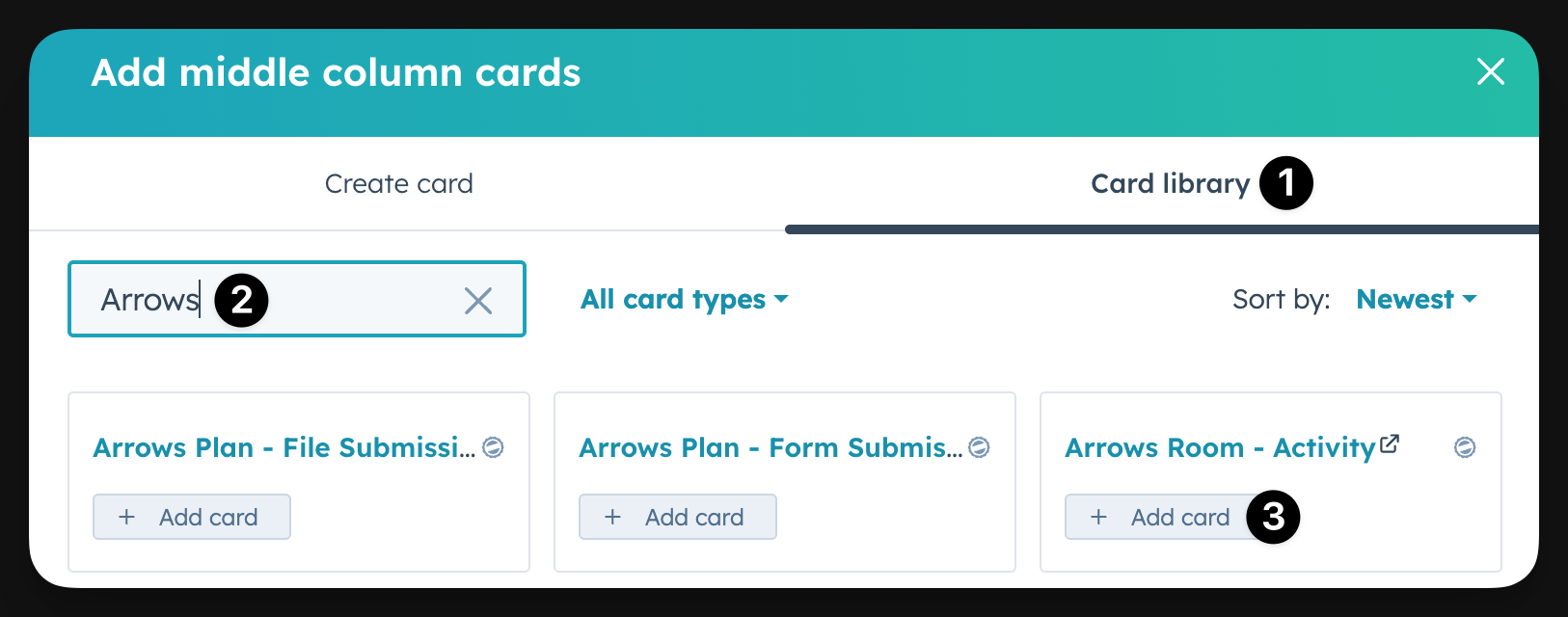
From this screen…
Select the Card library
Searching “Arrows”
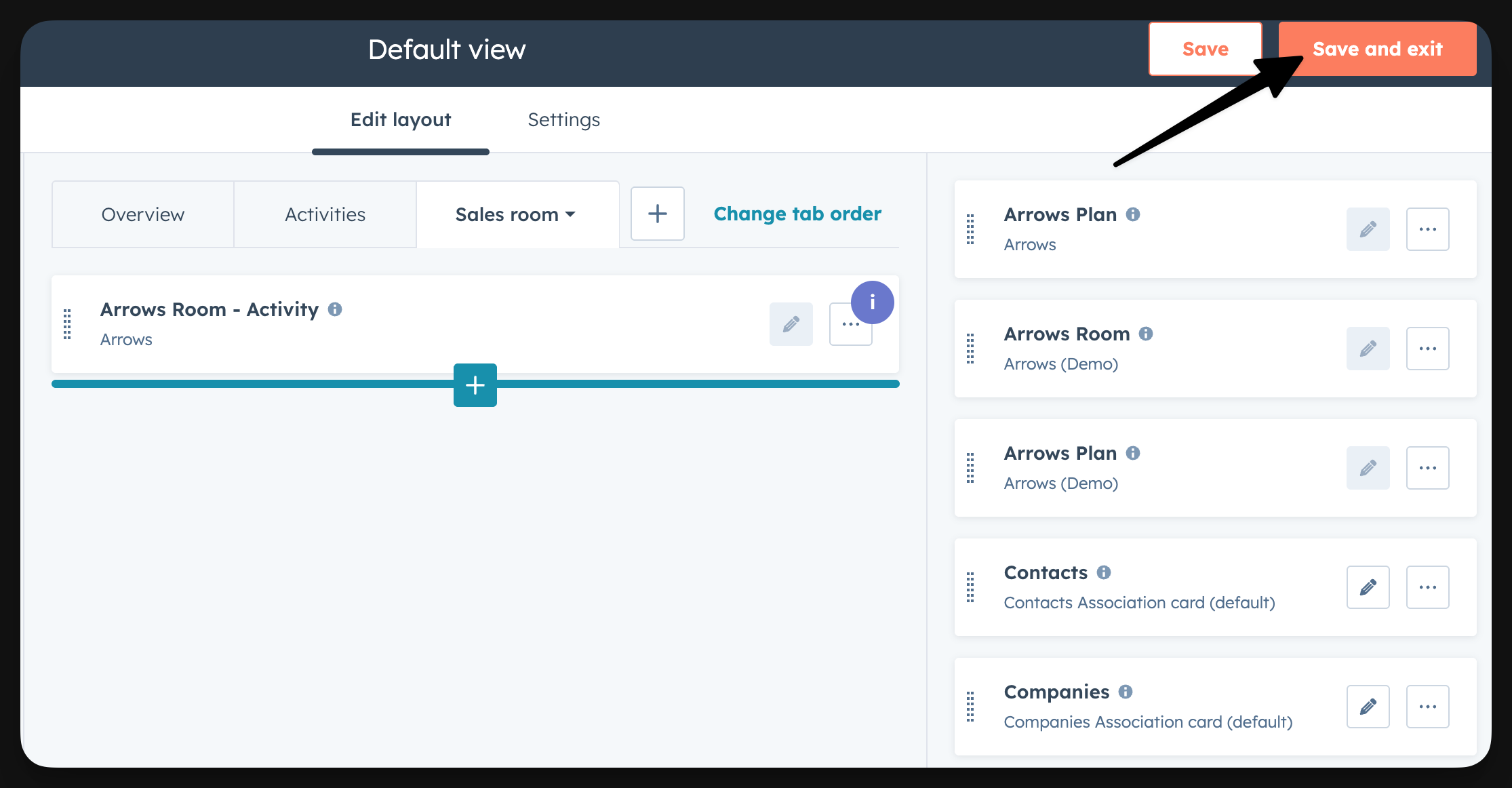
Adding the Arrows Room - Activity card
One you’re done, be sure to Save and exit
Once you go back to your record and have a sales room attached, you will see this card and all the live activity in it!