
Connecting Arrows to Slack
Want to know the moment a customer checks off an onboarding task or a sales room starts heating up? Connect Arrows to Slack and get the updates that matter, right where your team already works.
You can edit your organization notification settings, and individual team members can set their own. This gives each person the flexibility to choose what works best.
How to Install the Slack Integration
Getting started only takes a minute:
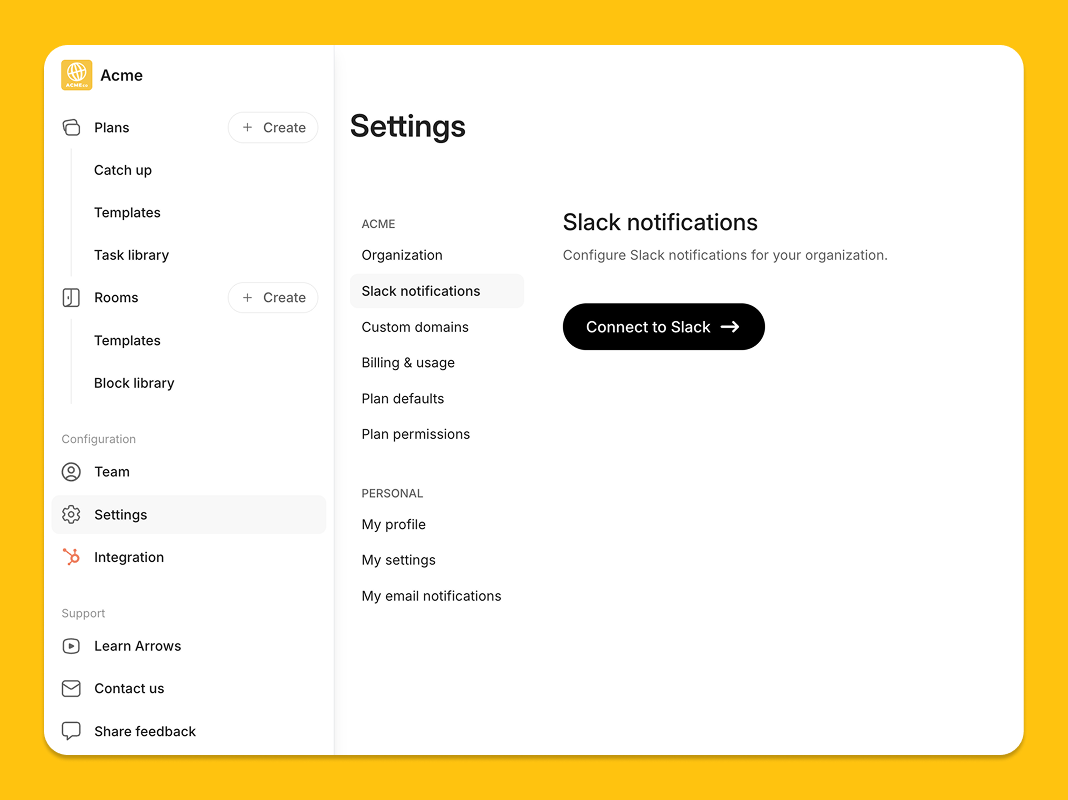
Go to your Arrows app settings
Select Slack notifications
Click Connect to Slack →
Follow the prompts to authorize the Slack integration
Once installed, you’ll be able to edit your Slack notifications.
For Onboarding Plans
There are two ways to receive Slack notifications from onboarding plans:
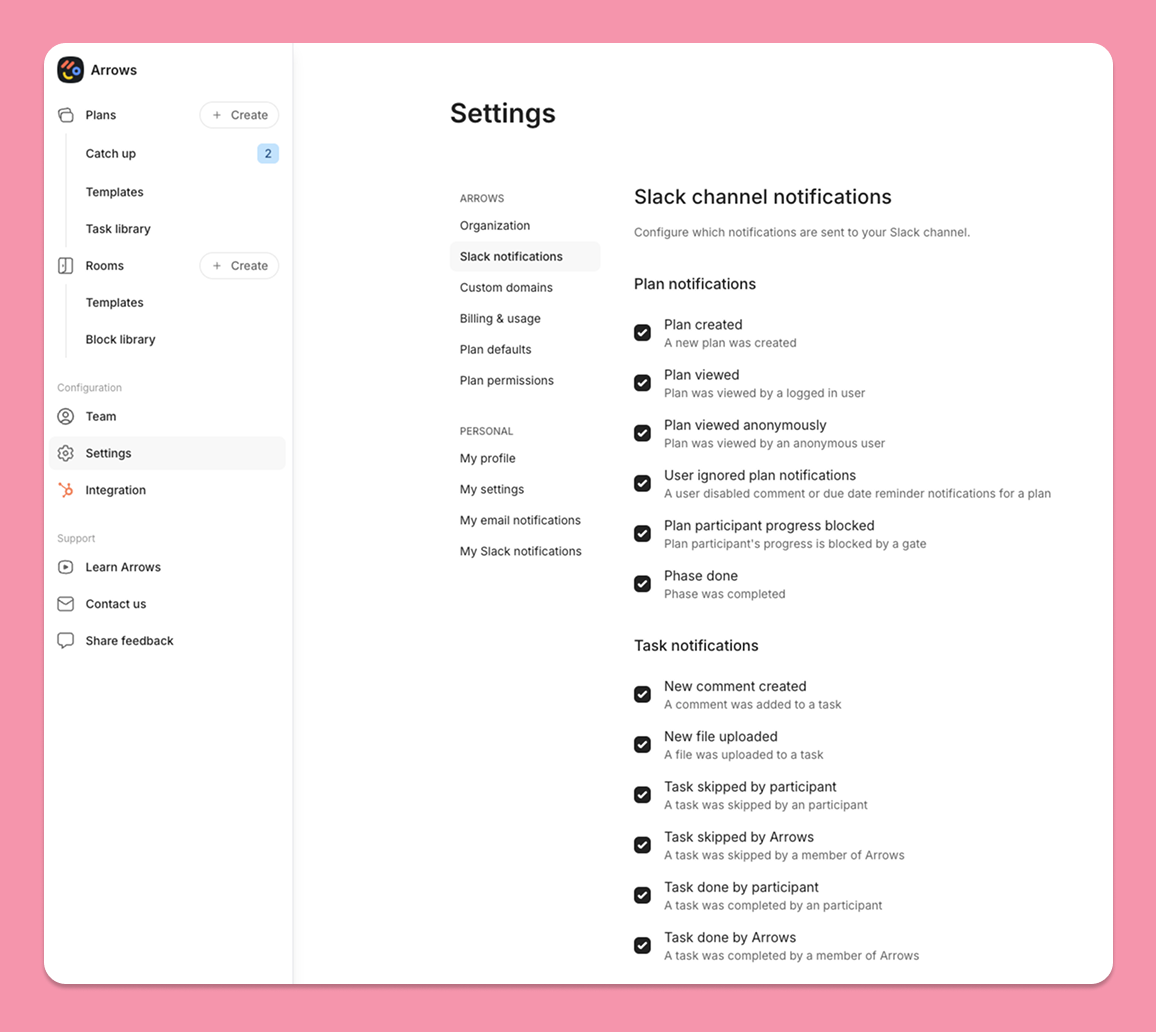
Channel notifications – Send all plan notifications to a Slack channel of your choice
Direct messages – Send notifications directly to the plan coordinator
You can choose the method that fits your team’s workflow best—or use both.
Here’s what Arrows will notify you about:
Plan Notifications
Plan created – A new plan was created
Plan viewed – Plan was viewed by a logged in user
Plan viewed anonymously – Plan was viewed by an anonymous user
User ignored plan notifications – A user disabled comment or due date reminder notifications for a plan
Plan participant progress blocked – Plan participant's progress is blocked by a gate
Phase done – Phase was completed
Task Notifications
New comment created – A comment was added to a task
New file uploaded – A file was uploaded to a task
Task skipped by participant – A task was skipped by an participant
Task skipped by organization – A task was skipped by a member of your organization
Task done by participant – A task was completed by an participant
Task done by Arrows – A task was completed by a member of Arrows
For Sales Rooms
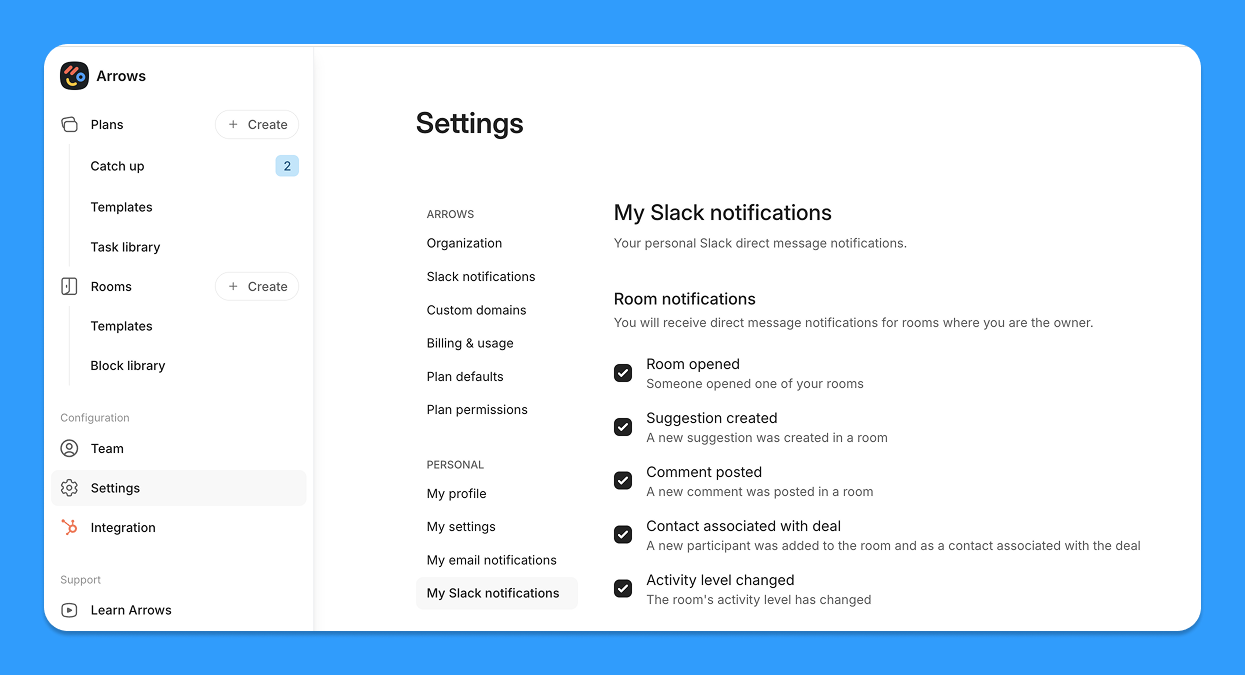
Sales Room owners can get notified when:
Room opened – Someone opened one of your rooms
Suggestion created – A new suggestion was created in a room
Comment posted – A new comment was posted in a room
Contact associated with deal – A new participant was added to the room and as a contact associated with the deal
Activity level changed – The room's activity level has changed
Switching Slack Channels
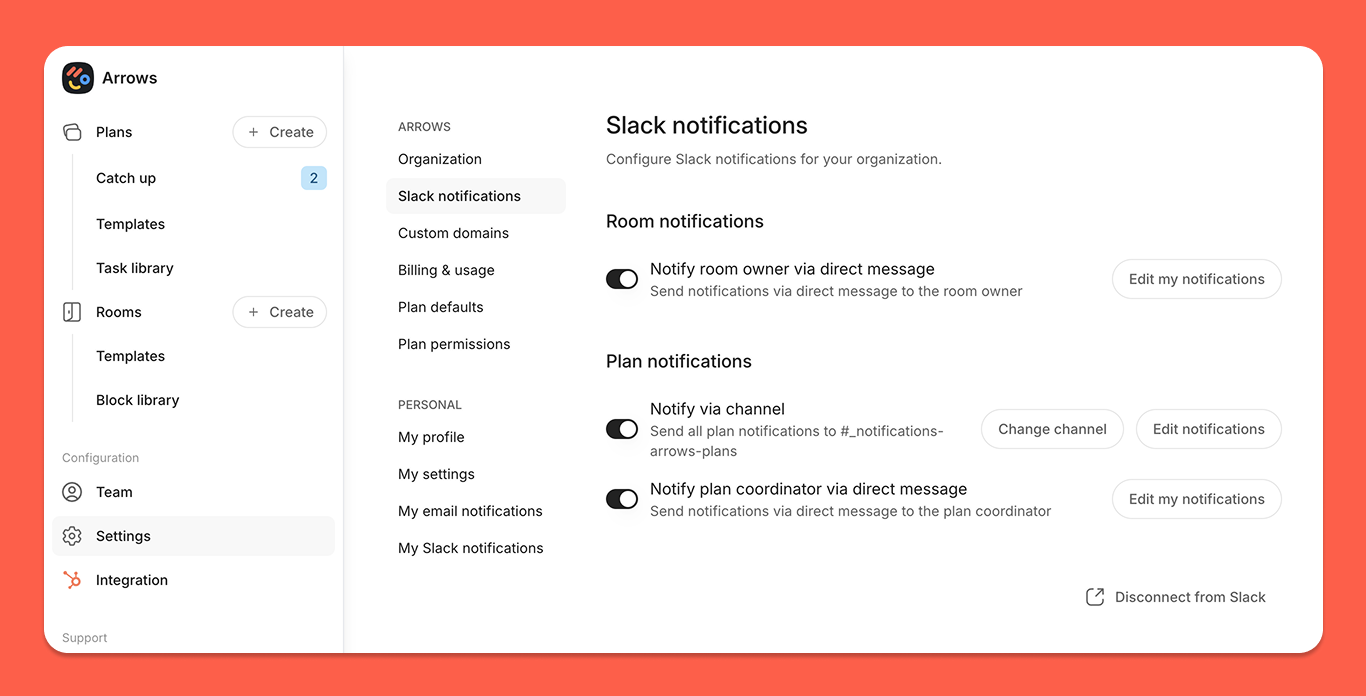
If you have selected ‘Notify via channel’ and have selected an existing channel, you can change which channel is used by clicking ‘Change channel’ and selecting a new channel. The Slack integration will leave the old channel and join the new one.
How to Disconnect Slack from Arrows
You can disconnect Slack at any time from your Arrows account by clicking Disconnect from Slack in your settings.
We take your data and your customers’ privacy seriously. Arrows only uses the necessary permissions to send the notifications you’ve enabled—nothing more. For full details on how we handle data and protect your information, read our Privacy Policy.