Arrows user permissions
Each user in on your team in Arrows has access permissions that allow them to take different actions in your Arrows account.
Only Arrows admins have the ability to adjust these permissions.
Permissions can be adjusted on the teams page - click here for the teams page
The permission types can be seen here - click here for user permissions
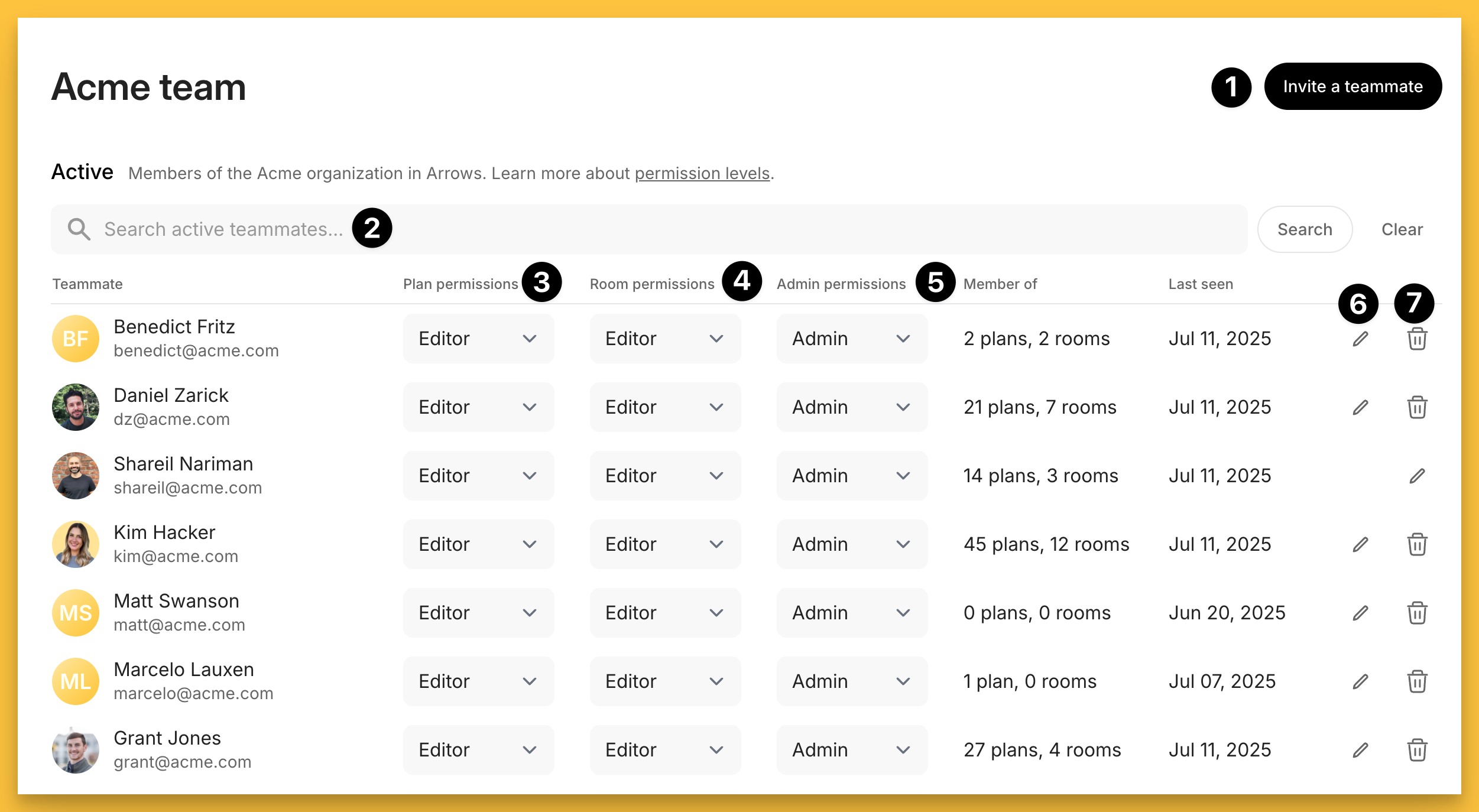
Navigating the team page
On the team page, and Arrows admin has the ability to…
Invite a teammate
Search the list of current users
Adjust permissions for the onboarding plans product (if you’ve purchased onboarding plans)
Adjust permissions for the sales rooms product (if you’ve purchased sales rooms)
Grant a user Admin access
Edit a user’s profile
Delete an existing user from your team
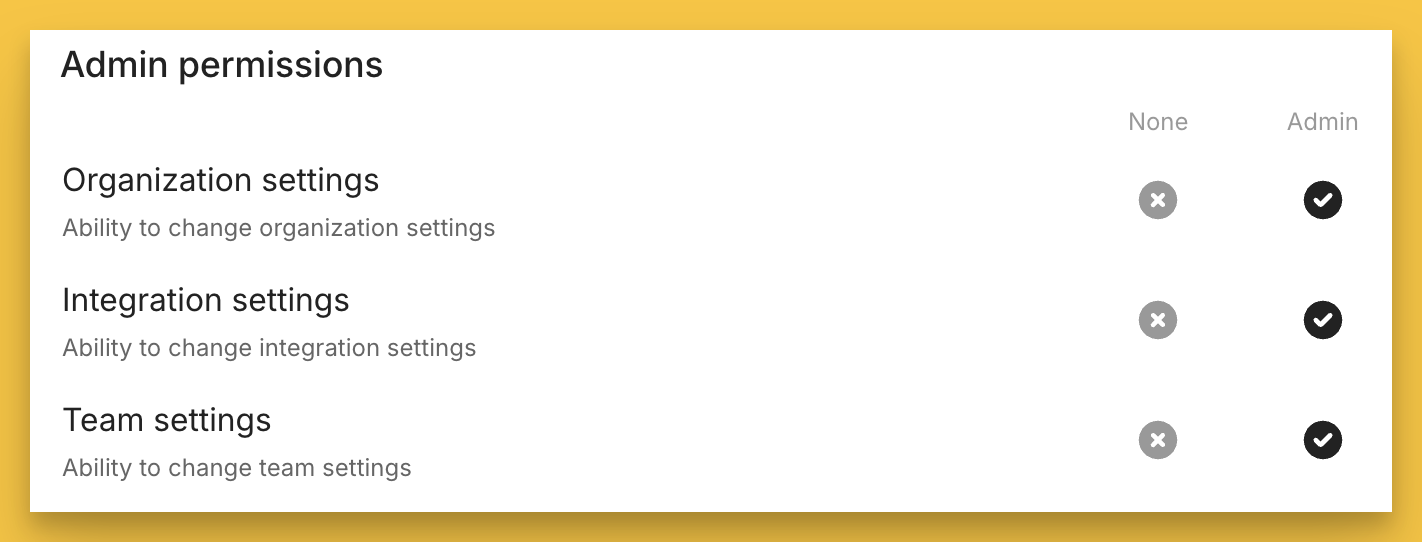
Admin permissions
Admins have access to adjust your…
Organization settings (custom domains, branding, billing, etc.)
Integration settings (HubSpot, Slack, etc.)
Team settings (the settings above!)
And, they will have full Editor permissions for the onboarding plans or sales rooms products
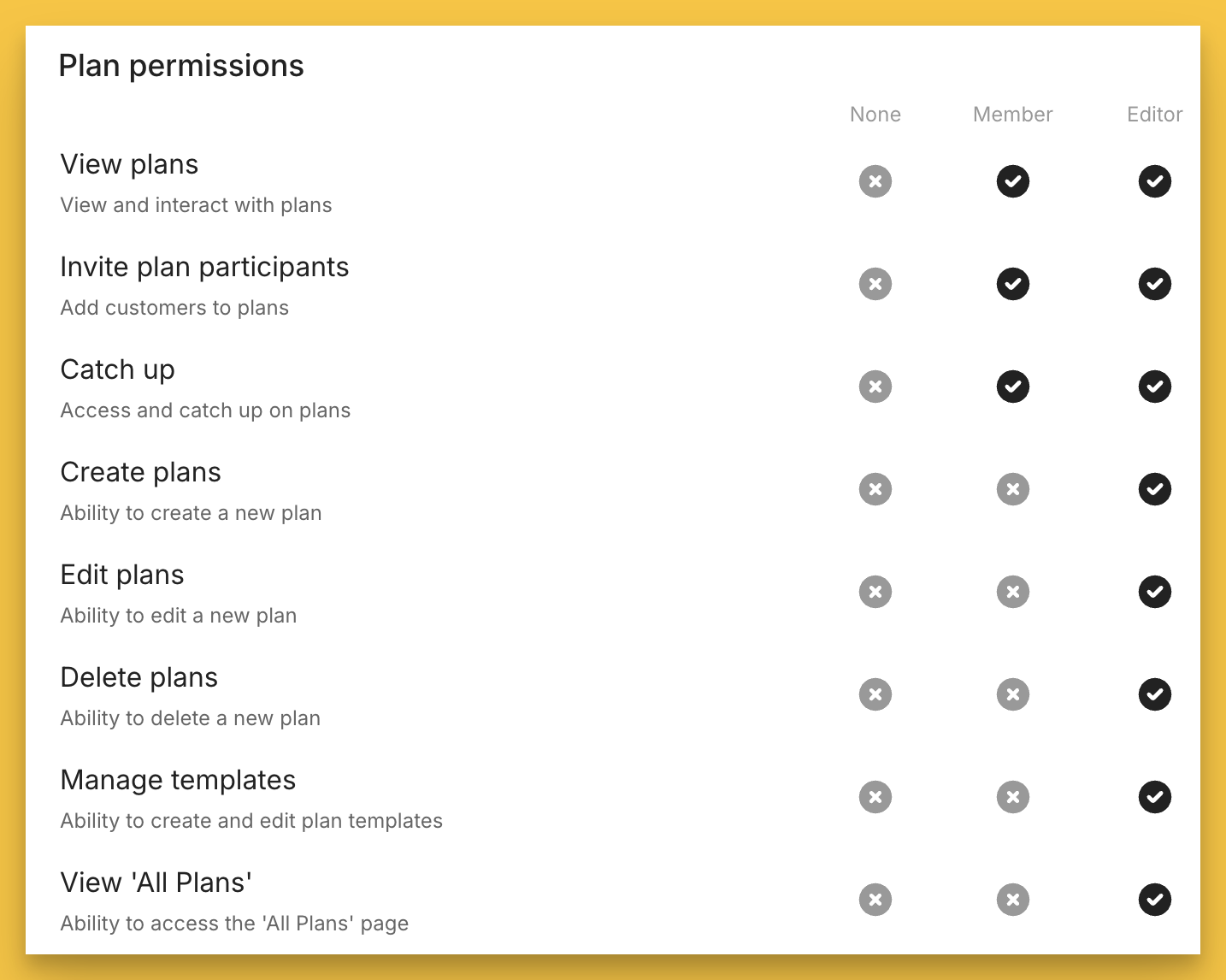
Onboarding plans permissions
Permissions for onboarding plans are broken out into…
Editor - full access
Member - limited access
None - no access
See below for the specifics of each permission level
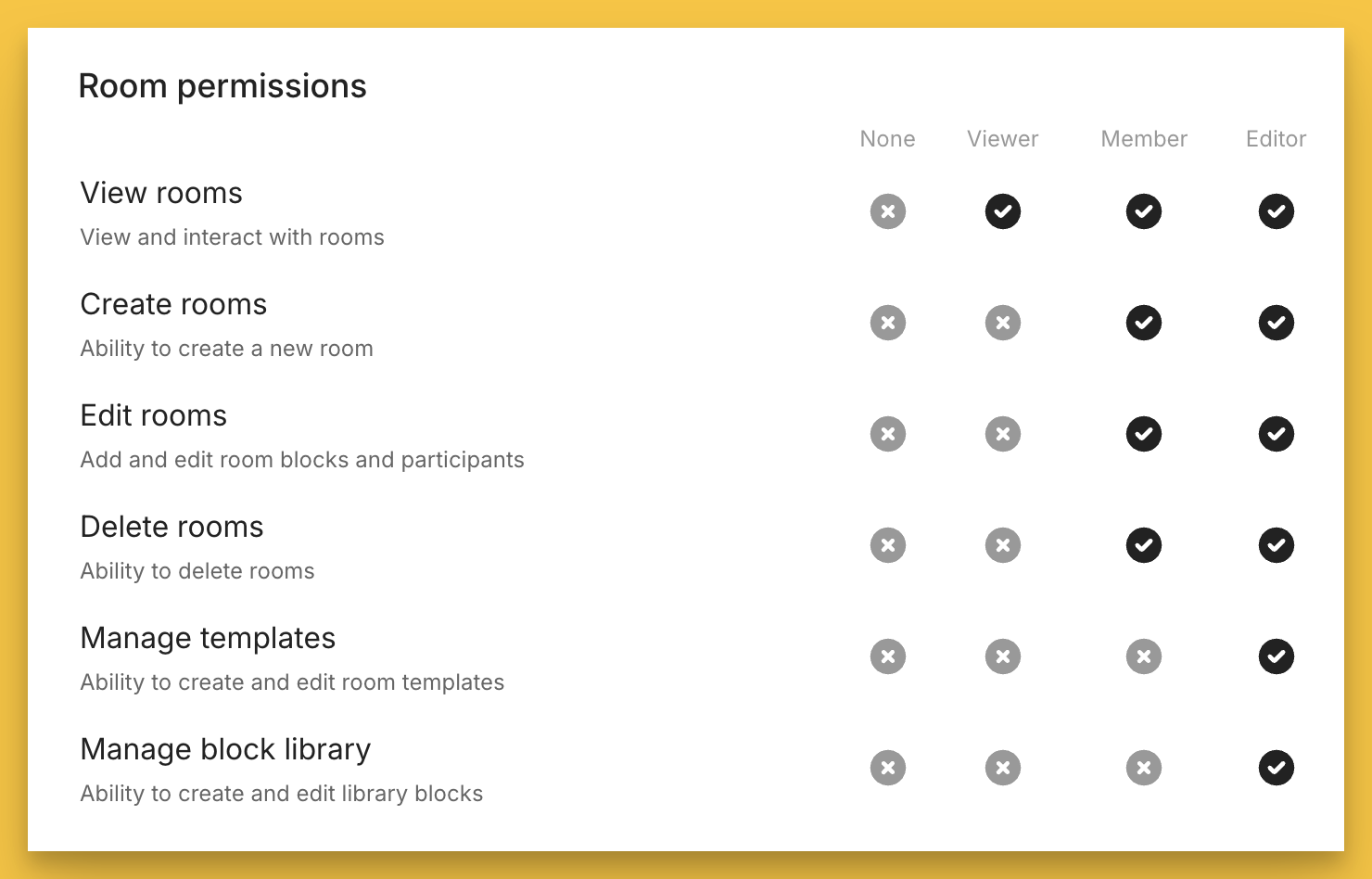
Sales room permissions
Permissions for sales rooms are broken out into…
Editor - full access
Member - limited access
Viewer - restricted access
None - no access
See below for the specifics of each permission level