
Arrows App Events in HubSpot
What are App Events?
App Events allow Arrows to automatically sync activity data from your plans and rooms into HubSpot as enriched timeline events. This creates a complete activity history in HubSpot that can be used for automations, reporting, analytics, and more.
Every time something important happens in Arrows—like a plan being created, a task being completed, or a room being opened—that activity is recorded as an event in HubSpot with detailed property data.
Why use App Events?
App Events unlock powerful workflows by bringing Arrows activity directly into HubSpot:
Automated workflows: Trigger HubSpot workflows based on customer activity in Arrows. For example, trigger a workflow when a task is complete, or alert your team when a room's activity level changes.
Better reporting: Build custom reports and dashboards in HubSpot using Arrows activity data. Track metrics like plan completion rates, time to completion, or task engagement across your customer base.
Sales and CS intelligence: Enable your team to see real-time customer engagement. Know when customers view tasks, which plans they're actively working on, and when activity levels drop.
Available App Events
Arrows sends the following events to HubSpot:
Plan created: When a new plan is created
Plan viewed: When someone views a plan
Plan finished: When a plan is marked as complete
Task viewed: When someone views a task
Task done: When a task is completed
Room created: When a new room is created
Room opened: When someone opens a room
Room activity level changed: When a room's activity level increases or decreases
Setting up App Events
In Arrows, you can navigate to this page to see the available app events - https://app.arrows.to/settings/hubspot/app_events
You can also access them directly in HubSpot from the Event Management section:
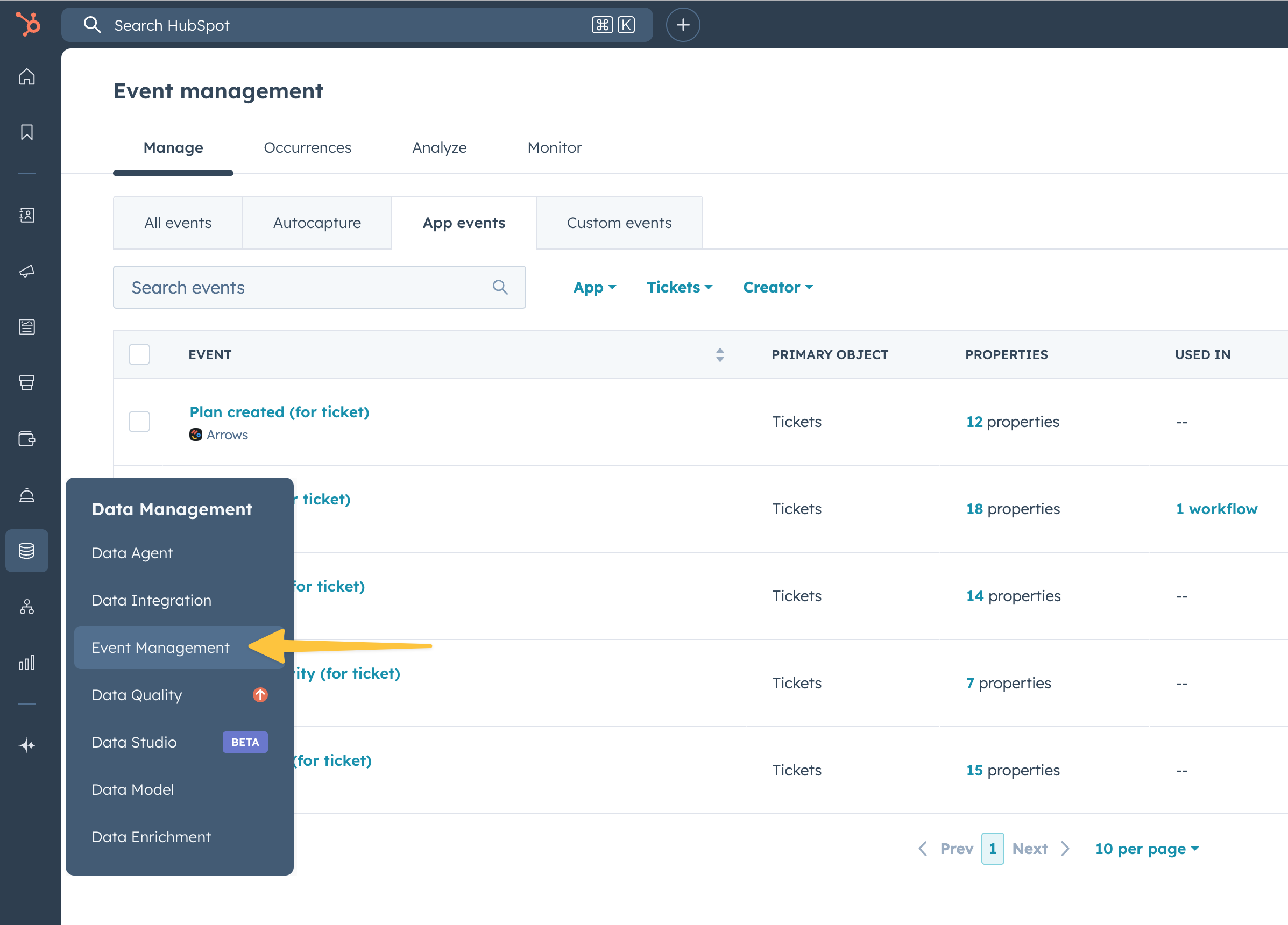
To view Arrows App Events:
Navigate to Data Management → Event Management
Click on the "App Events" tab
Review the available events - all events are automatically enabled once you have the HubSpot integration connected with Arrows
Each event will now sync to HubSpot whenever it occurs in Arrows
Understanding Event Properties
Each App Event includes detailed property data that provides context about what happened. This data is what makes App Events so powerful for automations and reporting.
For example, the Task done event includes properties like:
Task name
Task URL
Associated plan information
Due date
Assignee/coordinator/completer emails
Customer information
Timeline details
And more
This rich data means you can create very specific workflow conditions or report filters based on exactly what happened in Arrows.
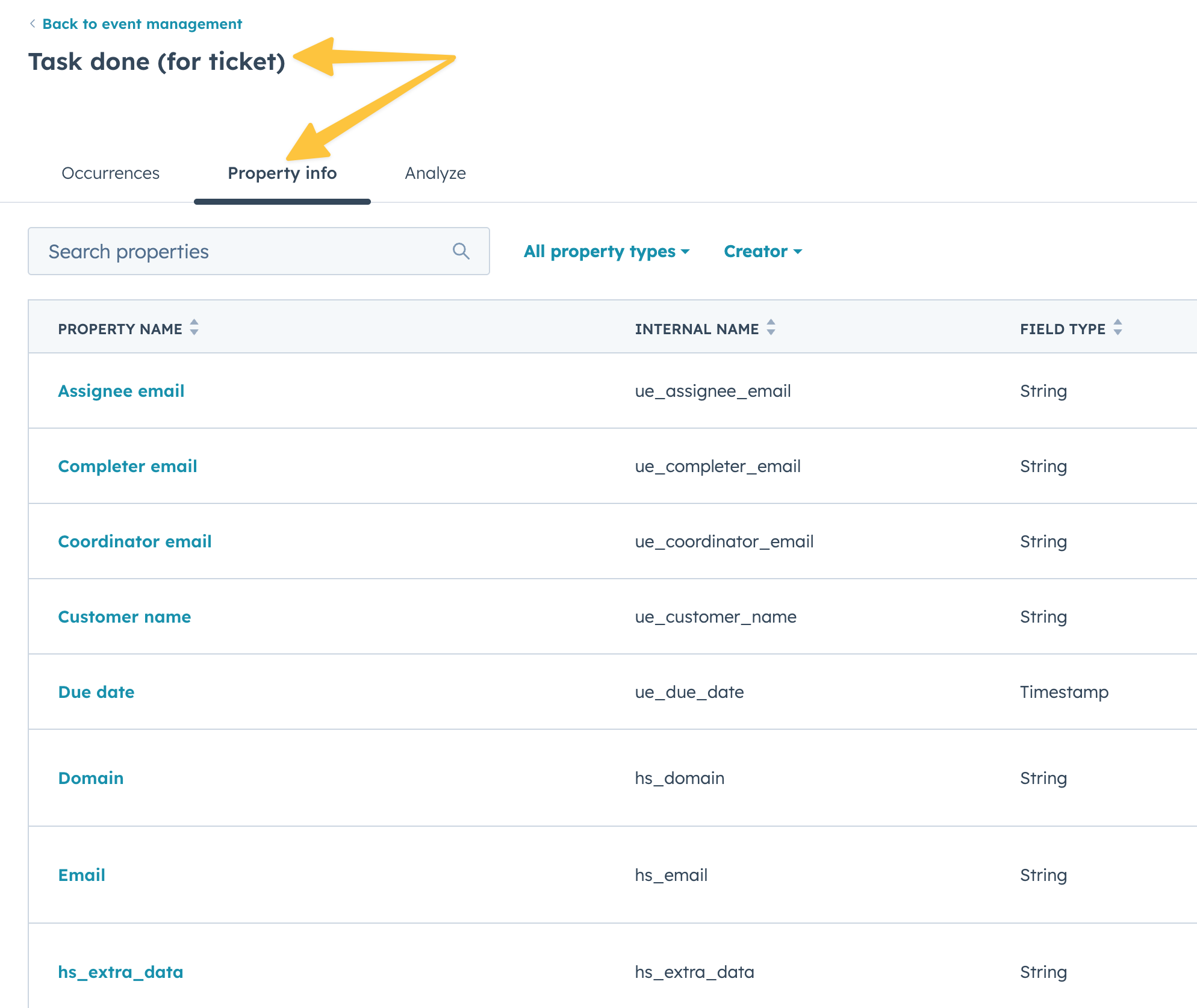
Note: to see this level of information, click into each App Event and select "Property info"
Here's an example of one for the Task done event for the Ticket record specifically.
Example Use Cases
Onboarding automation: Create a workflow that triggers when a "Task done" event occurs for your onboarding plan. Automatically send an internal notification, update a pipeline stage, or create a follow-up task. You can even use this to trigger a custom email.
Engagement tracking: Build a report showing which customers have "Room activity level changed". Use this to identify accounts that may need proactive outreach.
Task completion analytics: Track which specific tasks have the most "Task done" events to understand where customers are finding value, or identify bottlenecks where tasks aren't being completed.
Real-time notifications: Set up Slack notifications through HubSpot workflows when high-priority customers complete key tasks or when room activity drops.
Viewing App Events in HubSpot
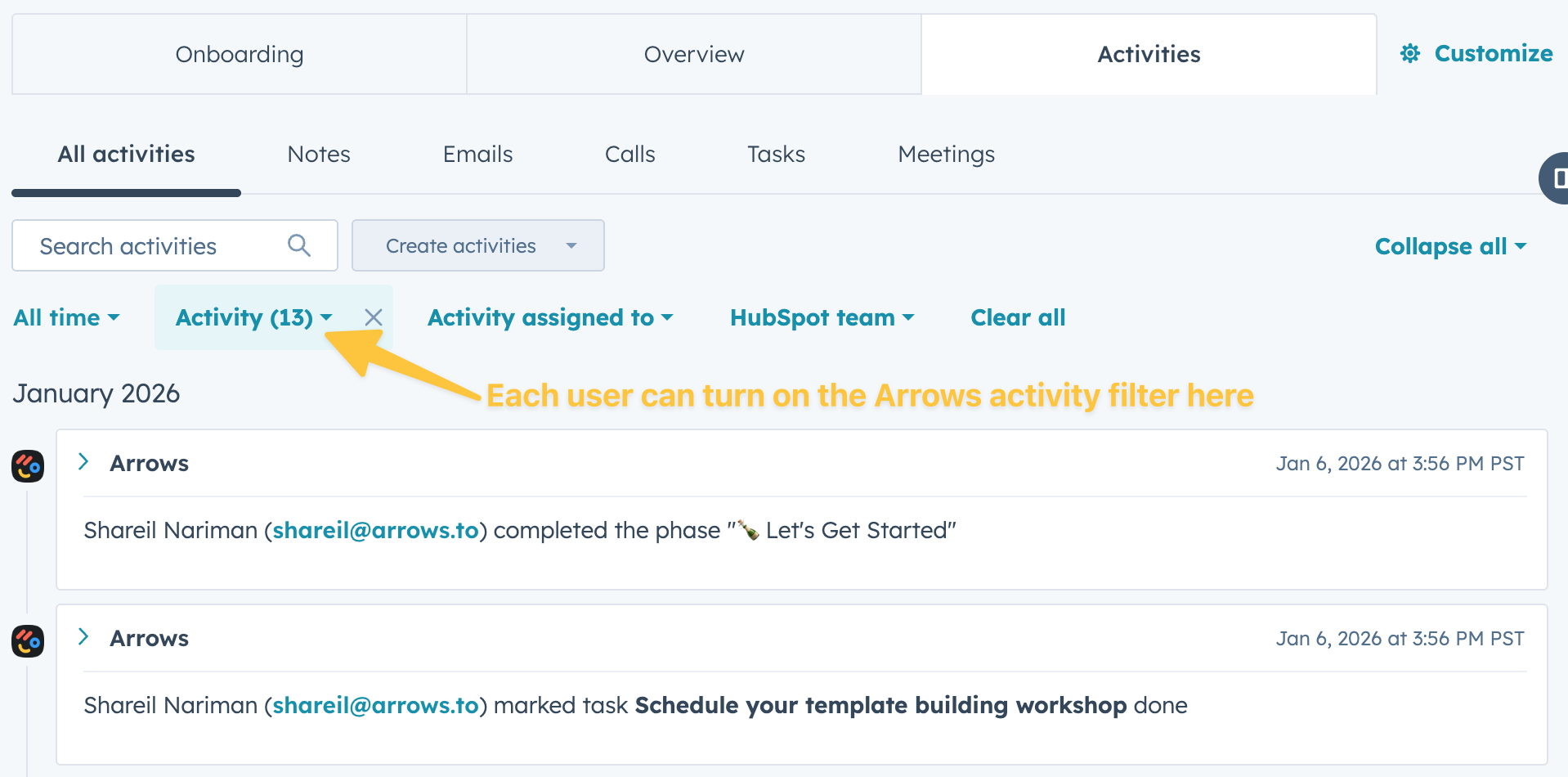
In addition to reports and automations, App Events will also appear in the timeline feed for the record the plan or room is connected to.
Using App Events in HubSpot Workflows
To use App Events in workflows:
In HubSpot, create a new workflow
Select an enrollment trigger based on custom events & external events
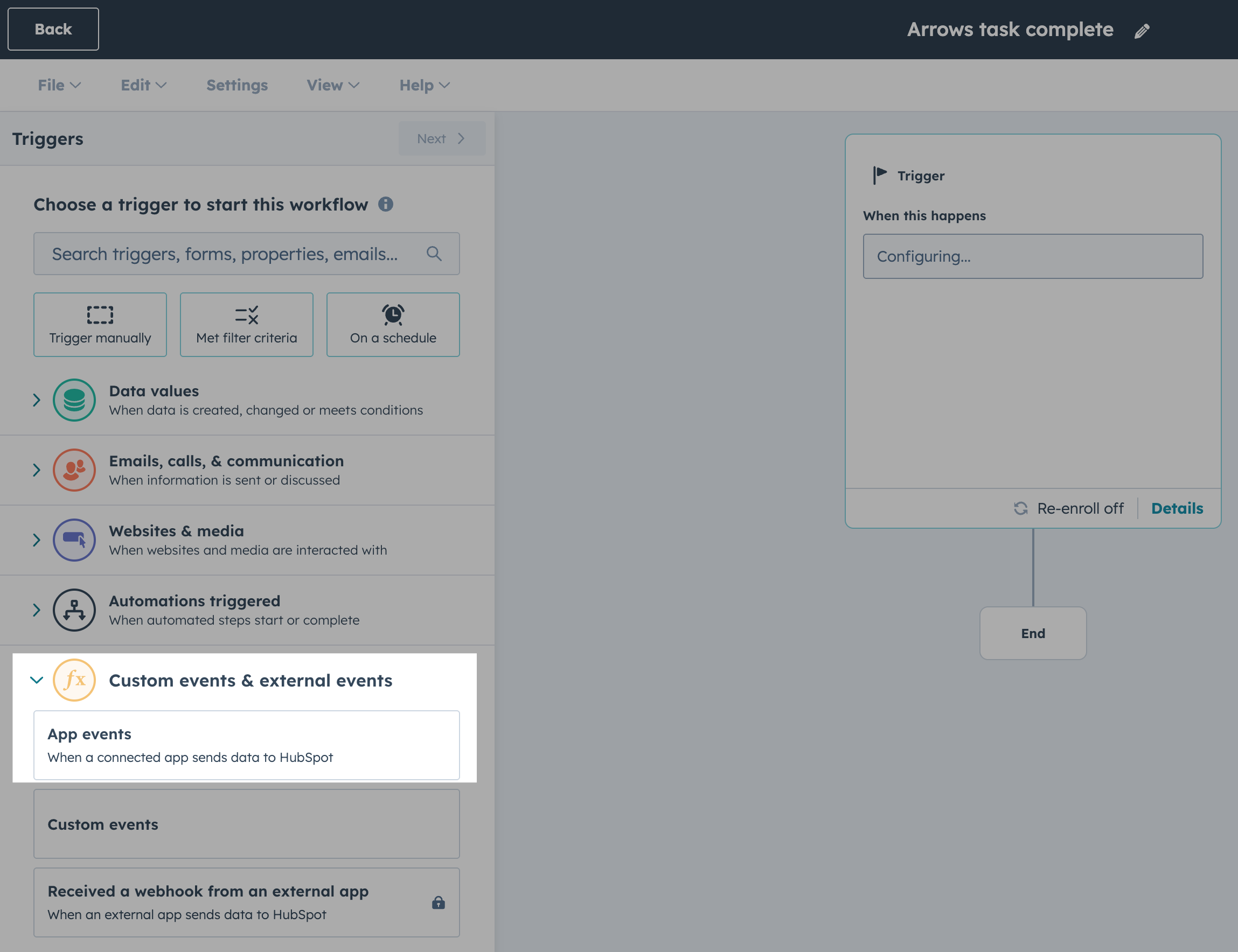
Select App events
Find the Arrows app event you want to use (in this example - Task done)
Set up your workflow
Arrows task done event has been completed
Task name contains "XYZ"
An action the workflow can trigger (in this case, creating a task)
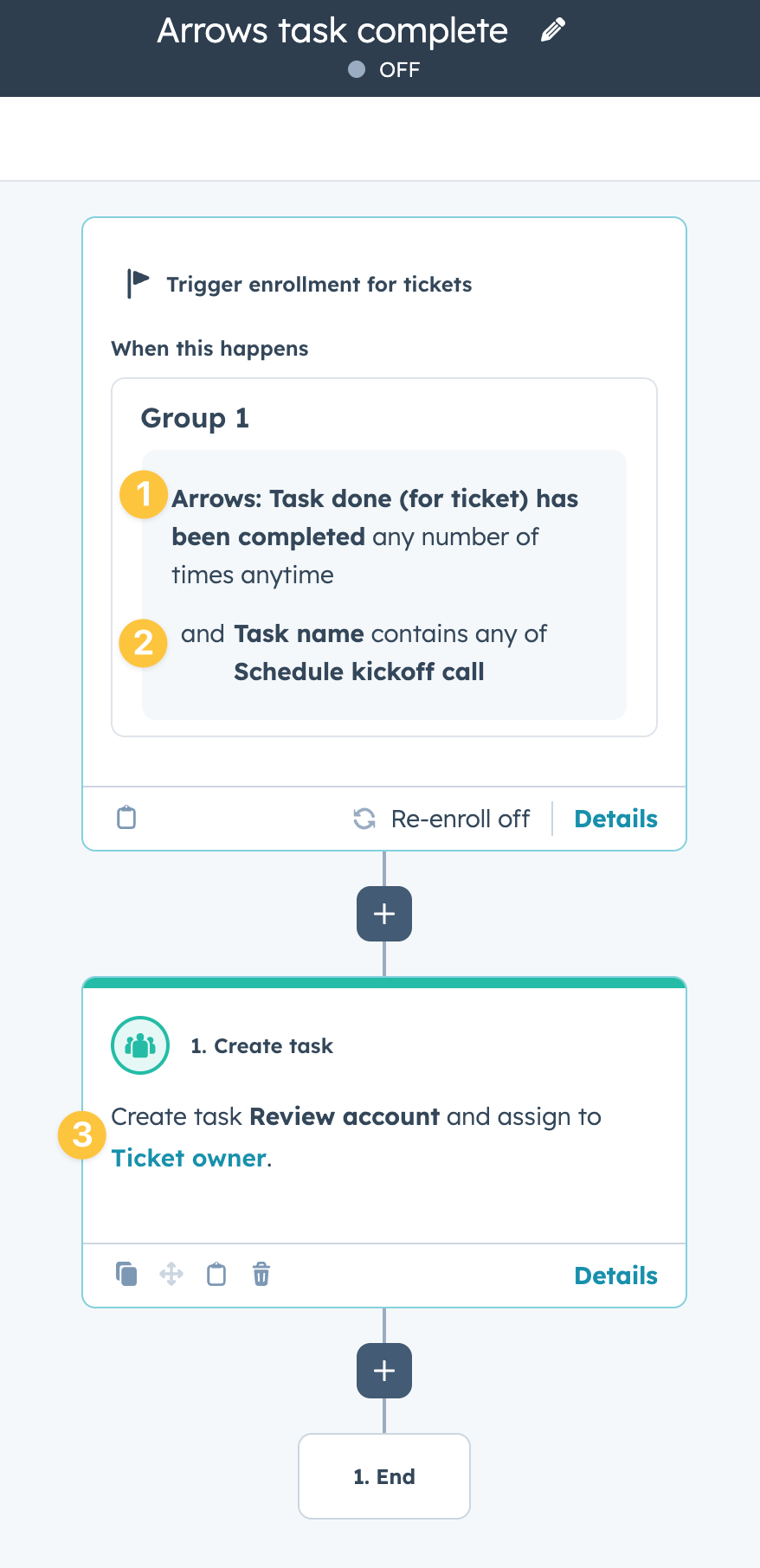
This is just one example of a way to use these App Events. Use them for pipeline tags, reports, and anything else you can do natively with App Events in HubSpot