Salesforce flows to create a room or plan automatically
This guide will walk you through setting up a flow that can automatically create an Arrows sales room or onboarding plan, depending on whichever you are wanting to automate.
In this example we will focus on creating a sales room, but the similar steps can be applied for creating an onboarding plan.
Note: plans and rooms can be created manually as well from the Arrows CRM card
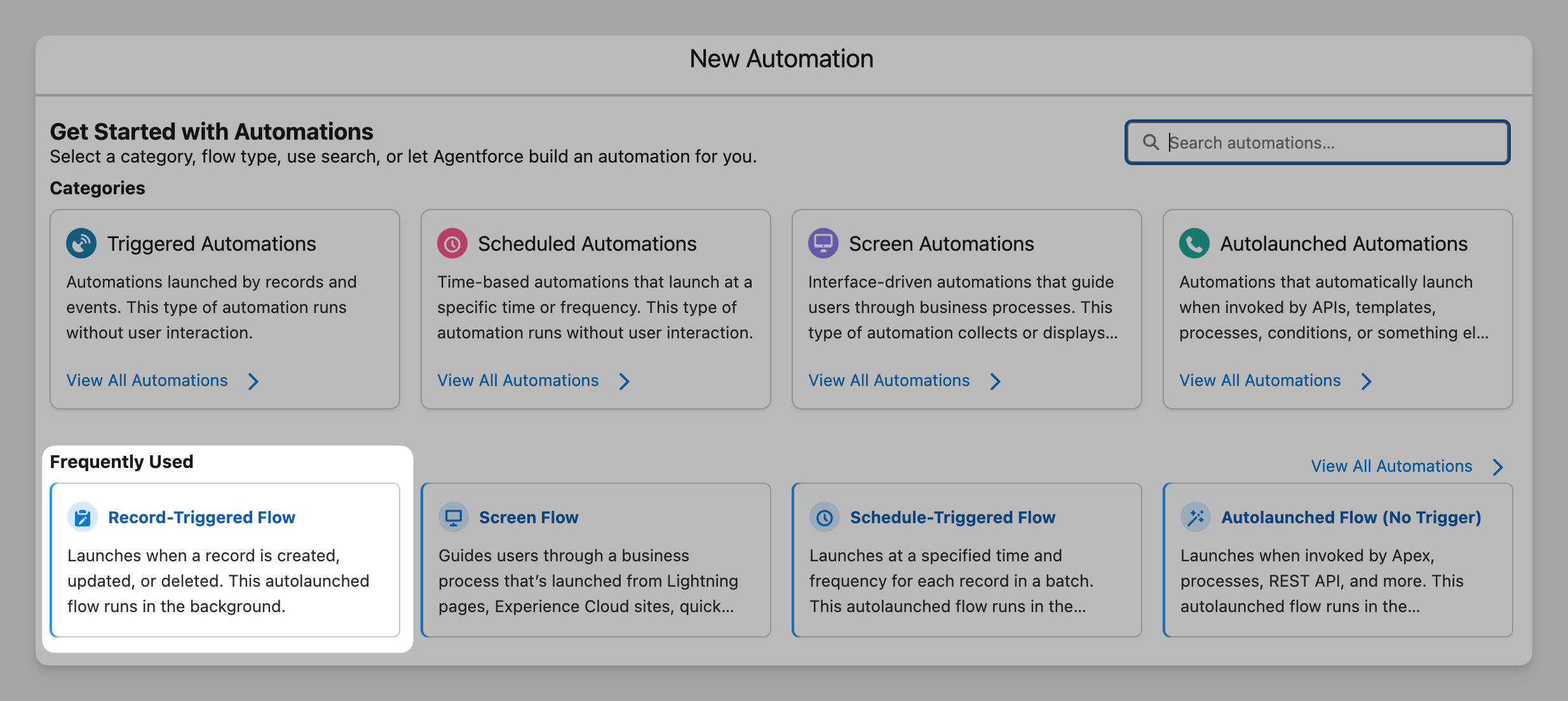
Start by creating a New Automation (Flow) and start with a Record-Triggered flow
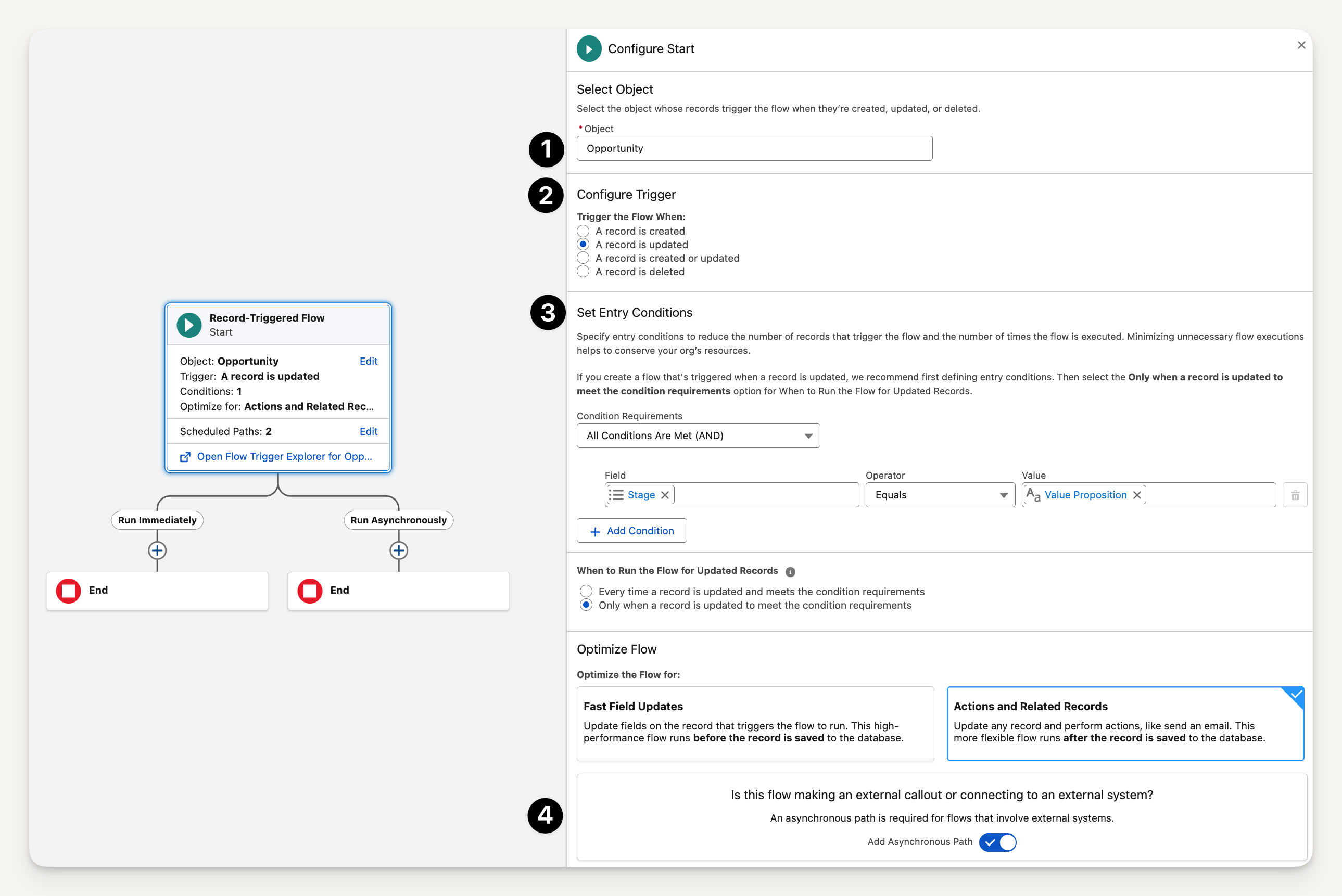
For the trigger setup:
Select the object type you want are using for your sales room (or onboarding plan)
Set the configuration trigger - in this example when a record is updated
Set the entry conditions - in this example when the opportunity reaches the "value proposition" stage
Turn on the option to Add Asynchronous Path since this flow is connecting to an external system (Arrows)
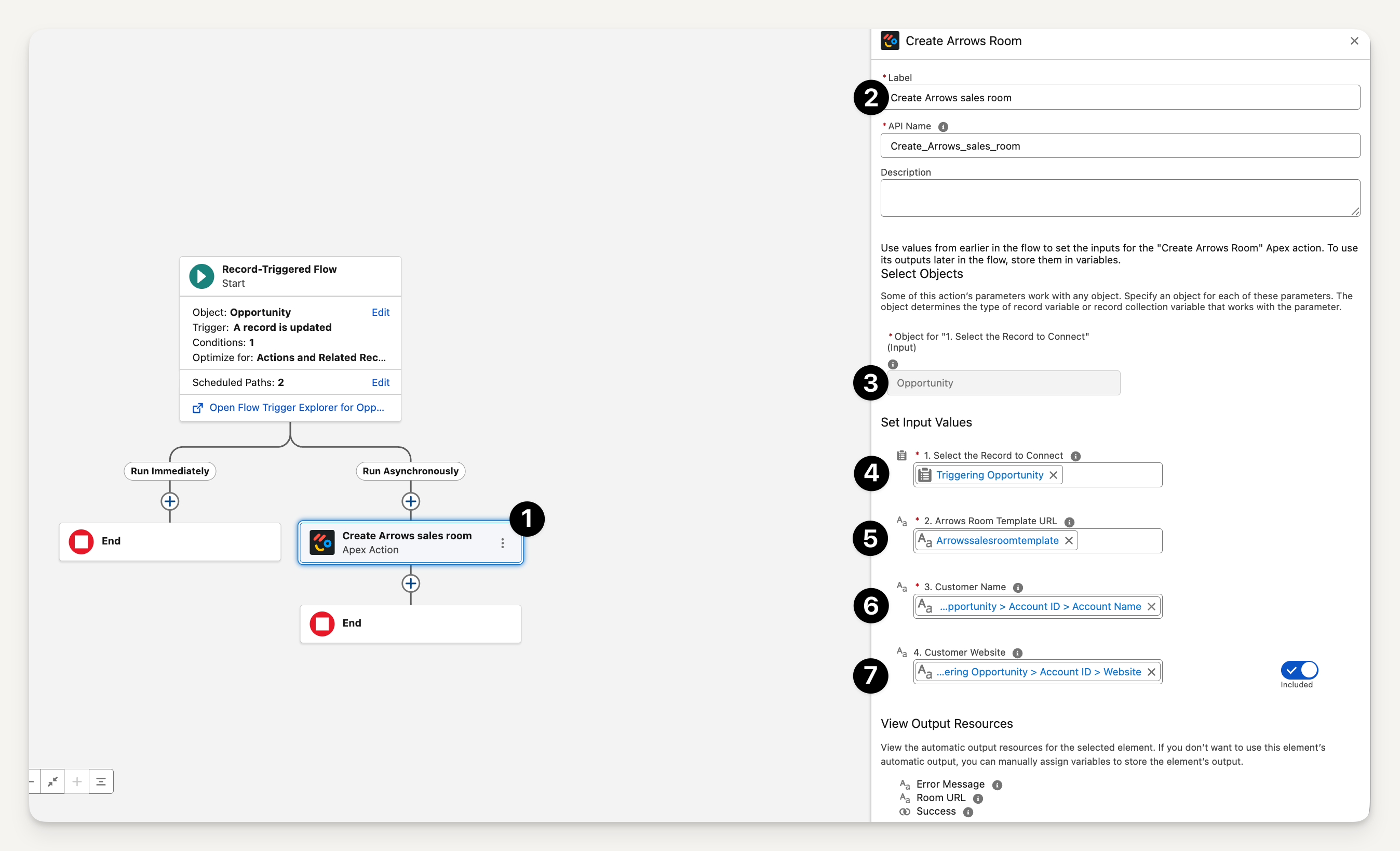
Add the Arrows create room (or plan) element
Search for "Arrows" when you add a new element and you'll find the options "Create Arrows plan" or "Create Arrows room" - in this example we are setting up a room
Add a label
Select the object - in this example opportunity
Select the record to connect - in this example the triggering opportunity
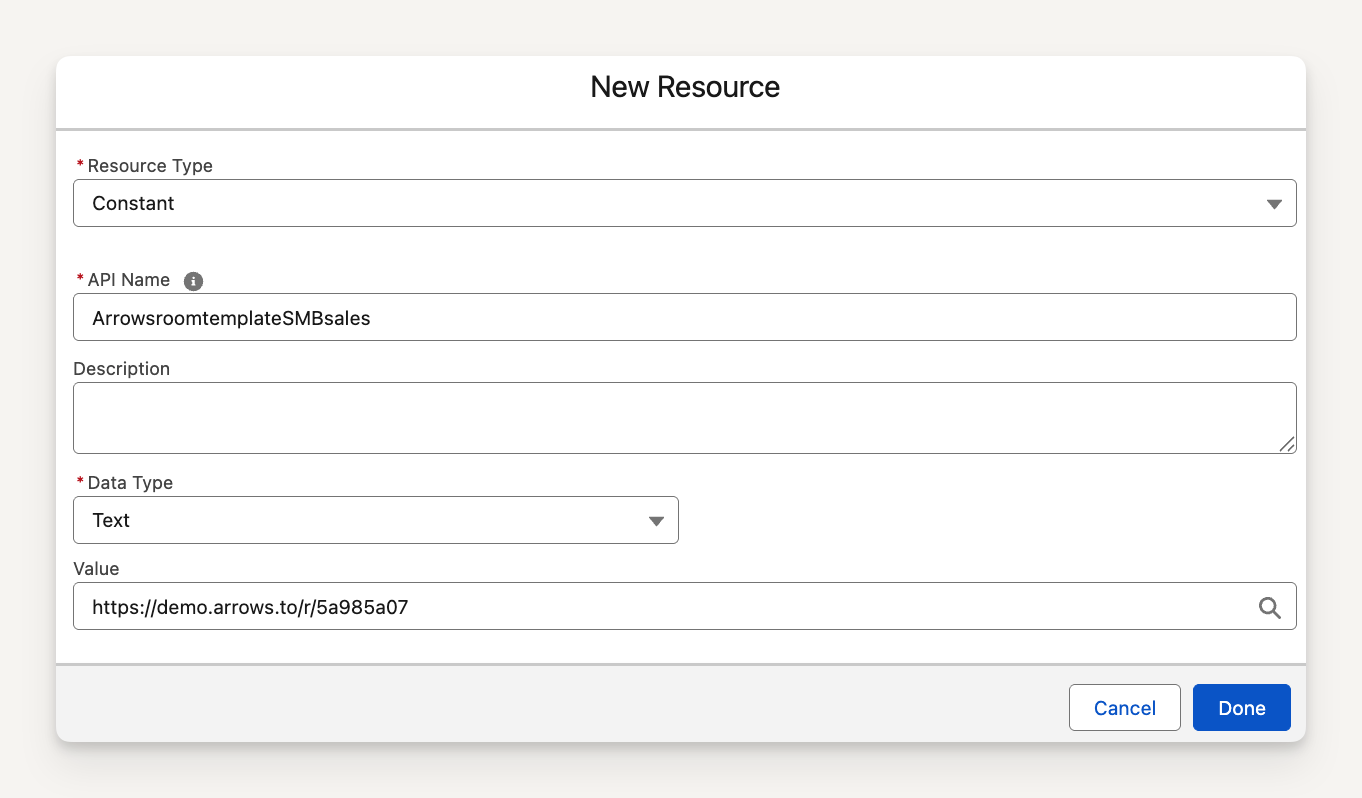
Add the Arrows room template URL
Add a new resource
Choose constant resource type
Give the resource a name
Choose text type
For the value, add the URL to the actual room template
Add the customer name
Triggering opportunity > Account ID > Account Name
Add the customer website
Triggering opportunity > Account ID > Website
Be sure to name and save your flow after you have added any additional elements or rules!
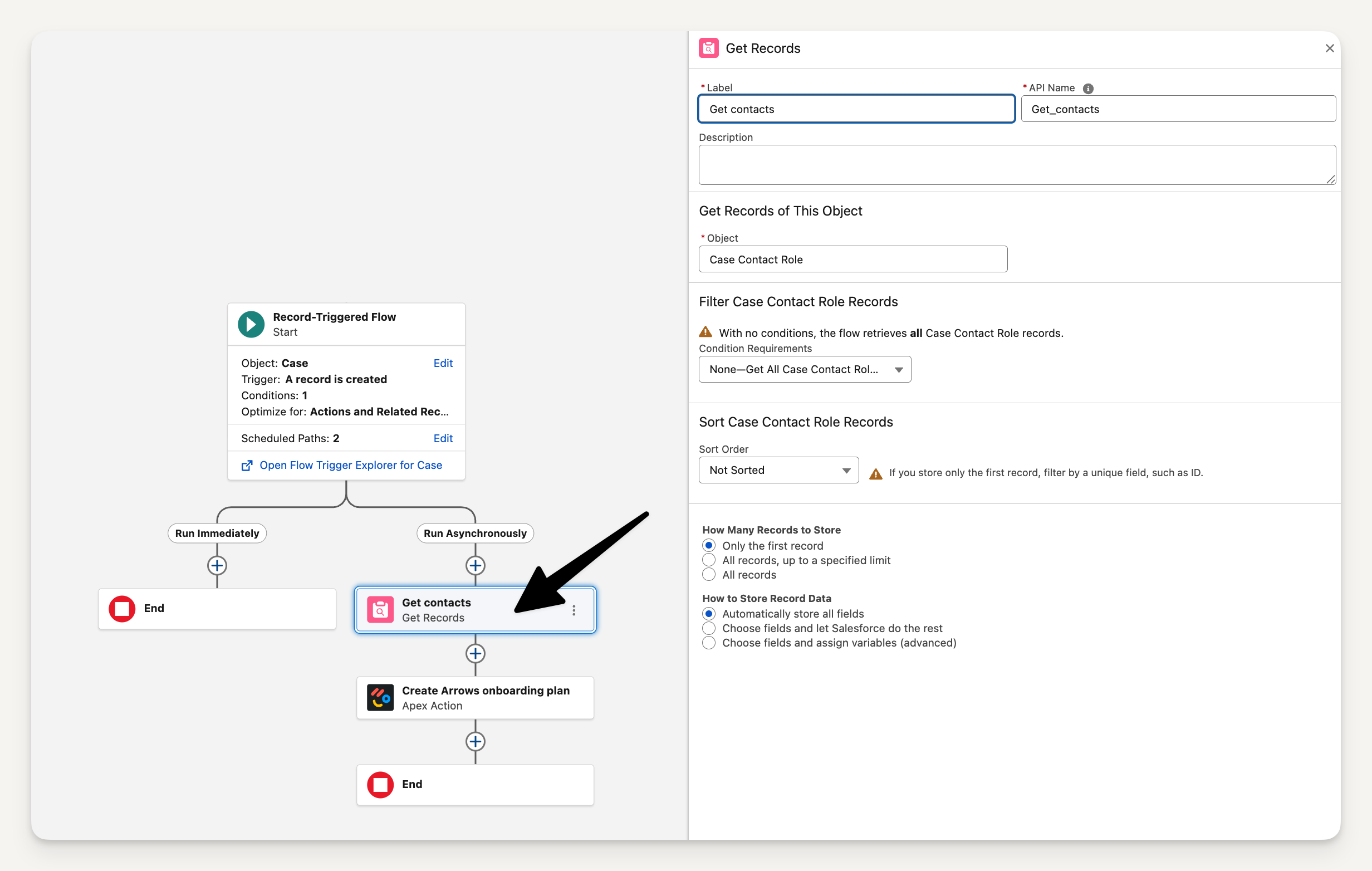
If you are adding this flow to create an Arrows onboarding plan, the steps above will need to correlate to the property object used for that process and you will need to add an extra element to Get contacts to add the contacts from the onboarding record to the plan: